Add On-Board Devices in a Batch
You can fill in required information of to-be-added on-board devices in an Excel file and upload it onto the platform to batch add them for management.
-
Make sure the devices you are going to add are correctly installed and connected to the network as specified by the manufacturers. Such initial configuration is required in order to be able to connect the devices to the HikCentral Professional via network.
-
Make sure you have activated the devices. Refer to Create Password for Inactive Device(s) for detailed instructions on activating devices.
-
On the top left of the Web Client, click
 > Device > Device and Server > On-Board Device.
-
Click Add.
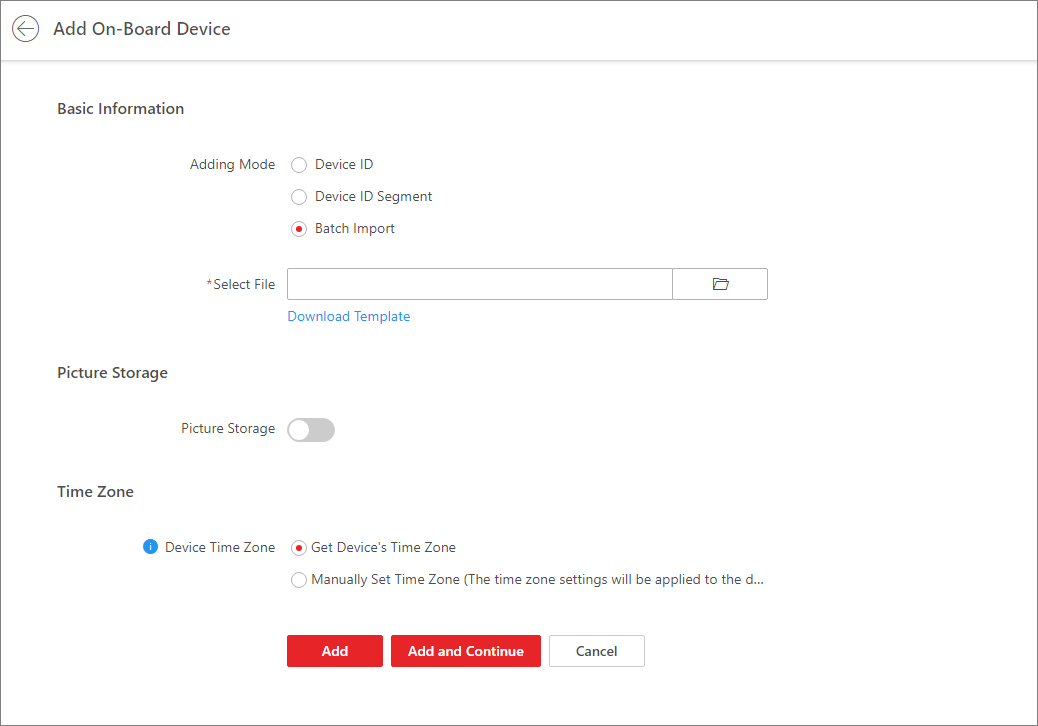 Figure 1 Batch Add
On-Board
Devices
Figure 1 Batch Add
On-Board
Devices -
Set basic information.
- Select Batch Import as the adding mode.
- Click Download Template to save the template file to your PC and fill in required information.
-
Click
 to select the file and
upload it to the platform.
to select the file and
upload it to the platform.
- Optional:
Perform the following operations after adding these
on-board
devices.
Option Description Edit On-Board Device
On the device list, click the name of an on-board device to edit it.
Configure On-Board Device Remotely
On the device list, click
 in the Operation
column to configure an
on-board
device remotely.
in the Operation
column to configure an
on-board
device remotely.Reset Device's Time Zone
On the device list, select one or multiple on-board devices and click Time Zone to edit their time zones.
Delete On-Board Device
Select one or multiple devices and click Delete to delete them.
Search for On-Board Device(s)
Enter key words in the search box and click
 to search for
specified
on-board
device(s).
to search for
specified
on-board
device(s).