Link External Device to Terminal
After adding terminals to the platform, you can link external devices such as cameras to the terminals for attendance, live view, or temperature screening.
-
Make sure the external device has been installed properly.
-
Make sure at least one online terminal is added to the platform.
-
On the top navigation bar, select
 > Basic Management > Device to enter the device management page.
-
Click
 in the Operation column of the
online device to enter the remote configuration page of the terminal.
in the Operation column of the
online device to enter the remote configuration page of the terminal.
-
In the Linked Device area, click
Add to enter the Add Device page.
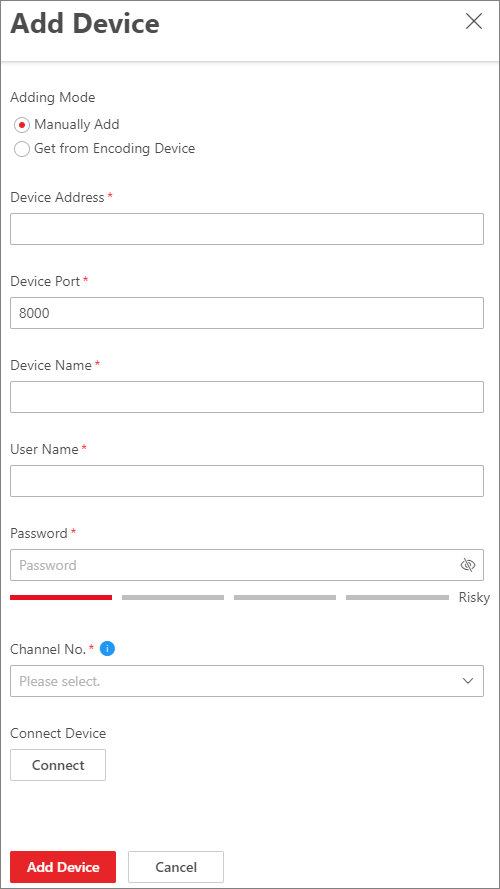 Figure 1 Add Device