Assign Schedule to Attendance Groups
After setting the shift, you need to assign it to an attendance group so that it will calculate the attendance records for persons in the group according to this schedule.
Make sure you have added an attendance group and persons. For details, refer to Add an Attendance Group and Add Person.
-
On the top left, select
 > Integrated Service > Attendance > Schedule > Attendance Group Schedule.
-
Set schedule parameters.
- Effective Period
-
The shift is effective within the period you set.
- Shift
-
Select a shift to be assigned.
Note:-
click View to preview the schedule.
-
Click Add to add another shift if needed. For operation details, refer to Add Shift.
-
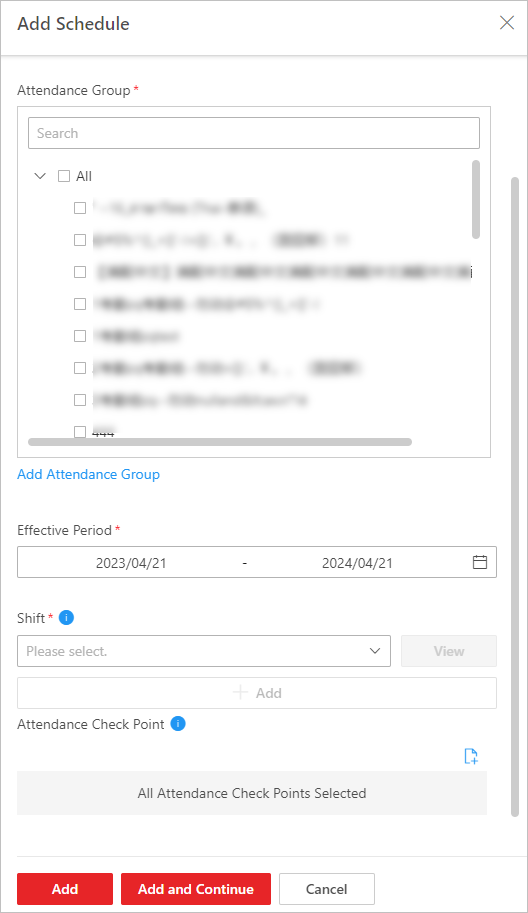 Figure 1 Add Schedule
 - Optional:
Click
 to select
attendance
check point(s) linked with the schedule.
Note:
to select
attendance
check point(s) linked with the schedule.
Note:Only authentications at the linked attendance check points will be counted.