Add an Attendance Group
For situations where users need to set exclusive attendance rules for specified employees, users can add the employees to an attendance group configured with attendance rules different from and prior to that of a department.
Make sure you have added the employees to the platform. See Add Person.
-
On the top left, select
 > Integrated Service > Attendance > Attendance Group.
-
On the Add Attendance Group pane, enter a name of the group.
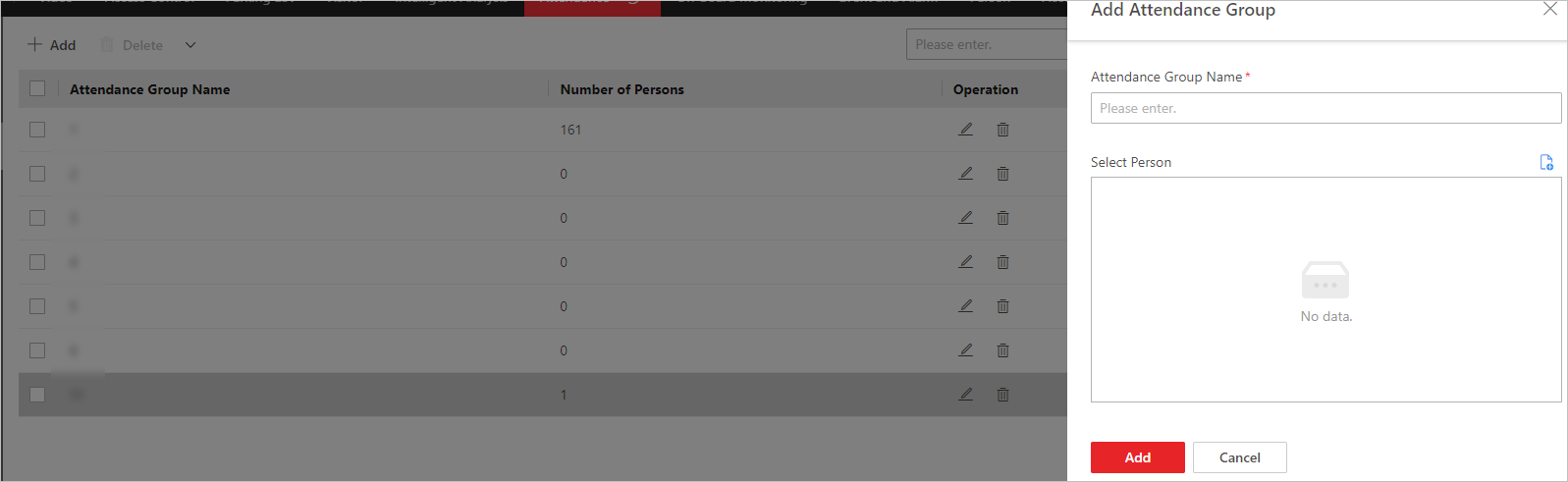 Figure 1 Add Attendance
Group
Figure 1 Add Attendance
Group -
Click
 and check persons in different
departments, and click Add to save the selections.
and check persons in different
departments, and click Add to save the selections.
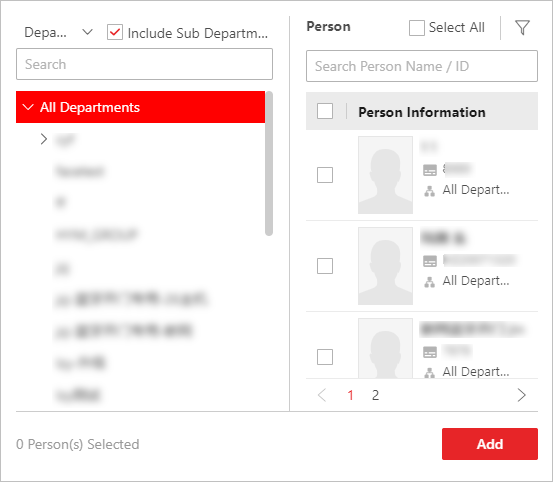 Figure 2 Add Persons to
Attendance GroupNote:
Figure 2 Add Persons to
Attendance GroupNote:You can click
 on the top left to
filter persons by additional information.
on the top left to
filter persons by additional information. -
Perform the following operations.
Option Description Edit an Attendance Group
Click
 and then edit the
group name or click to add persons to
the group.
and then edit the
group name or click to add persons to
the group.Add Persons to an Attendance Group
Click an added group to show persons on the right. Then click Assign To to add persons to the group.
Remove Persons from an Attendance Group
Click an added group to show persons on the right. Then check persons and click Unassign to remove the selected persons from the group. Or click
 > Unassign All to remove all persons from the group.
Set Display Mode of Each Column
Click
 to display each
column title completely/incompletely.
to display each
column title completely/incompletely.
Configure attendance rules for the group. See Configure Attendance Rules for Global / Department / Attendance Group.