Add Patrol Points
Before you create a patrol route and start a patrol, you need to add patrol points. You can set access points as patrol points, or generate QR codes to be patrol points. The patrol persons have to check in at the patrol points to perform the patrol.
Make sure you have configuration permissions for patrol management and permissions for related resources.
-
1. On the top left of the Web Client, select
 > Integrated Service > Patrol > Patrol Management > Patrol Point.
-
On the top left of the page, click Add.
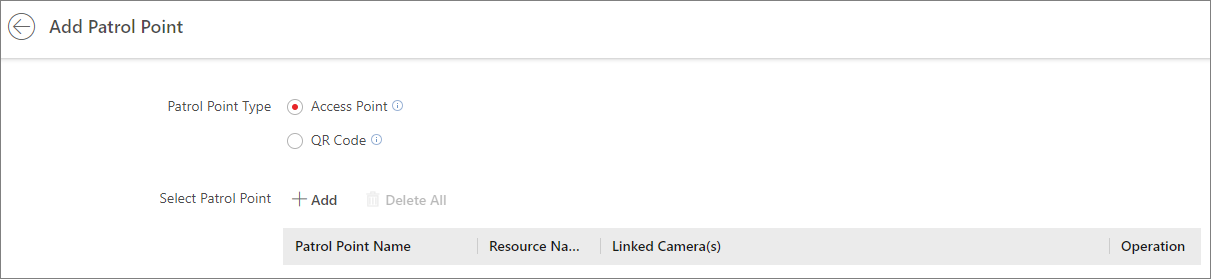 Figure 1 Add Patrol
Point
Figure 1 Add Patrol
Point - Optional:
Click Delete All to delete all patrol points, or
click
 to delete one patrol
point.
to delete one patrol
point.
-
Perform the following operations according to your
needs.
Option Description Filter Patrol Points
On the top right of the page, click
 , set the conditions
(patrol point name, patrol point type, linked cameras, resource, and
area) according to your needs, and click
Filter.
, set the conditions
(patrol point name, patrol point type, linked cameras, resource, and
area) according to your needs, and click
Filter.Delete Patrol Points
Select the patrol points to be deleted and click Delete.
Edit a Patrol Point
Click the name of a patrol point to enter the patrol point information page. You can edit the patrol point name and linked cameras.
View Thumbnails of Camera Views
In the Linked Camera(s) column, click
 to view the
thumbnails of the latest views of the linked cameras.
to view the
thumbnails of the latest views of the linked cameras.View/Download the QR Code of a Patrol Point
For a patrol point of QR code type, click
in the Patrol Point
Type column to view and download the QR code.