Add Patrol Schedule Template

You need to set the schedule template first in order to schedule a patrol.

Make sure you have configuration permissions for patrol management.

  1. On the top left of the Web Client, select > Integrated Service > Patrol > Patrol Management > Schedule Template.
  2. Click Add Schedule Template.
    Note:

    If you have already added a schedule template before, click on the top left of the page to add another one.
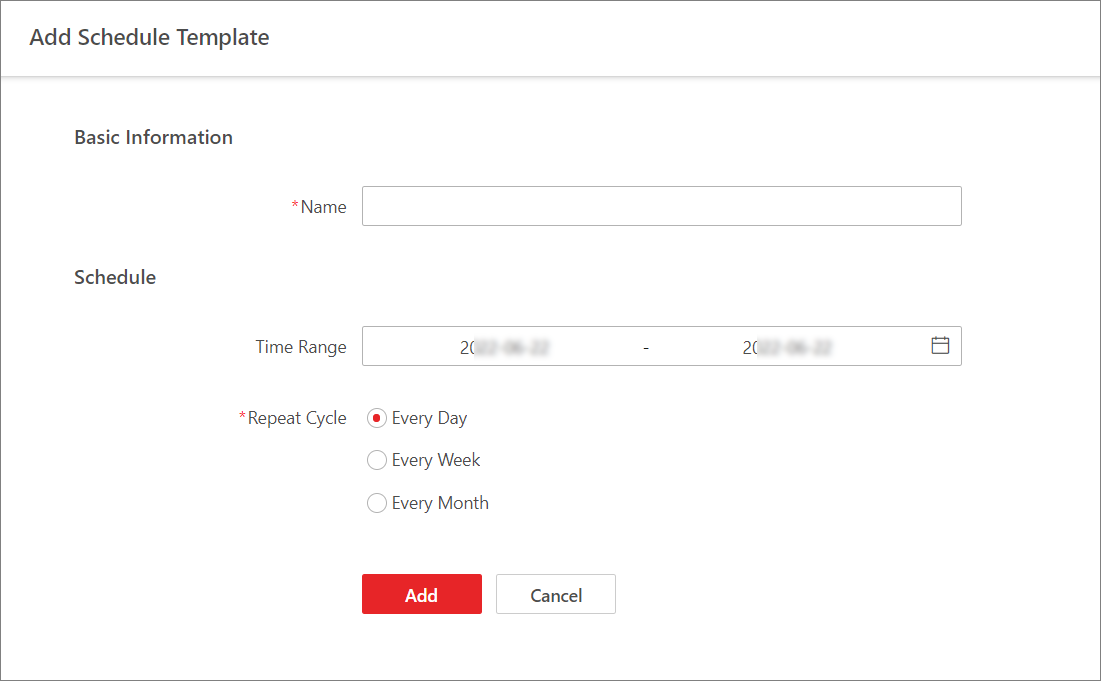
    Figure 1 Add Schedule Template
  3. Enter a name for the schedule template.
  4. Set a validity period for the schedule template.
  5. Choose a repeat cycle for patrol scheduling.
    Every Day

    Patrols will be scheduled for each day of the set time period.

    Every Week

    Patrols will be scheduled on the selected days of every week within the set time period.

    Every Month

    Patrols will be scheduled on the selected dates of every month within the set time period.

  6. Click Add.

    The added schedule templates will be displayed on the left pane.

  7. Optional: Perform the following operations according to your needs.
    Option Description

    Edit a Schedule Template

    Select a schedule template and edit its configuration accordingly, including the name, time range, and repeat cycle.

    Delete a Schedule Template

    Select a schedule template and click Delete.

    Note:

    Schedule templates cannot be deleted if being linked with shift schedules of a patrol route.

    Search for Schedule Templates

    On the left pane, enter keyword(s) in the search box to search for schedule templates.