Other Related Functionality
You can do other operations, such as viewing site details, viewing history external linkage, editing permission, handing over site to others, etc.
Tap to enter the Site Management page.
Make sure you have been the owner of at least one site, and have authorized device(s) on the site to the Installer. Or the menu cascade above will be unavailable.
On the Hik-ProConnect page, you can do the following operations.
View Site Details
On the Hik-ProConnect page, you can view the site owned by you. You can tap a site to enter the Site Details page to view the details of the site, including details of the Installer who is managing the devices of the site, site name, the devices of the site, and the ARC information.
Edit or Copy Site Information
-
Edit Site Name: Tap a site to enter the Site Details page, and then tap a site name to edit it.
-
Copy Information: Tap a site to enter the Site Details page, and then tap
 to copy the site ID. You can
also tap View Details on the Site Details page and
then tap to copy the site ID,
website, or address of the Installer.
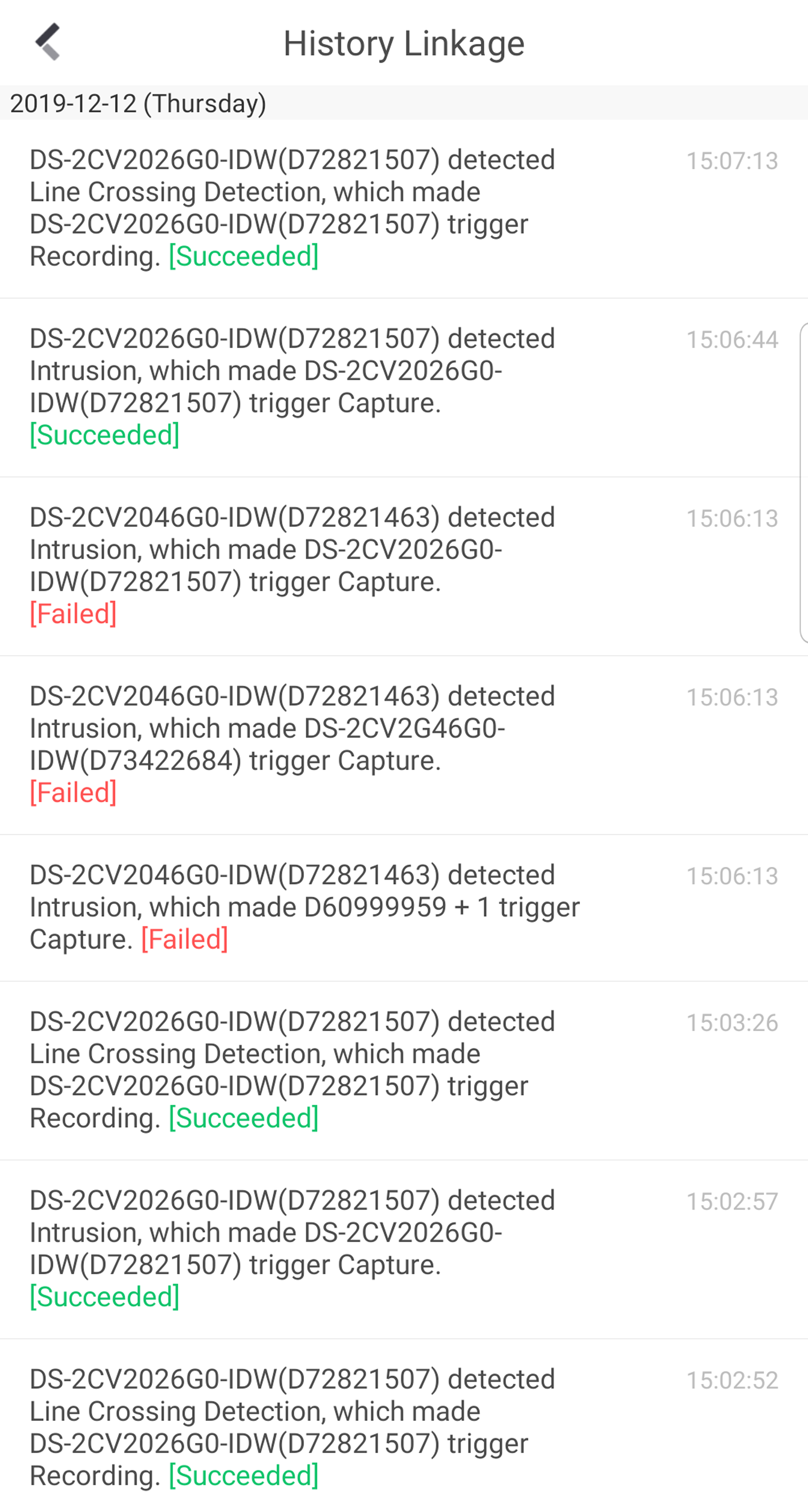
View History External Linkage
Tap  to view the history external
linkages and the linkage results (succeeded or failed). The external linkage refers
to the process in which an event detected by device A triggers actions of device B,
device C, device D, and so forth. You can configure such a linkage (the
configuration is called as "Configuring External Linkage Rule) on Hik-ProConnect.
For details, see the user manual of the Hik-ProConnect Portal.
-
The retention period of the history external linkage is 30 days.
-
The information of the external linkages will not be pushed to you as notifications.
Edit Permission
Tap a site to enter the Site Details page, and then tap  > Edit Permission to edit the permissions authorized to the Installer.
Hand Over Site
Tap a site to enter the Site Details page and tap > Site Handover, and then enter the registered mobile phone number or email address
of the user or Installer to finish handover.
Cancel Authorization
Tap a site to enter the Site Details page and tap > Cancel Authorization to cancel all authorizations (related to site and the devices on the
site) to the Installer.