Use Mobile Client as Device's Remote Controller
For a device added via IP/Domain, you can use the Mobile Client as the device's remote controller.
-
The function should be supported by the device.
-
The remote controller function is supported when your phone or tablet is connected to a Wi-Fi network, and the network latency should be less than 200ms.
-
Enter the Settings page.
-
On the device list page, if the page is in the list mode, swipe the device name to the left and tap
 .
-
On the device list page, if the page is in thumbnail mode, tap the device's name or tap
 .
-
On the Live View page. Tap
 and then tap
Settings. Note:
For details about how to enter the Live View page, see Start and Stop Live View.
-
-
Tap
 and tap Remote
Controller to enter the following page.
Figure 1 Remote Controller Page
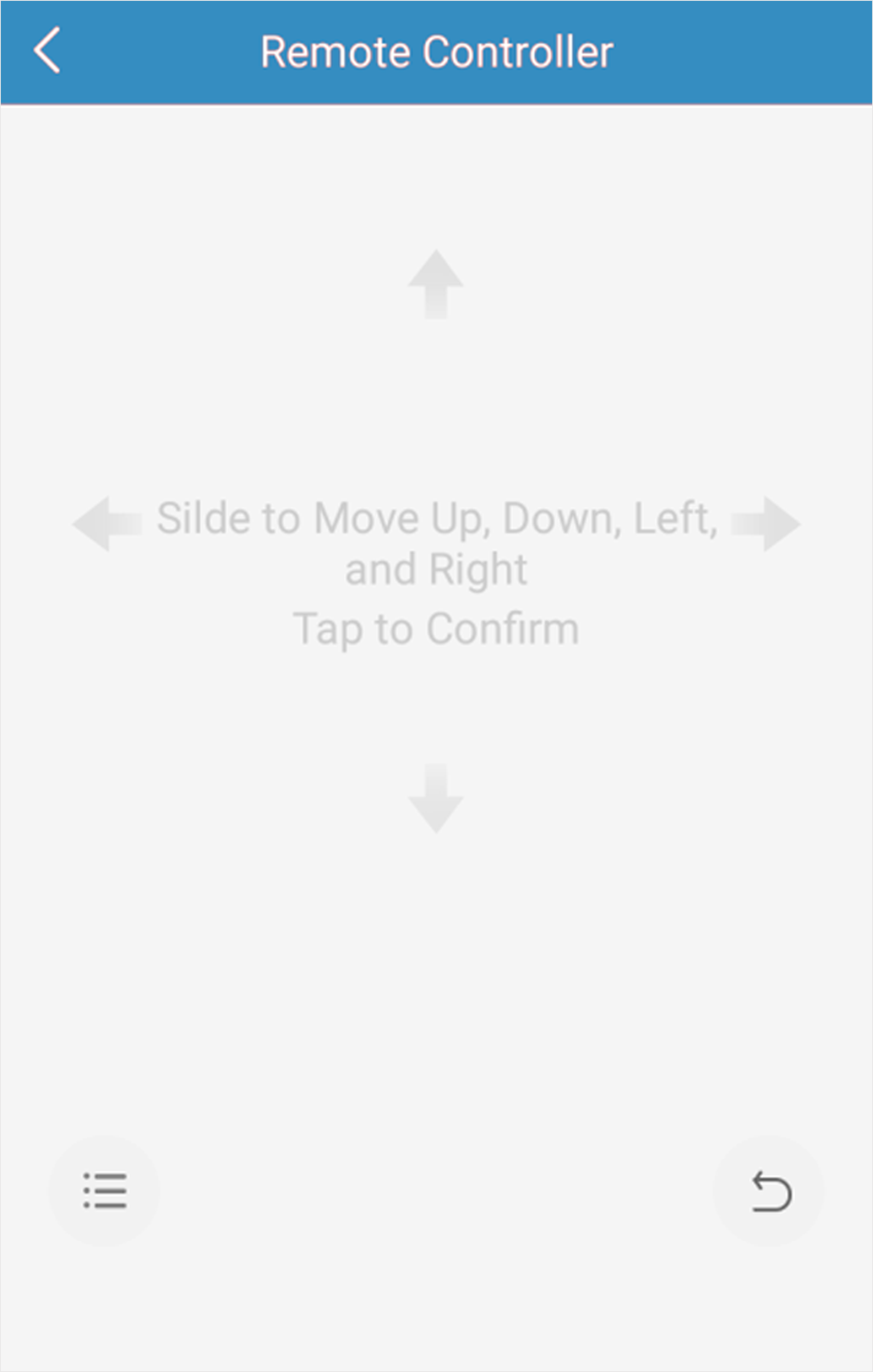
- Optional:
Tap
 to cancel and return to the previous menu of the
device.
- Optional:
Tap
 to open the main menu of the device.