Add pStor Cluster Service
pStor cluster service is a service that can manage multiple pStors and the connected disks of pStors. When there are multiple pStors storing a large number of video files, you can add pStor cluster service to the HikCentral Professional for managing pStors. It is also an efficient way to add multiple pStors.
Make sure the pStor cluster services you are going to use are correctly installed and connected to the network as specified by the manufacturers. Such initial configuration is required in order to be able to connect the devices to the HikCentral Professional via network.
-
In the top left corner of Home page, select
 > Basic Management > Device.
-
Click Add to enter the Add Recording Server page.
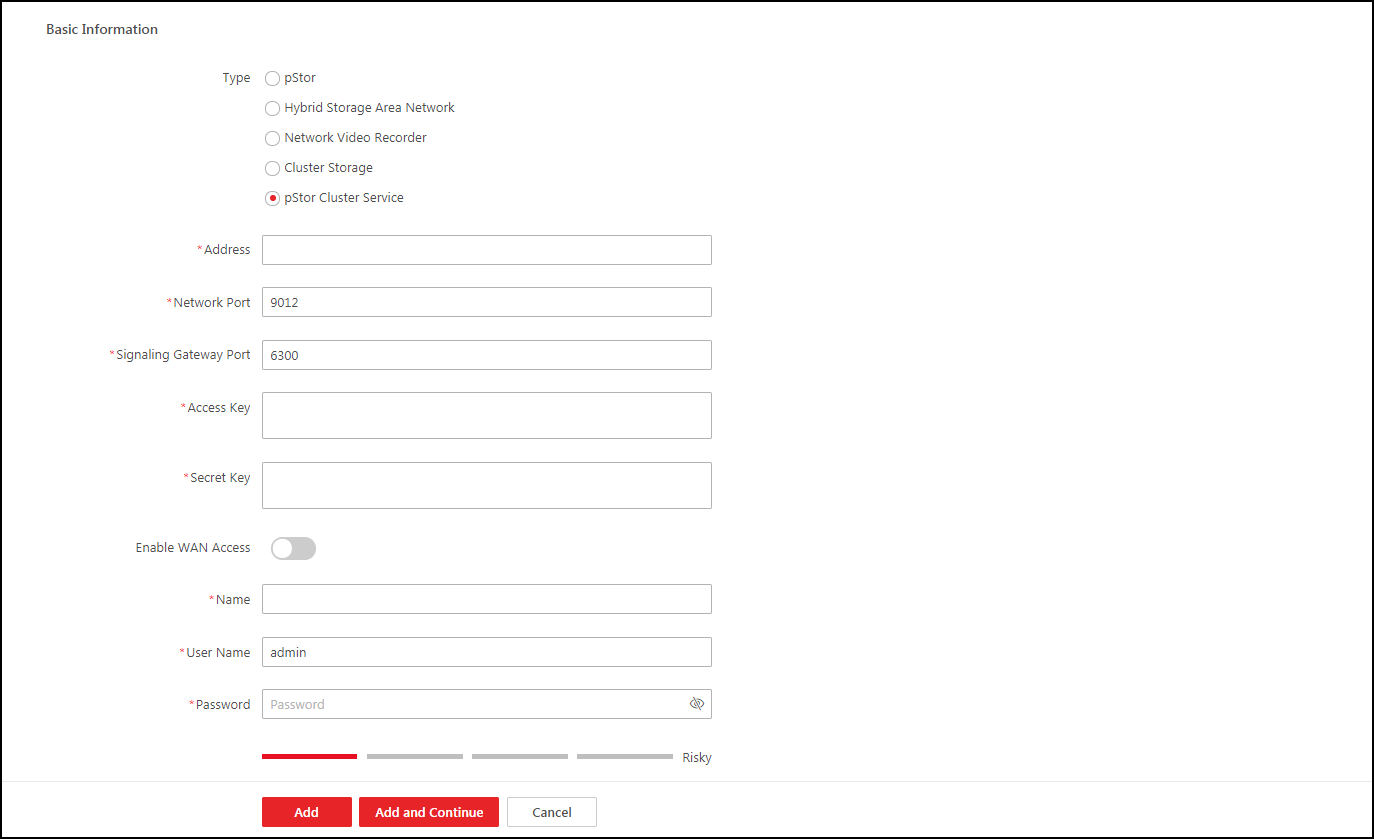 Figure 1 Add Recording Server PageNote:
If the NTP server is not configured, a prompt will appear on the top of the page. You can click Configure to set the time synchronization. See Set NTP for details.
- Optional:
Perform the following operations after adding the server.
Option Description Edit Server
Click Name field of the server and you can edit the basic information of the server, view its connected device(s) storage information.
Delete Server
Select the server(s) from the list, and click Delete to remove the selected server(s).
Configure Server
Click
 in the Operation column to enter the
login interface of the pStor cluster service. You can log in and configure the pStor
cluster service.
in the Operation column to enter the
login interface of the pStor cluster service. You can log in and configure the pStor
cluster service.Search for Server
Enter keyword(s) in the search box in the top right corner to search for the target server(s).