Create People Counting Program
You can create people counting program on the platform. The program is used to display the people counting information (the remaining people and people stayed) in a certain location, mask information, and skin-surface temperature information. For people with no masks or whose temperature is abnormal, you can enable voice alarm for them. The platform provides two types of templates for different application scenarios: People Counting & Temperature Screening template, and Temperature Screening template. You can select a template according to the actual scene and edit the predefined template. After creating the program, you can preview the program, cut in program, etc.
You have added terminal(s) to the platform and have linked a device that supports people counting or temperature screening function with the terminal. For details, refer to Add Digital Signage Terminal and Link External Device to Terminal.
-
On the top navigation bar, select
 > Integrated Service > Digital Signage to enter the digital signage page.
-
Select a template type and the corresponding template as needed.
Note:
-
You can click
 to add the template to My Favorites. Up to 1,000 templates
can be added to Favorites.
to add the template to My Favorites. Up to 1,000 templates
can be added to Favorites. -
You can click
My Favorites in the lower-left corner to view
and select the templates that have been added to Favorites.
-
-
Click OK to enter the creating program page.
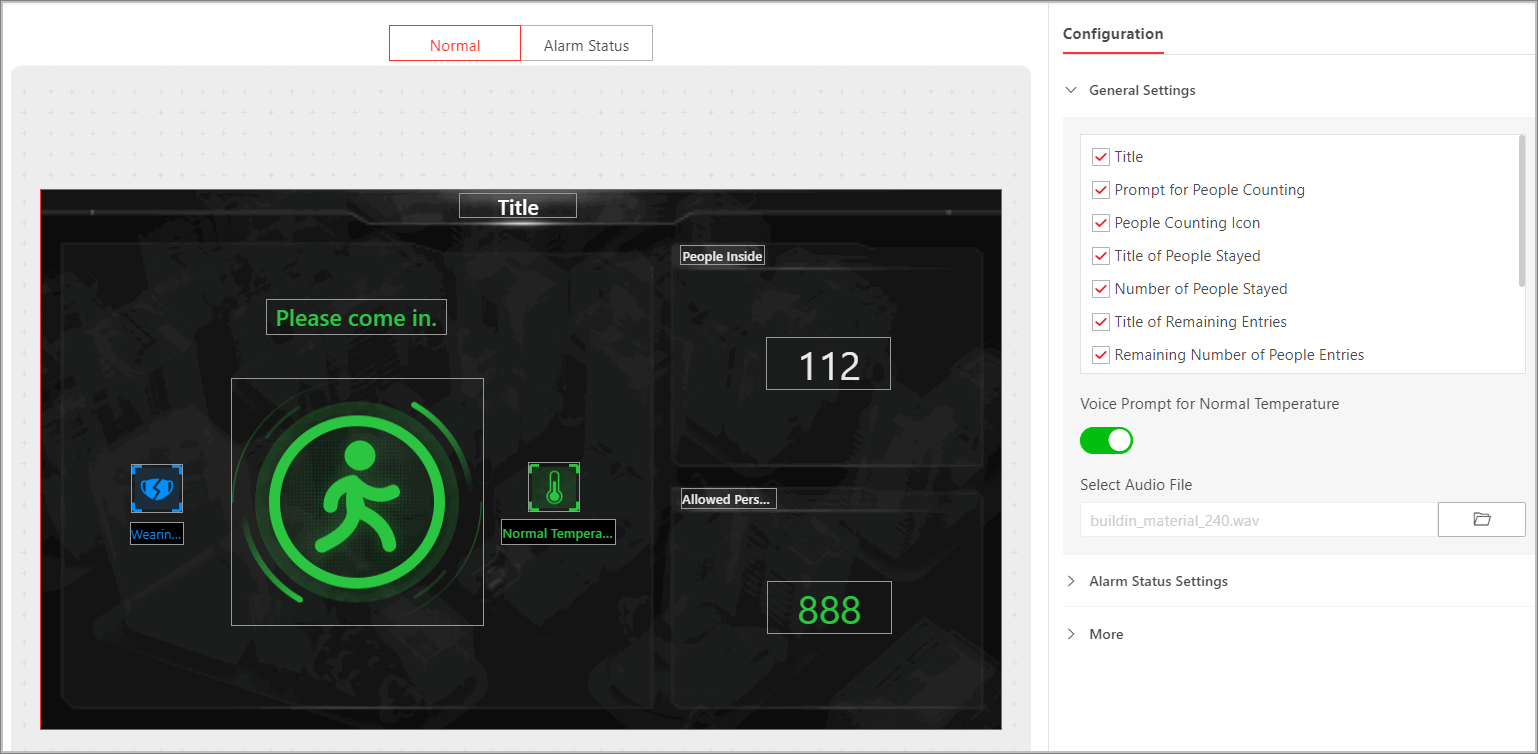 Figure 1 Create Program
- Normal
-
The program only contains the people counting related information, such as remaining entry and people stayed.
- Alarm Status
-
The program contains mask information, abnormal temperature information, and people counting related information.
- General Settings
-
You can check whether to display title and people counting related information, such as prompt for people counting, people counting icon, and the number of people stayed. If you check Title, you can configure the font size and color for the title. You can enable audio prompt for normal temperature and select the corresponding audio file. The configurations in this area will be applied to Normal and Alarm Status simultaneously.
- Alarm Status Settings
-
You can check whether to display alarm status related information, such as prompt for abnormal temperature; set maximum people stayed; enable voice alarm for no mask, abnormal temperature and people full, and configure the corresponding audio file for them.
- Advertisement Settings
-
You can add advertisements (pictures, videos, etc.) to the program, and configure switching effect and playing time for the advertisements.
Note:Only when selecting People Counting & Temperature Screening Template, you can configure advertisements.
- More
-
Click
 to set the background picture and
the alarm picture for the current program.
to set the background picture and
the alarm picture for the current program.
- Optional:
On the current editing program page, perform the following operations if needed.
Option Description Edit Program
Click
 to edit program parameters in the
pop-up window. For details, refer to Step 3.
to edit program parameters in the
pop-up window. For details, refer to Step 3.Preview Program
Click Preview to preview the program.
During previewing, you can click
 or
or  to pause or start playing; click
 or
or  to adjust the playing speed as 1x, 2x,
or 4x; and click
to adjust the playing speed as 1x, 2x,
or 4x; and click  to preview the program in
fullscreen.
to preview the program in
fullscreen.Cut In Program
Click Cut In to cut in the current program.
Note:For details, refer to Cut in Program.
Create Schedule
Click Next to enter the managing schedules page and create a schedule for the program.
Note:For details, refer to Schedule Management.
- Optional:
On the program list page, perform the following operations if needed.
Option Description View Program in List or Thumbnail Mode
Click
 /
/ to view the added programs in the thumbnail mode or in the
list mode.
to view the added programs in the thumbnail mode or in the
list mode.Add Program to Favorites
Click
to add the current program to
Favorites.Preview Program
Click
 to preview
the program.
to preview
the program.During previewing, you can click
or
to pause or start playing; click or
to adjust the playing speed as 1x, 2x, or 4x; and click to preview
the current page in fullscreen.Copy Program
Click
 to enter editing program page. Click
Save on the upper right corner to copy the current program,
and a new program with the same content is created.Note:
to enter editing program page. Click
Save on the upper right corner to copy the current program,
and a new program with the same content is created.Note:When copying a program (e.g., Program A) for the first time, the name of the new program (Program A_1) will be generated automatically. If you need to copy this program (Program A) for a second or more times, you should manually edit its name, or the program cannot be created successfully.
Cut In Program
Click
 to cut in the current program. For
details, refer to Cut in Program.
to cut in the current program. For
details, refer to Cut in Program.Create Schedule
Click
 to enter the managing schedules page and create a schedule
for the program. For details, refer to Schedule Management.
to enter the managing schedules page and create a schedule
for the program. For details, refer to Schedule Management.Enlarge Program Page
Click
 to enlarge the program page and view
it.
to enlarge the program page and view
it.Filter Program
Click
 , and filter programs by conditions
such as name and sharing property.
, and filter programs by conditions
such as name and sharing property.Refresh Program List
Click Refresh to refresh the program list. The programs will be listed according to the time they were added.
Delete Program
Check one or more programs, and click Delete to delete the selected programs.
Note:Programs that are releasing or cutting in cannot be deleted.