Add Emergency Mustering Text Notification
You can add emergency mustering text notifications on the platform by configuring related parameters, and the added text notifications will be displayed on the digital signal terminals when the emergency is triggered.
Make sure you have added devices to the platform. For details, refer to Manage Digital Signage Terminals.
For one device, only the latest added text notification can be displayed.
-
On the top navigation bar, select
 > Integrated Service > Digital Signage to enter the digital signage page.
-
Click to enter Add Text Notification page.
Note:
Click Configure Now if you have not added a text notification before.
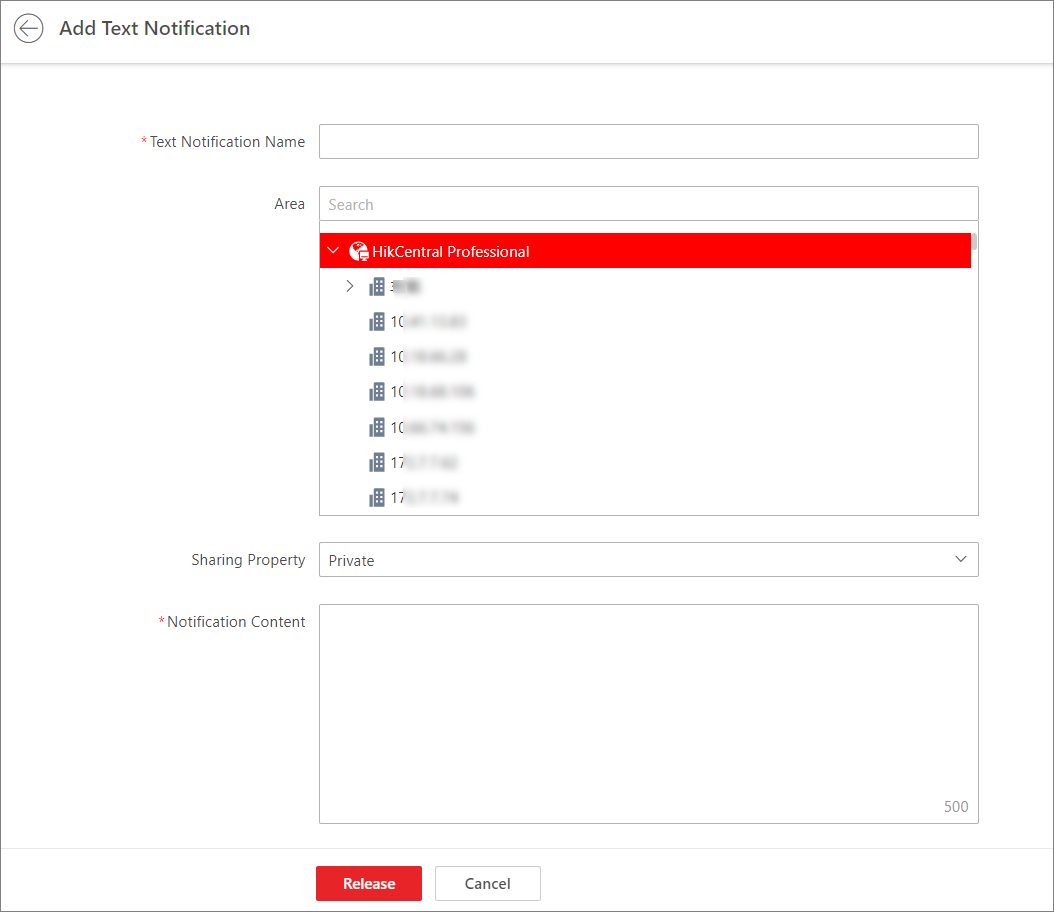 Figure 1 Add Text Notification
 - Optional:
Perform the following operations.
Option Description View Text Notification in List/Thumbnail Mode
Click
 /
/ to view the added text notifications in the thumbnail mode or
in the list mode.
to view the added text notifications in the thumbnail mode or
in the list mode.Copy Text Notification
Click
 to enter the adding text notification
page. A new text notification which is of the same content as the original one will
be displayed. You can edit the content before releasing the new text notification,
or click Release to release the current text notification
directly.Note:
to enter the adding text notification
page. A new text notification which is of the same content as the original one will
be displayed. You can edit the content before releasing the new text notification,
or click Release to release the current text notification
directly.Note:If you do not reselect device(s) for the new text notification, the previous text notification(s) configured on the device(s) will be invalid and will not display any more.
View Device Release Details
Click
 to view
release details of the text notification on the device.
to view
release details of the text notification on the device.Filter Text Notification
Click
 , and filter text notifications by conditions such as name and
sharing property.
, and filter text notifications by conditions such as name and
sharing property.Refresh List
Click Refresh to refresh the text notification list.
Delete Text Notification
Check one or more text notifications, and click Delete to delete the selected text notifications.