Create Multimedia Program
Multimedia program can be used in multiple application scenarios (e.g., playing a program related with commodity information at the entrance of a chain supermarket), helping to spread information in a convenient and efficient way.
-
On the top navigation bar, select
 > Integrated Service > Digital Signage to enter the digital signage page.
-
Select a template type and the corresponding template as needed.
Note:
-
You can click
 to add the template to My Favorites. Up to 1,000 templates
can be added to My Favorites.
to add the template to My Favorites. Up to 1,000 templates
can be added to My Favorites. -
You can click
My Favorites in the lower-left corner to view
and select the added template.
-
-
Click OK to enter the creating program page.
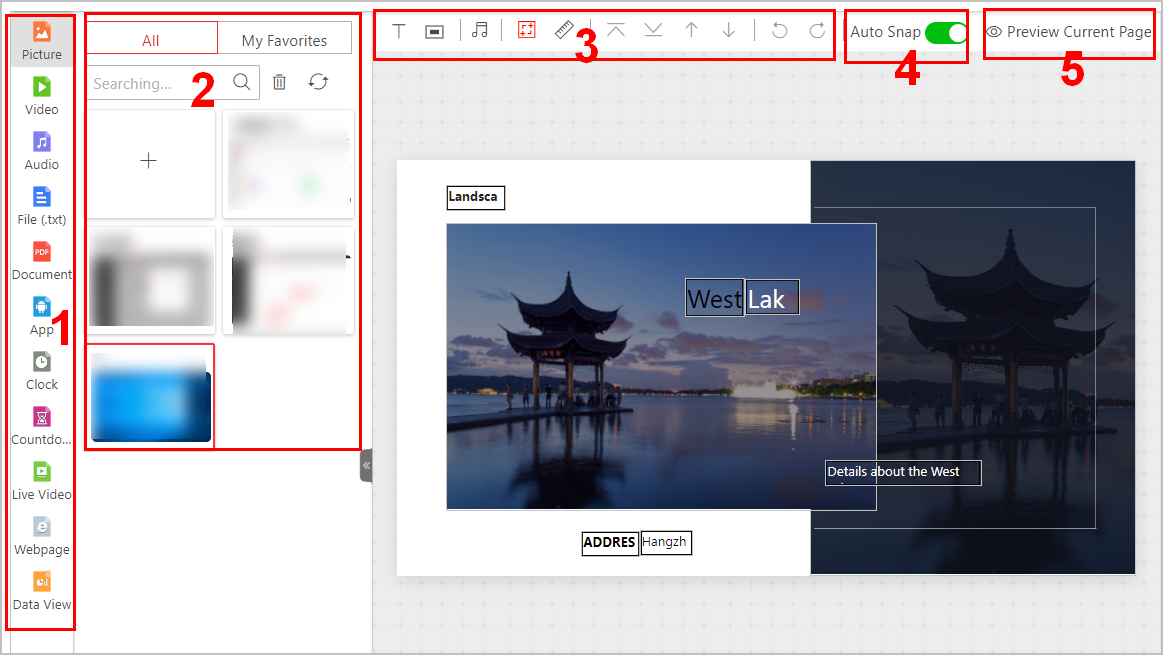 Figure 1 Create Program
Table 1 Page Description Number
Description
1
There are multiple types of windows. An audio window cannot be added with a video window or live video window at the same time.͘ Up to 16 windows can be added for one page.
2
You can select materials from All or My Favorites list. Click
 to add other materials from local PC to the platform.
Also, you can search materials, delete materials, and refresh material
list.
to add other materials from local PC to the platform.
Also, you can search materials, delete materials, and refresh material
list.For the picture, video, and audio materials, you can move the mouse cursor to the upper-right corner of the material, and click
 to set its validity period. The material will be played
within the validity period.
to set its validity period. The material will be played
within the validity period.3
You can click
 to add a text window in the template; click
  to add a button window in the template (only available
for touchscreen terminals); click
to add a button window in the template (only available
for touchscreen terminals); click  /
/ /
/ /
/ to make the window layer move up
/ move down / stick on top / stick at bottom.
to make the window layer move up
/ move down / stick on top / stick at bottom.You can click
 to
display the background panel, and drag an audio to the panel or to the current
program page, then the selected audio will be added to the background music
list. Click
to
display the background panel, and drag an audio to the panel or to the current
program page, then the selected audio will be added to the background music
list. Click  /
/ to turn on or turn off the background music.
You can click
 to align the material window with grid lines.
You can click
 to display rulers in the right side and top side
You can click
 /
/ to undo or redo the operation.
4
You can enable Auto Snap, and the two windows will be connected when they are near enough.
5
-
You can click Preview Current Page to preview the content of the current page.
-
During previewing, you can click
 or
or  to pause or start playing. You can click
  or
or  to adjust the playing speed as 1x, 2x, or 4x. Also,
you can click
to adjust the playing speed as 1x, 2x, or 4x. Also,
you can click  to preview the current page
in fullscreen.
to preview the current page
in fullscreen.
-
-
Edit page properties, including page name, background, and play time type.
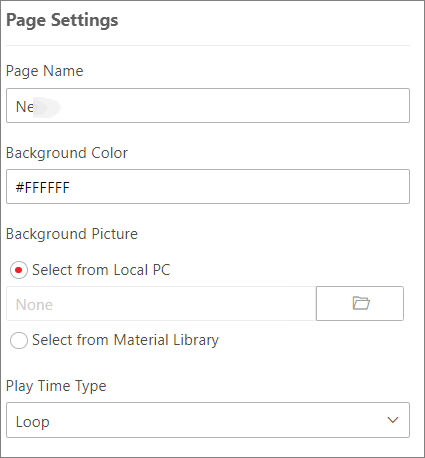 Figure 2 Page Settings
 - Optional:
Add, delete, or adjust program pages at the bottom side.
Option Description Add
Click
 /
/ to add new page(s).
Delete
Put the cursor on the page, and click
 on the upper right corner to delete the current page.
Adjust Sequence
Click a page and drag it to the desired location to adjust the sequence of program pages.
-
Set window properties, including window position, window type, switching method,
etc.
Note:
You can set different parameters for different types of material windows.
- Window Position
-
Set the window position by entering the width, height, and coordinate of the window.
- Window Type
-
- Normal
-
The normal window is displayed by default when the program is played. You can set a window jump link or page jump link for such a window.
- Popup Window
-
The pop-up window is hidden by default. Only after setting a redirect link for a normal window and clicking the link, the hidden window will be popped up.
- Switching Method
-
For Android touchscreen terminals, you can open the specified content by linking to a window or page.
- No Skip
-
There is no linked window or page to the current window which is played on the terminal.
- Jump to Next Window
-
You should set the jump link. When the Window A is played on the terminal, you can click the link to jump to its linked window.
- Jump to Next Page
-
You should set the jump link. When the Window A is played on the terminal, you can click the link to jump to its linked page.
- Move Window Layer
-
Click
 /
/ /
/ /
/ to make the window layer move up / move down / stick on top
/ stick at bottom.
to make the window layer move up / move down / stick on top
/ stick at bottom. - Switching Effect
-
Select the switching effect from the drop-down list for the current window. There are 11 types of switching effect.
- Play Time (sec)
-
Set the playing duration for the current window.
Note:-
The play time of a window can not exceed the playing time of a page, or the exceeding part of the program will not be played.
-
For adding a webpage, you can set its play time as Unlimited.
-
- Optional:
On the current editing program page, perform the following operations.
Option Description Edit Program
Click
 to edit program parameters in the
pop-up window. For details, refer to Step 3.
to edit program parameters in the
pop-up window. For details, refer to Step 3.Preview Program
Click Preview to preview the program.
During previewing, you can click
or to pause or start playing; click
or to adjust the playing speed as 1x, 2x,
or 4x; and click to preview the program in
fullscreen.For the program with multiple pages, it will be played automatically according to the page play time you have set. Also, you can manually click
 or
or  to preview the previous or the next
page of the program.
to preview the previous or the next
page of the program.Cut In Program
Click Cut In to cut in the current program.
Note:For details, refer to Cut in Program.
Create Schedule
Click Next to enter the managing schedules page and create a schedule for the program.
Note:For details, refer to Schedule Management.
- Optional:
On the program list page, perform the following operations if needed.
Option Description View Program in List or Thumbnail Mode
Click
 /
/ to view the added programs in the thumbnail mode or in the
list mode.
to view the added programs in the thumbnail mode or in the
list mode.Add Program to Favorites
Click
to add the current program to
Favorites.Preview Program
Click
 to preview
the program.
to preview
the program.During previewing, you can click
or to pause or start playing; click
or to adjust the playing speed as 1x, 2x,
or 4x; and click to preview the program in
fullscreen.For the program with multiple pages, it will be played automatically according to the page play time you have set. Also, you can manually click
or to preview the previous or the next
page of the program.Copy Program
Click
 to enter editing program page. Click
Save on the upper right corner to copy the current program,
and a new program with the same content is created.Note:
to enter editing program page. Click
Save on the upper right corner to copy the current program,
and a new program with the same content is created.Note:When copying a program (e.g., Program A) for the first time, the name of the new program (Program A_1) will be generated automatically. If you need to copy this program (Program A) for a second or more times, you should manually edit its name, or the program cannot be created successfully.
Cut In Program
Click
 to cut in the current program. For
details, refer to Cut in Program.
to cut in the current program. For
details, refer to Cut in Program.Create Schedule
Click
 to enter the managing schedules page and create a schedule
for the program. For details, refer to Schedule Management.
to enter the managing schedules page and create a schedule
for the program. For details, refer to Schedule Management.Enlarge Program Page
Click
 to enlarge the program page and view
it.
to enlarge the program page and view
it.Filter Program
Click
 , and filter programs by conditions
such as name and sharing property.
, and filter programs by conditions
such as name and sharing property.Refresh Program List
Click Refresh to refresh the program list. The programs will be listed according to the time they are added.
Delete Program
Check one/more programs, or click Select All to select all programs, and click Delete to delete the selected programs.
Note:Programs that are releasing or cutting in cannot be deleted.