Add Detected Online Video Intercom Devices in a Batch
If the detected online video intercom devices share the same user name and password, you can add multiple devices at a time.
Make sure the devices you are going to use are correctly installed and connected to the network as specified by the manufacturers. Such initial configuration is required in order to be able to connect the devices to the HikCentral Professional via network.
-
In the top left corner of Home page, select
 > Basic Management > Device.
-
Click
 in the Online Device area to enter the Add
Video Intercom Device page.
in the Online Device area to enter the Add
Video Intercom Device page.
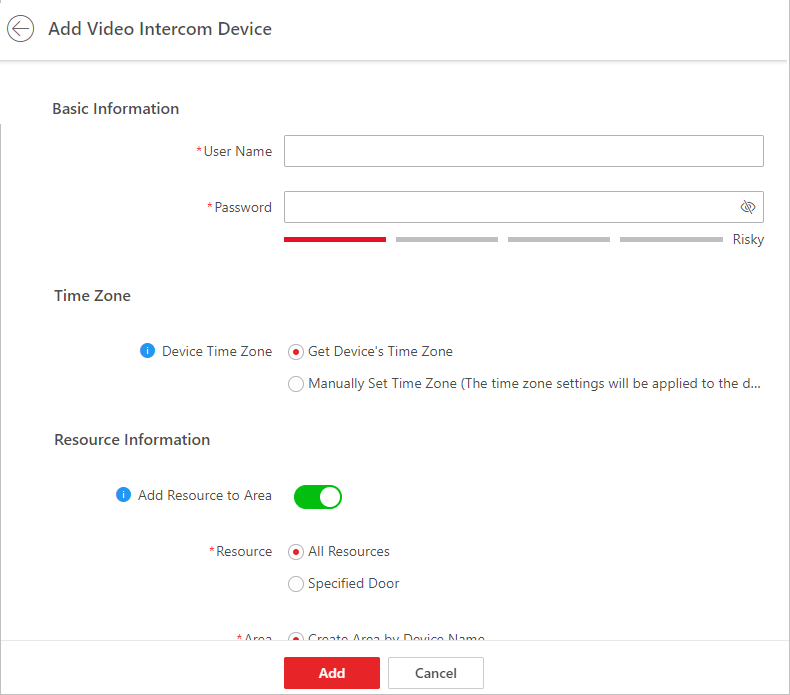 Figure 1 Add Detected Online Video Intercom
Devices in a Batch
Figure 1 Add Detected Online Video Intercom
Devices in a Batch - Optional:
Perform further operations for the added device(s).
Option Description Configure Device
Click
 in the Operation column to enter the corresponding device configuration page
to edit the time parameters, reboot the device, restore the device, or set other
parameters. See Configure Device Parameters for detailed instructions.
in the Operation column to enter the corresponding device configuration page
to edit the time parameters, reboot the device, restore the device, or set other
parameters. See Configure Device Parameters for detailed instructions.Change Password
Select the added device(s) and click Change Password to change the password for the device(s).Note:-
You can only change the password for online HIKVISION devices currently.
-
If the devices share the same password, you can select multiple devices to change the password together.
Privacy Settings
You can configure privacy settings for online video intercom devices. For details, refer to Privacy Settings.
Restore Default Settings
Select the added device(s) and click Restore Default Settings to restore the configured device parameters excluding network parameters and account information.
Note:If you want to restore all the device parameters, you should check Restore device network parameters and account information, such as user name and password. in the pop-up window.
Set Time Zone
Select the added device(s) and click Time Zone to set the time zone for the device(s).
Search for Devices
Enter the keywords of device name, device address, or serial No., and click
 to search for devices.
 -