Emergency Solution Settings
An emergency solution refers to the preparation settings before a roll call. The emergency solution includes the settings of entrance points, exit points, mustering points, doors remaining unlocked in an emergency, emergency counting groups, and emergency mustering programs and text notifications. After setting the emergency solution, users can start a roll call by one click once an emergency happens.
In the top left corner of
Home page, select  > Integrated Service > Emergency Mustering.
Select Emergency Solution Settings on the left.
If you are configuring emergency solution for the first time, click Configureat the bottom of the page to enter the emergency solution configuration page.
1. Add Entrance Points
An entrance point is the card reader by which persons authenticate to check in before entering a place. If a person authenticates by an entrance point, the person's status is In.
Click  besides All Areas and select an area. Click
Add and select card readers to set them as entrance
points of the area.
besides All Areas and select an area. Click
Add and select card readers to set them as entrance
points of the area.
You can check card readers and click
 to cancel setting them as entrance
points, or click > Delete All to cancel setting all card readers as entrance points. You can also
enter a card reader name on the top right to search for it.
to cancel setting them as entrance
points, or click > Delete All to cancel setting all card readers as entrance points. You can also
enter a card reader name on the top right to search for it.
-
Make sure you have added the card reader to the platform before selecting the entrance points.
-
To delete the entrance points, you should end the emergency first.
2. Add Exit Points
An exit point is the card reader by which persons authenticate for exiting from a place. If a person authenticates by an exit point, the person's status is Out.
Click besides All Areas and select an area. Click
Add and select card readers to set them as exit points in
the area.
You can check card readers and click
to cancel setting them as exit points, or
click > Delete All to cancel setting all card readers as exit points. You can also enter
a card reader name on the top right to search for it.
-
Make sure you have added the card reader to the platform before selecting the exit points.
-
To delete the exit points, you should end the emergency first.
3. Add Mustering Points
A mustering point is the card reader located in a refuge. When an emergency happens, persons exit from the place where they are, go to the refuge, and check in by the mustering point. The status of persons who have checked in at the mustering point is Out & Checked In.
Click besides All Areas and select an area. Click
Add and select card readers to set them as mustering
points in the area.
You can check card readers and click
to cancel setting them as mustering
points, or click > Delete All to cancel setting all card readers as mustering points. You can also
enter a card reader name on the top right to search for it.
-
Make sure you have added the card reader to the platform before selecting the mustering points.
-
To delete the mustering points, you should end the emergency first.
4. Add Doors Remaining Unlocked in Emergency
A door remaining unlocked in an emergency refers to the door that will be turned to the status of Remain Unlocked once an emergency happens. Thus the persons inside the place can exit from the place without authentication at the card reader.
Click besides All Areas and select an area. Click
Add and select doors to set them as doors remaining
unlocked in an emergency in the area.
You can check doors and click
to delete them, or click > Delete All to delete all doors. You can also enter a door name on the top right
to search for it.
-
Make sure you have added the door to the platform before selecting the doors.
-
To delete the doors, you should end the emergency first.
5. Add Emergency Counting Groups
An emergency counting group refers to a person group based on which you can know how many persons are in, out, or out & checked in when the platform is in an emergency.
Click  to open the Add
Emergency Counting Group pane. Enter a name for the group and click
to open the Add
Emergency Counting Group pane. Enter a name for the group and click
 to add persons to
the group. Click
Add
under Person to add more persons to the group after adding the
group.
to add persons to
the group. Click
Add
under Person to add more persons to the group after adding the
group.
-
Make sure you have added the persons to the platform beforehand.
You can perform the following operations.
-
Hover over 1 Day(s) Before
and select
the days before emergency is triggered to update the
persons in the group. -
Hover over
 and select
Descending
by Group
Name
or
Ascending
by Group
Name
to sort the emergency counting groups.
and select
Descending
by Group
Name
or
Ascending
by Group
Name
to sort the emergency counting groups. -
In the Person section, select Descending by Person Name/Ascending by Person Name to sort the persons.
-
Click a person name to view person details.
-
Select a group and click
 to delete
it, or click > Delete All to all groups.
to delete
it, or click > Delete All to all groups. -
Check persons and click Delete to remove the selected persons from the group, or click
> Delete All to remove all the persons from the group.
6. Release Emergency Mustering Notification
You can configure emergency mustering programs and emergency text notifications for catastrophic event (e.g., fire and robbery). Emergency mustering programs or emergency mustering text notifications will be displayed on the digital signal terminals when an emergency is triggered, to help people receive timely emergency alerts and be out of danger as soon as possible when an emergency happens;
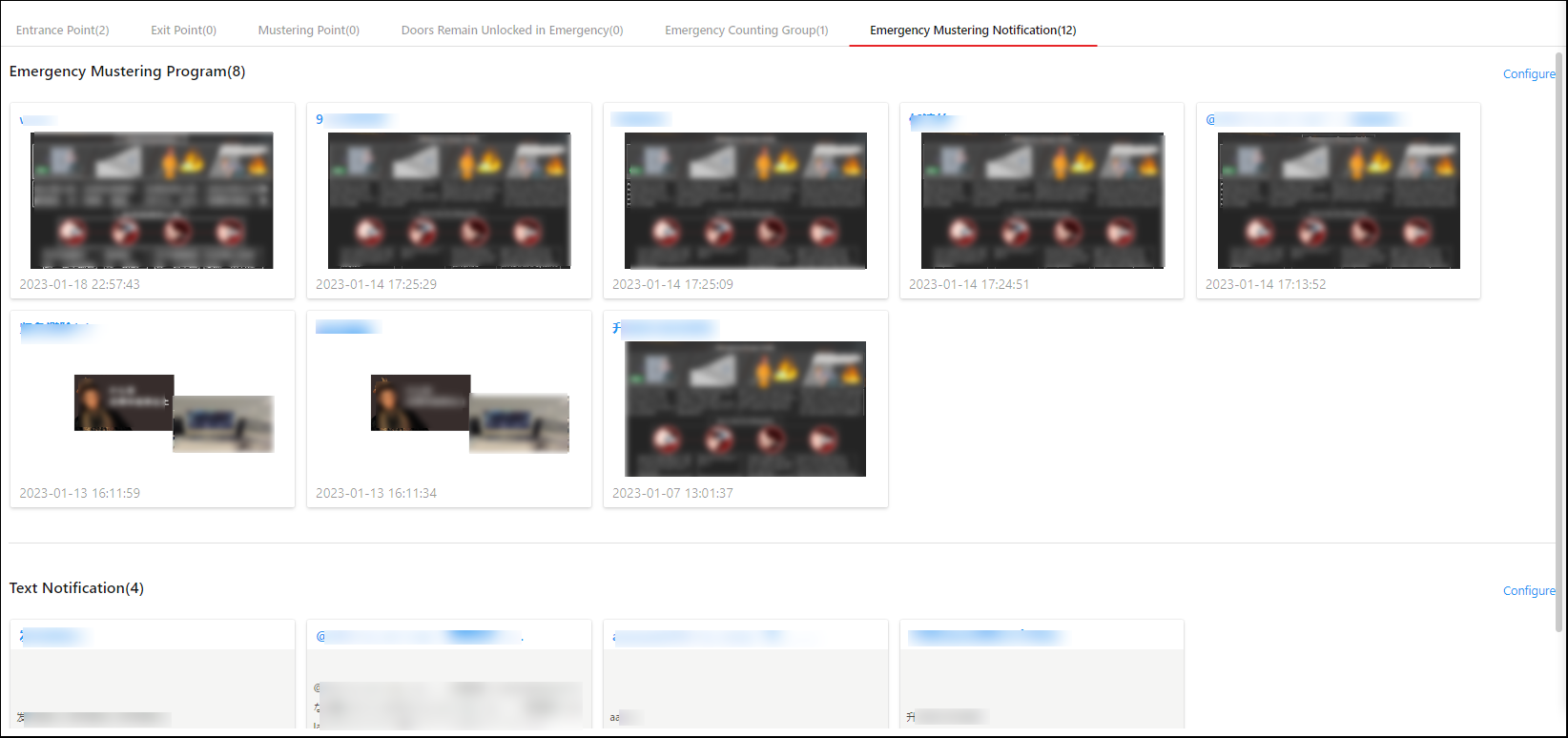 Figure 1 Emergency Mustering
Notification
Figure 1 Emergency Mustering
Notification-
Click Configure on the right to configure emergency mustering programs or text notifications.
Note:You can switch application modes between Digital Signage and Interactive Flat Panel. See details in Switch Application Mode.
-
Emergency Mustering Program: Click
to enter the
Create Programs page. Enter the program name, screen size and sharing
property,
and select an area as needed. Click Next to select a
program template. Then you can configure more parameters of this program and
click Release to release the program.Emergency Text Notification: Click Text Notification >
to enter the Create Text Notification page. Enter the text
notification name, sharing property, and notification content and select an
area and devices as needed. Click Release
to release the text notification. -
When the emergency alarm is triggered, the normal transmissions will be interrupted and the screen will switch to the released emergency mustering programs or text notifications throughout the emergency; when it is no longer in emergency status, the normal transmission will be back.
Note:If you manually turn off emergency or delete the device from the platform, the emergency mustering programs or text notifications will not be played.