Customize Attendance Status on Device
You can customize the rules of attendance status on device. After setting up Attendance Status on Device and applying the settings to the devices, you can choose to use the attendance status on the devices to calculate the attendance results.
Make sure the devices support this feature.
-
In the upper-left corner of Home page, select
 > Attendance > Basic Configuration.
-
Set the parameters.
- Attendance Mode
-
Manual: No attendance schedule. Manual selection of attendance status is required when a person checks in or checks out on a device.
Automatic: Specify an attendance schedule and the attendance status of a person is judged according to the schedule.
Manual And Auto: Specify an attendance schedule and the attendance status of a person is judged according to the schedule. The person can also change the attendance status manually on device.
- Attendance Status Required
-
On: Manual selection of attendance status is required for a valid check-in/out.
Off: Manual selection of attendance status is optional.
Note:Not available when in Manual mode, because manual selection of attendance status is always required.
- Custom Name of Working
-
Customize the status name for check-in and check-out.
- Custom Break Name
-
Customize the status name for the start and end of a break.
- Custom Overtime Name
-
Customize the status name for the start and end of an overtime.
- Schedule Template
-
Select a status and drag on the template to define the attendance status of a period of time.
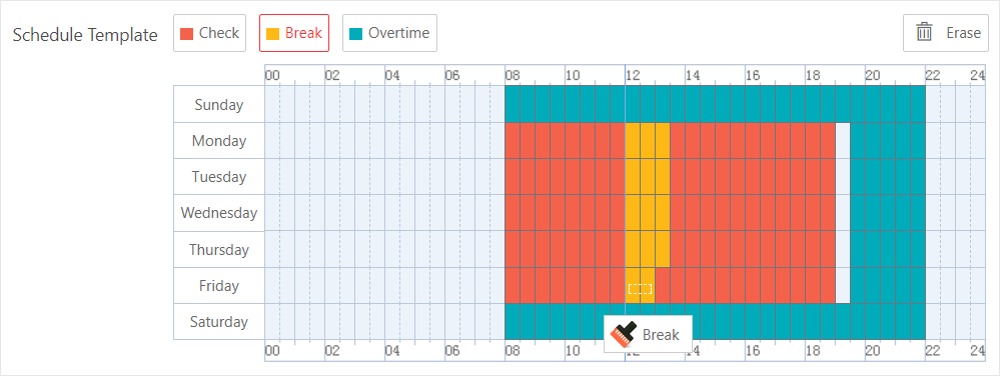 Figure 1 Schedule
TemplateNote:
Figure 1 Schedule
TemplateNote:-
Not available when in Manual mode. Because manual selection of attendance status is always required and no attendance schedule is needed.
-
Work time and break time must be continuous.
-
Overtime cannot be continuous with work and break time.
-
Overtime must be before or after work or break time.
-