A leave rule refers to
a
group of leave types and persons, where the persons in the group enjoys certain
leaves.
-
On the top left, select .
-
Click Add Leave Rule.
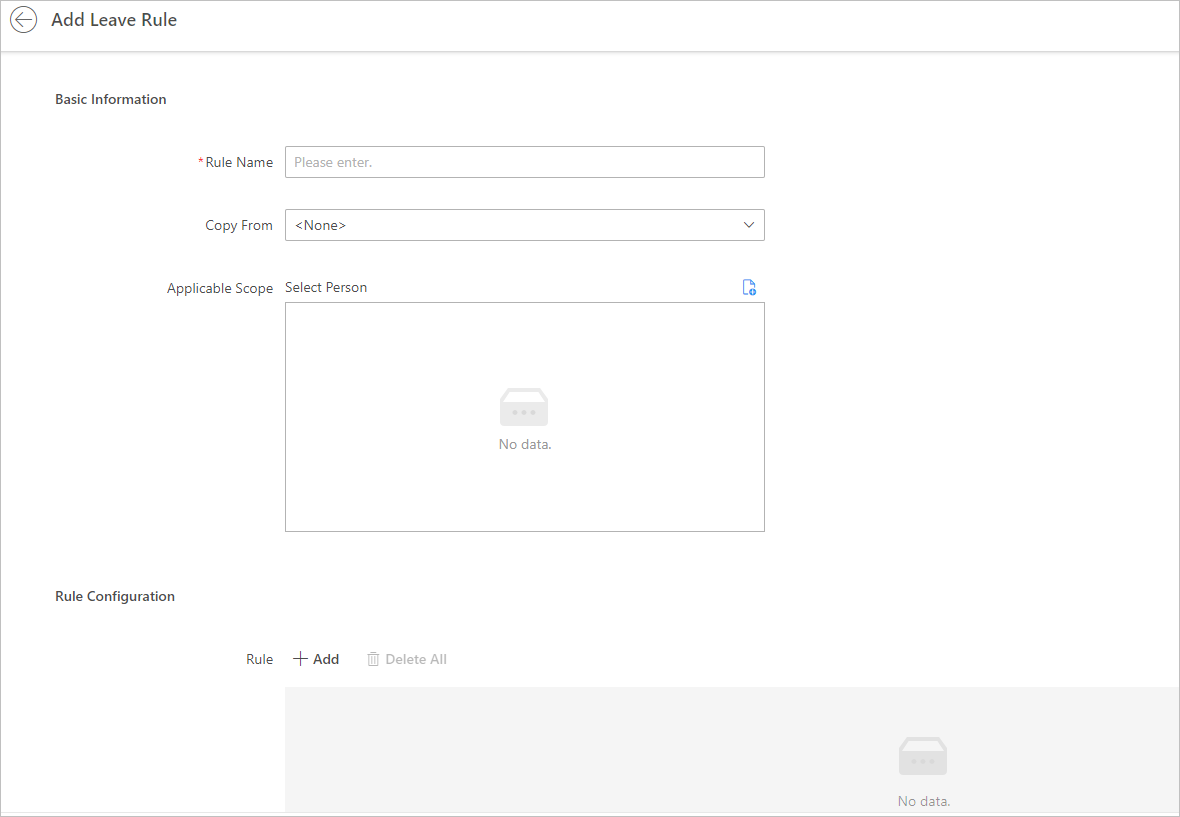 Figure 1 Add Leave Rule
-
Enter a rule name.
- Optional:
Select an existing leave rule from the drop-down list of Copy
From to copy the persons using the selected leave rule
here.
-
Click
 to select persons who are going
to use the leave rule.
to select persons who are going
to use the leave rule.
-
Add a rule.
-
In the Rule Configuration area, click Add to
open the Add Rule pane.
-
Select a pay code from the drop-down list.
-
Set the related parameters.
- Min. Days of Employment Allowed for Leave
Application
-
Only when the days of employment reaches this
value, can the employee
apply for a leave.
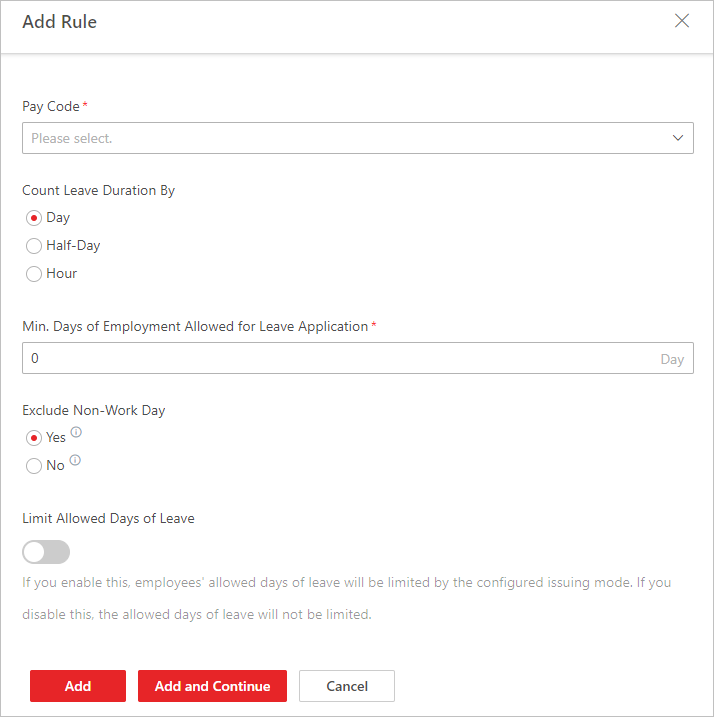 Figure 2 Add
Rule
Figure 2 Add
Rule
- Optional:
Enable Limit Allowed Days of Leave and set the
related parameters.
- Issuing Mode
-
- Auto Issue Annually
-
The platform issues allowed days of leave to
employees on a specified day each year. You need
to select an issuing date and select an issuing
rule.
- Issuing Rule
-
- Fixed Amount
-
The platform issues the same days
of leave to employees each year.
- Depends On Employment Years
-
The issued days of leave depend on
the employment years.
- Issue All Days of Leave Once
-
Issue
all days of leave to employees once. You need to
set the number of days and you can configure
expiry date of the days if needed.
-
Save
the settings.
 > Integrated Service > Attendance > Basic Configuration > Leave Rule.