By default, all
devices are attendance check points. You can specify some access points for attendance
check,
so that the check-in/out by credentials (such as swiping card on the access point's card
reader, or face detected
by the (linked) camera) will be
valid and will be
recorded.
-
On the top left, select .
-
Select on the left.
- Optional:
Click Customize Attendance Status to select attendance
mode and custom attendance parameters. For details, see Customize Attendance Status on Device.
- Optional:
Check Get Historical Data Stored in Devices to
synchronize the historical data generated by attendance check points to existing
data. This will cause a recalculation of attendance results.
-
Click Specify to start customizing attendance check
points.
-
Click Add.
-
Select the type of the attendance check point.
- Check-In & Out
-
The attendance records of check-in or check-out on
the attendance check point are both valid.
- Check-In Only
-
The attendance records of swiping card or face
recognition on the attendance check point will be only
calculated as check-in. Persons cannot check out on this check
point.
- Check-Out Only
-
The attendance records of swiping card or face
recognition on the attendance check point will be only
calculated as check-out. Persons cannot check in on this check
point.
-
Select the resource type (e.g., door) from the drop-down list.
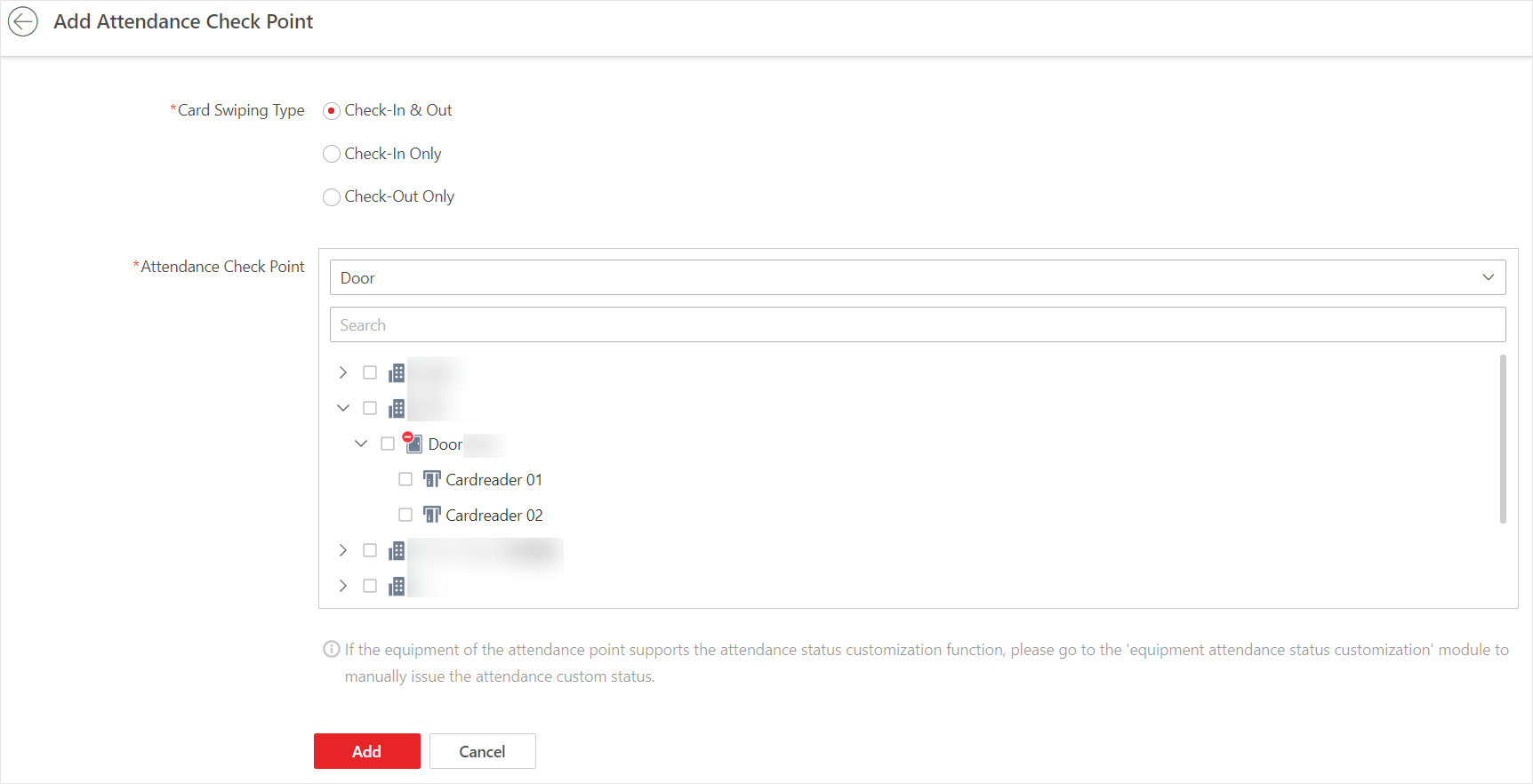 Figure 2 Add Attendance Check
Point
Figure 2 Add Attendance Check
Point
All the resources which have not been set as attendance check
point will be displayed.
-
Select the resources.
Note:
If you select Door as the resource type, you can set the
attendance check point type for different card readers separately. For
example, there is a card reader installed at both side of the door. You
can set the card reader of the entry direction as check-in only and the
exit one check-out only.
-
Click Add.
The selected resources will be displayed in the attendance check
point list.
- Optional:
Perform the following operations.
| Option |
Description |
|---|
|
Change Check Point's Type
|
For the added attendance check points, you can select one
or more items and click Set as Check-In Only,
Set as Check-Out Only, or Set
as Check-In/Out from drop-down list to change the
current type to another.
|
|
Delete Check Point
|
To delete the added attendance check point, select the
added attendance check point(s) and click
Delete.
Note:
If the attendance check point is deleted, the
attendance records on this attendance check point will be
deleted as well, and it will affect the persons' attendance
results for the days on which the attendance data haven't been
calculated.
|
 > Integrated Service > Attendance.