Pay in Toll Center
In the Toll Center module, you can search for a specific vehicle to view its parking information, such as the parking duration and the total parking fee. Once all the information is confirmed, the vehicle owner can pay the parking fee in the toll center.
-
On the top navigation bar, select
 > Passing Management > Parking Lot.
-
On the left navigation pane, click Toll Center.
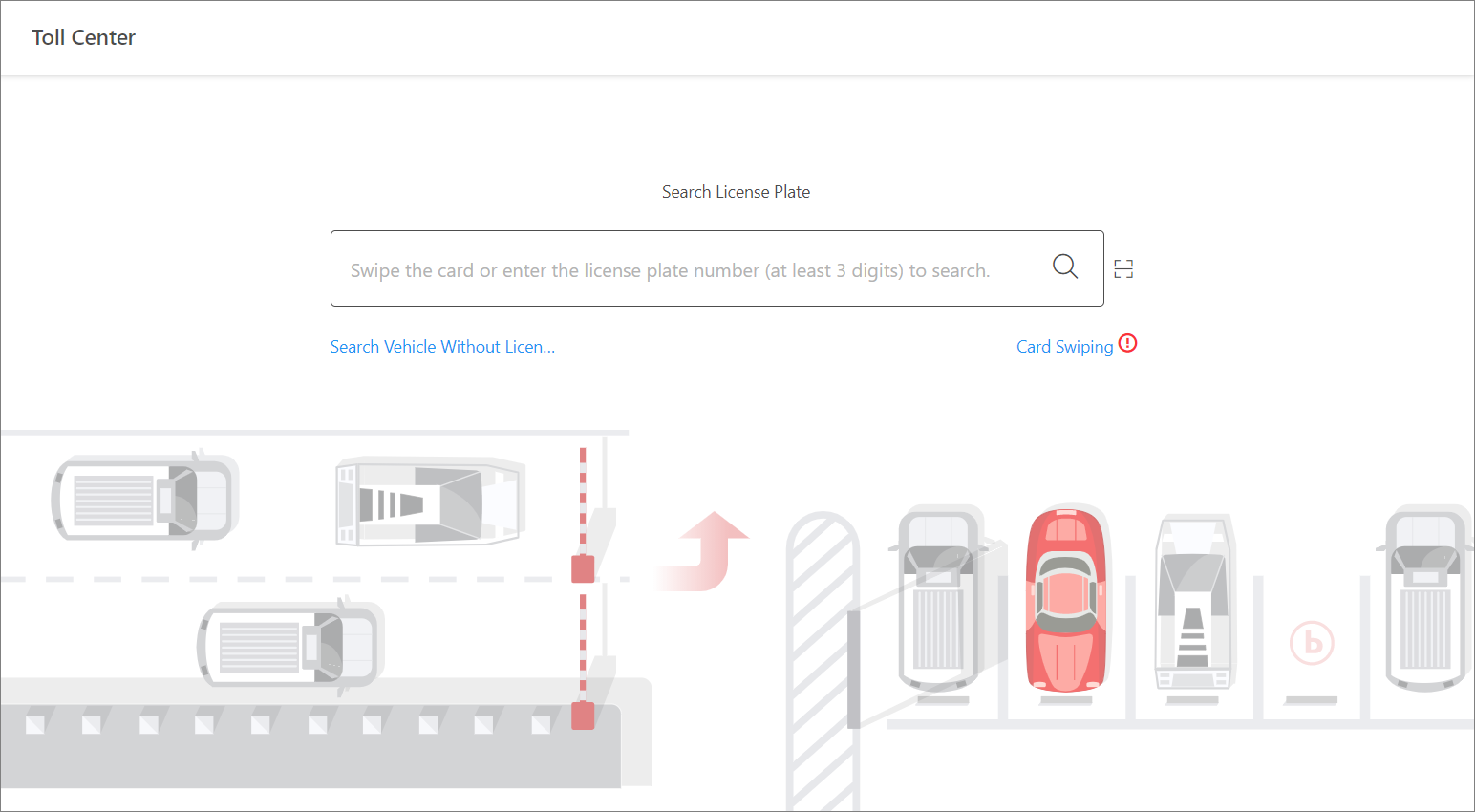 Figure 1 Toll Center
Page
Figure 1 Toll Center
Page -
Search for a specific vehicle to get its parking information.
-
Search by license plate number: Enter at least three digits of a license plate number to search for the vehicle.
-
Search by picture: If a vehicle's license plate is not captured and recorded, you can click Search Vehicle Without License Plate and select the target vehicle from the displayed picture(s).
-
Swipe temporary card: Swipe the temporary card that the vehicle owner received when entering the parking lot. After swiping the card at the site, the parking details will be displayed. You can click Card Swiping to switch on/off the card encryption and turn on/off the audio.
-
Scan parking receipt: Click
 next to the search box. After scanning the
code on a parking receipt, the parking details will be displayed for the
vehicle.
next to the search box. After scanning the
code on a parking receipt, the parking details will be displayed for the
vehicle.
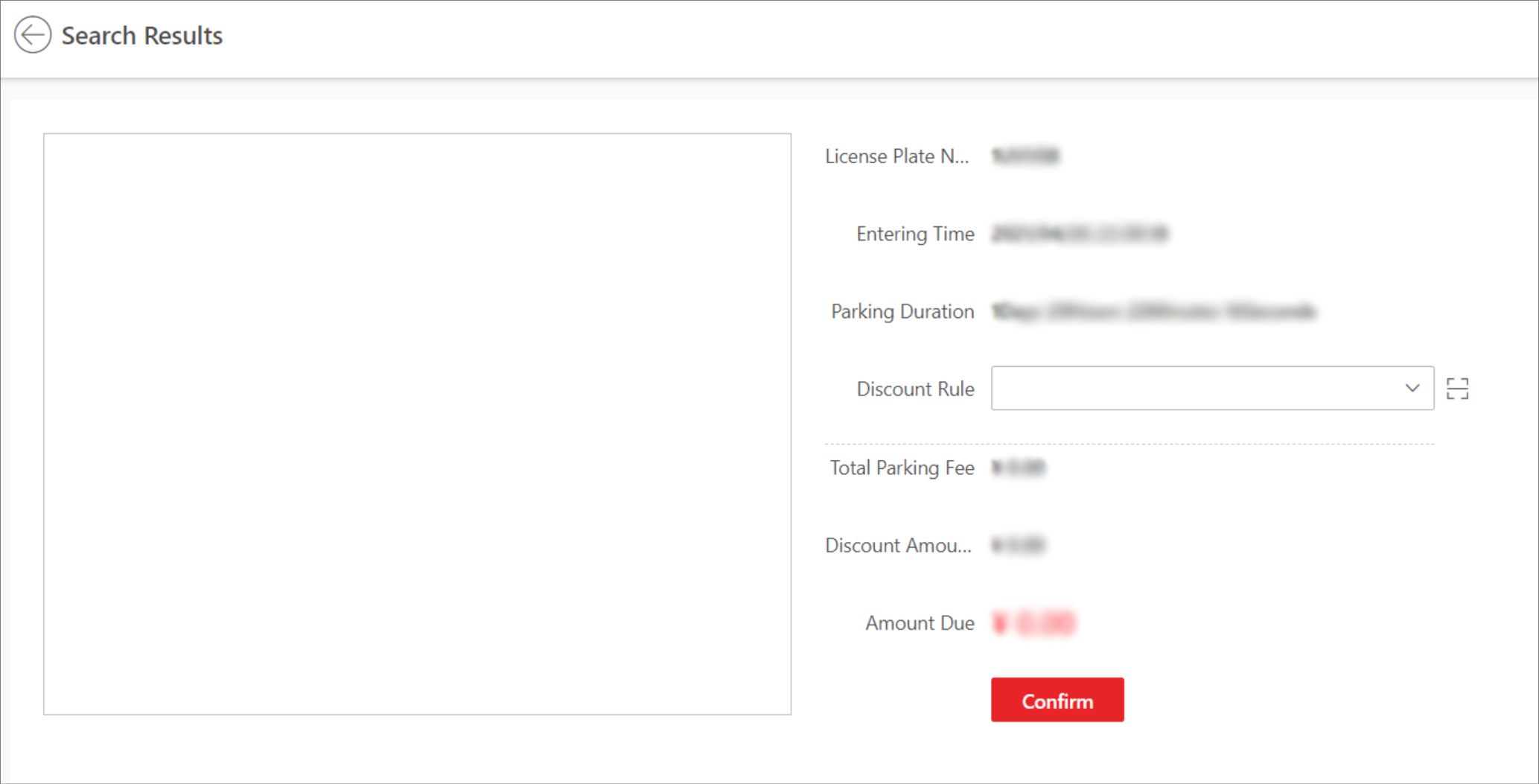 Figure 2 Search Result
Page
Figure 2 Search Result
Page -
- Optional:
Set the discount rule on the Search Results pane.
-
Select a coupon from the drop-down list.
-
Click
to add a coupon.
-