Co-Branding: Maintain Customer Loyalty and Increase Your Brand Visibility
Follow the corresponding instructions to allow your customers to view your company information, such as company logo, email address, and phone number on the Hik-Connect Mobile Client and HikCentral Connect Portal and Mobile Client, which can help you promote awareness of your company brand, products, and services.
Effects and Benefits of Co-Branding
Effects of Co-Branding: Where Your Customers Can See Your Company Logo
-
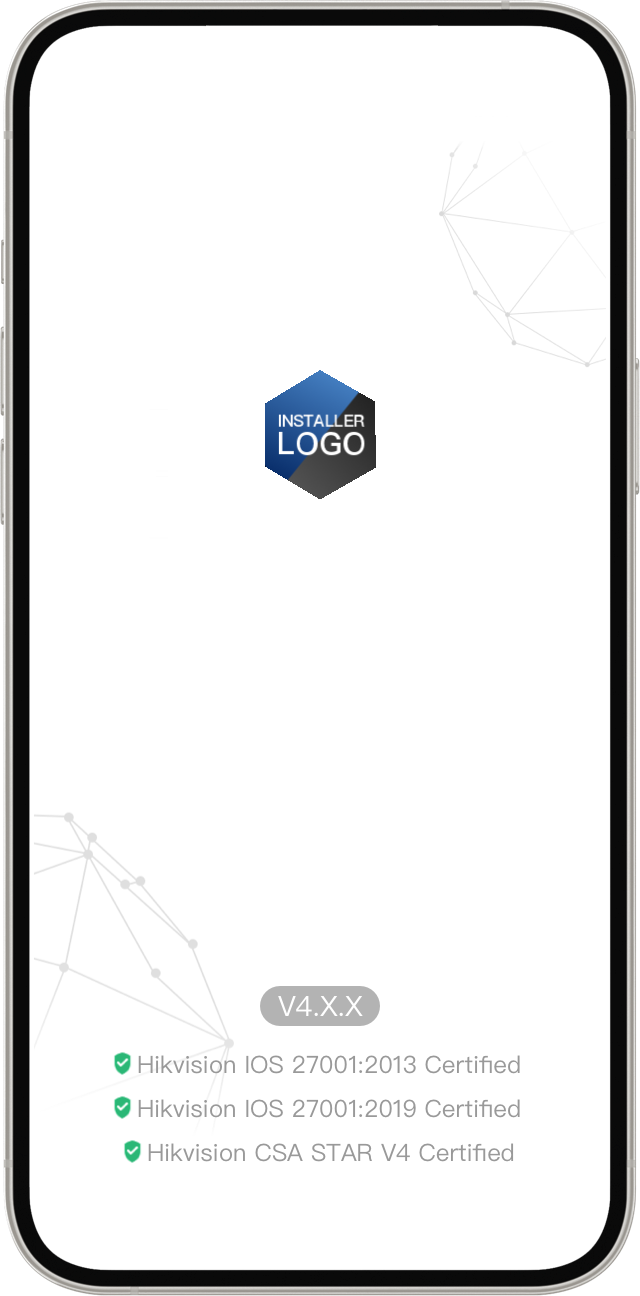
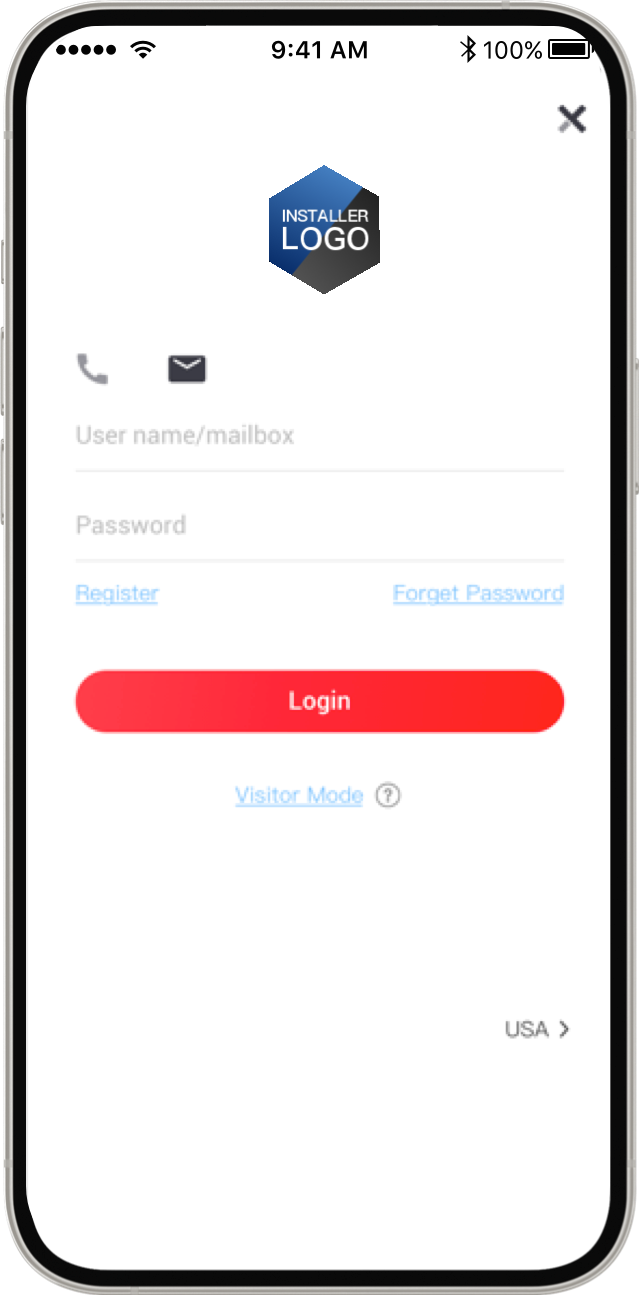
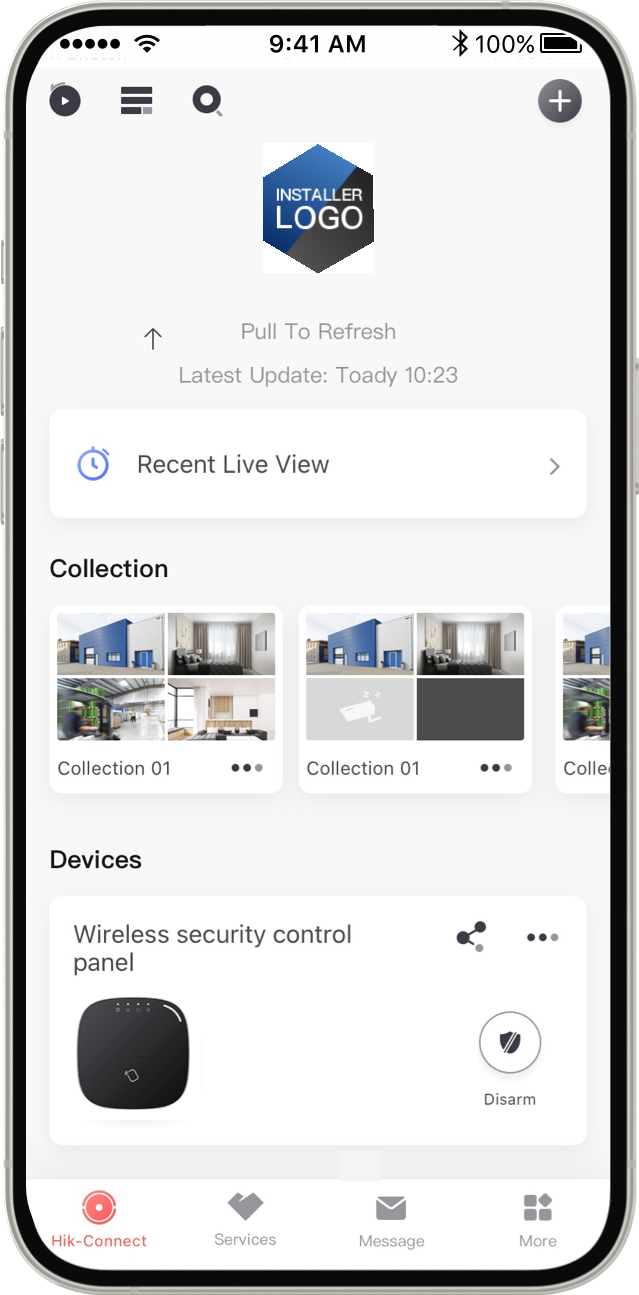
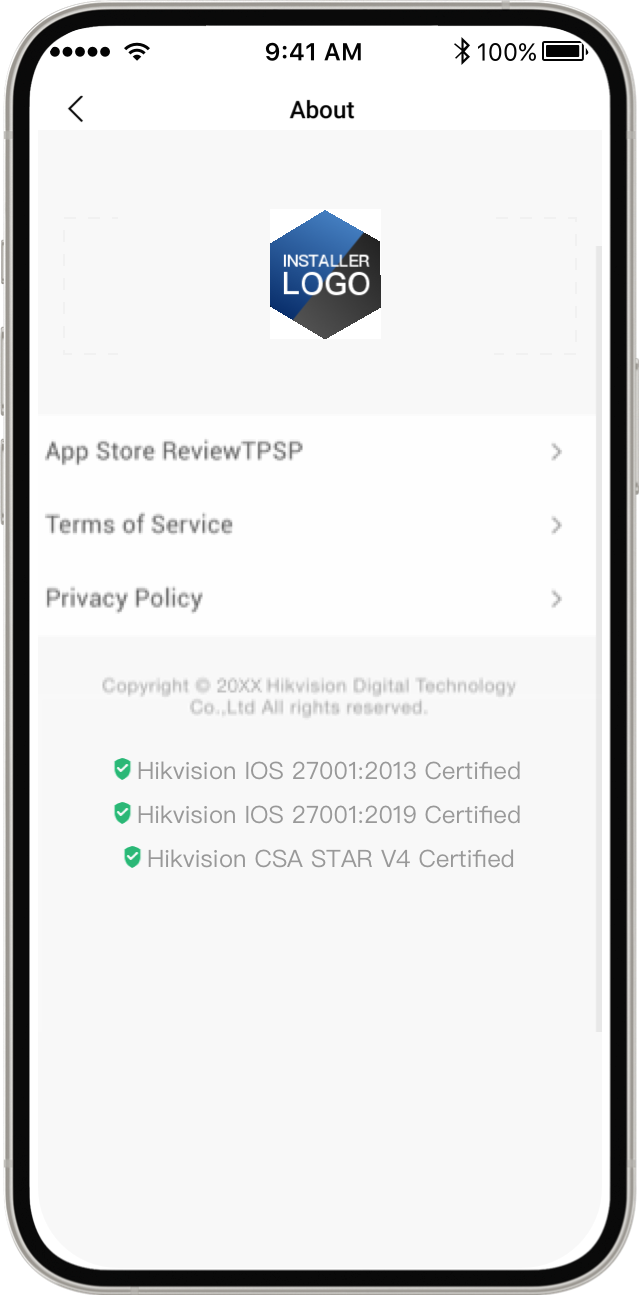
Hik-Connect: Your customers can see your company logo on the launch page, login page, Home page, About page, and service provider information page (for both personal and team modes).
Your Company Logo on Hik-ConnectLaunch PageLogin PageHome PageAbout Page -
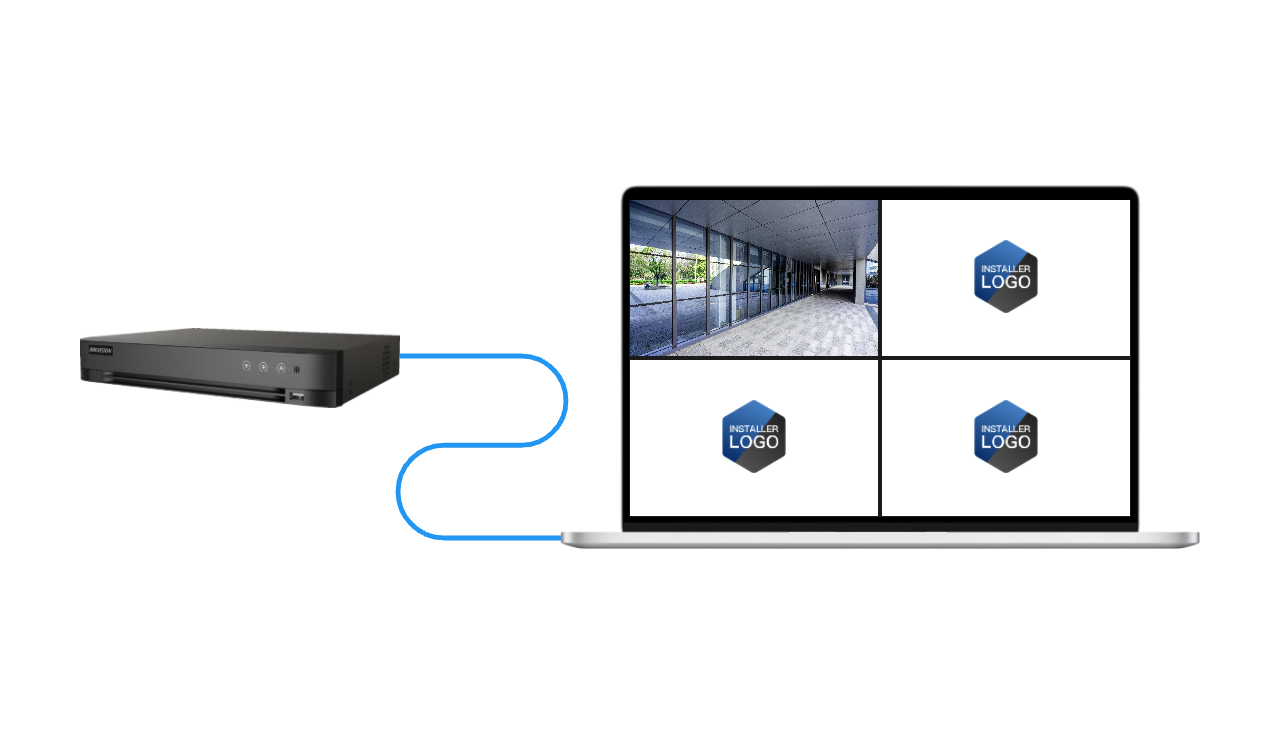
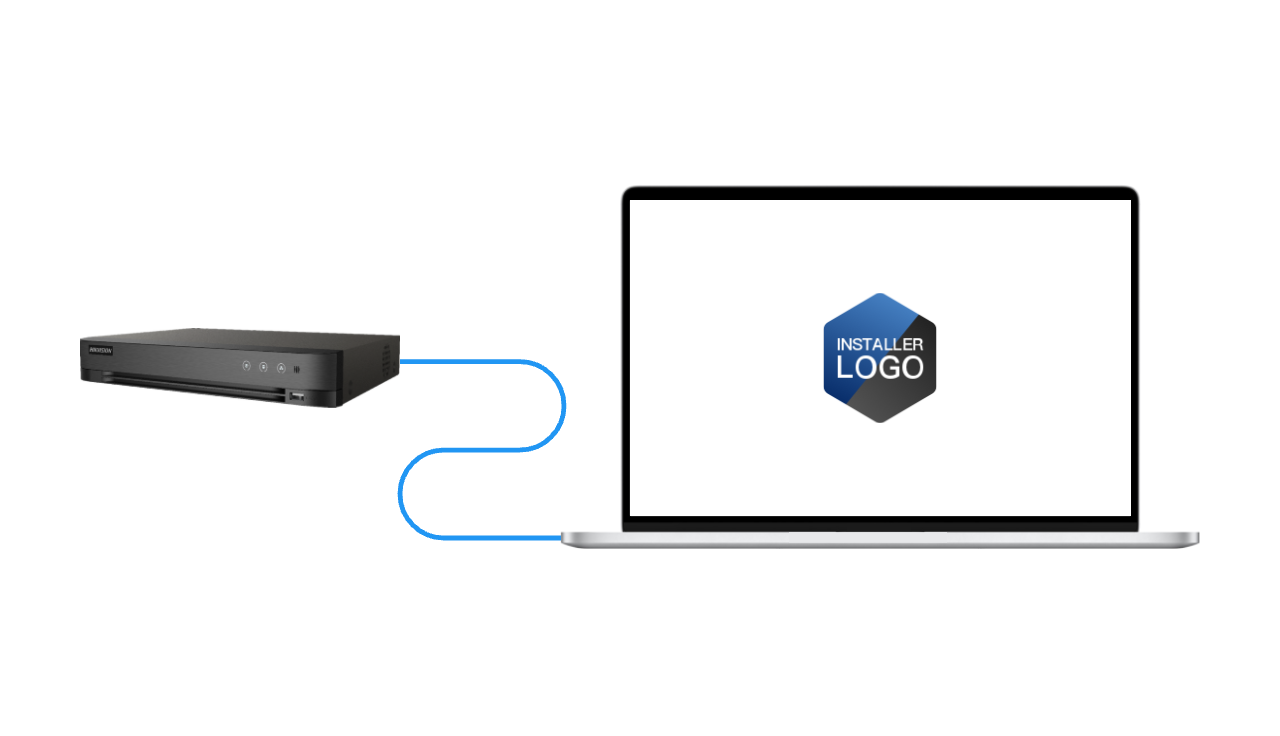
NVR/DVR: Your customer can view your company logo on the startup and live view pages of NVRs/DVRs. For NVRs/DVRs supporting co-branding, refer to the device compatibility list.
Your Company Logo on NVR/DVRLive View PageStartup Page
Benefits of Co-Branding
-
Maintain customer loyalty
-
Increase your brand visibility
-
Increase potential business opportunities
Device Compatibility for Co-Branding
Check Device Compatibility for Co-Branding Using the Portal
-
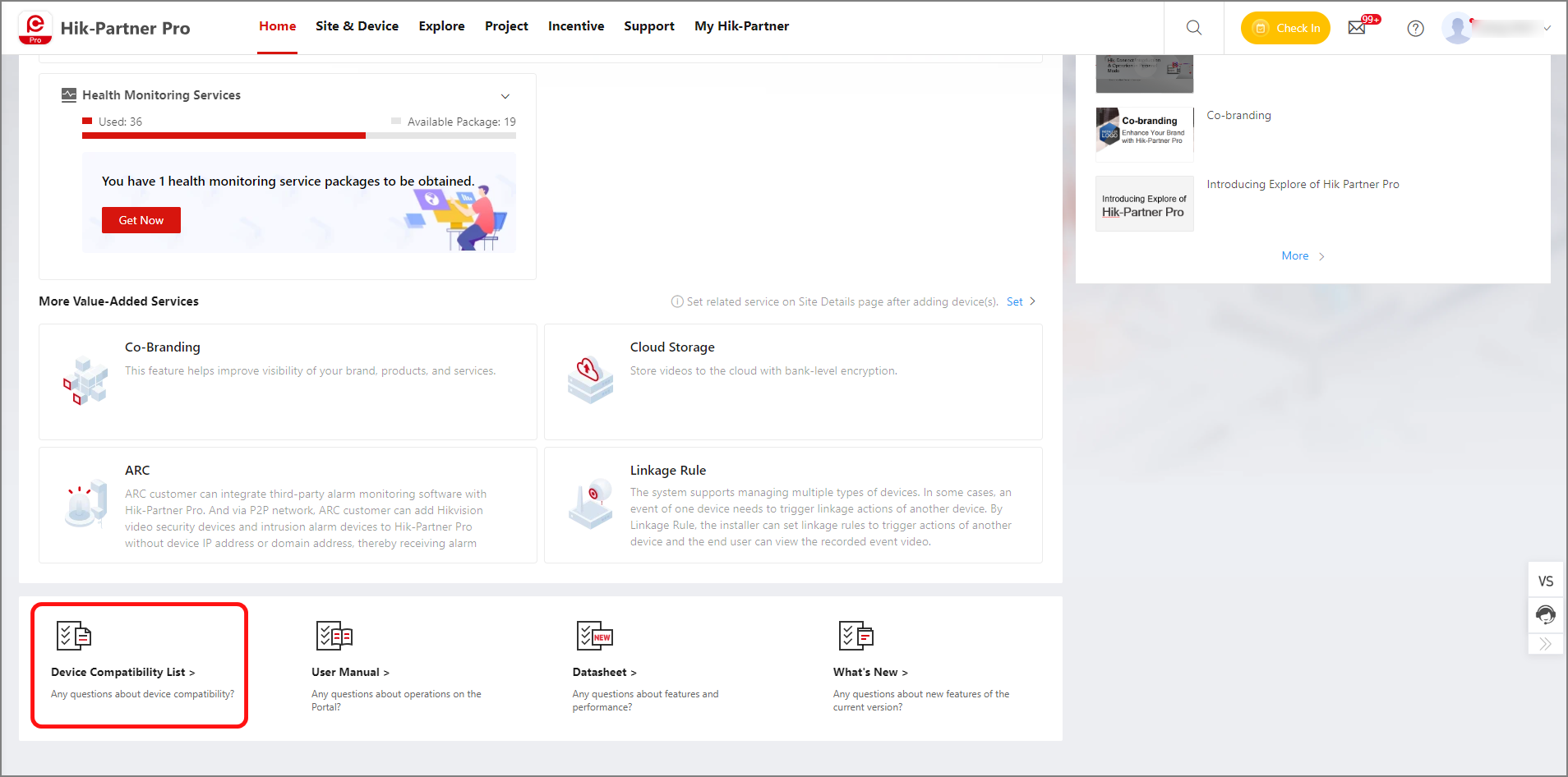
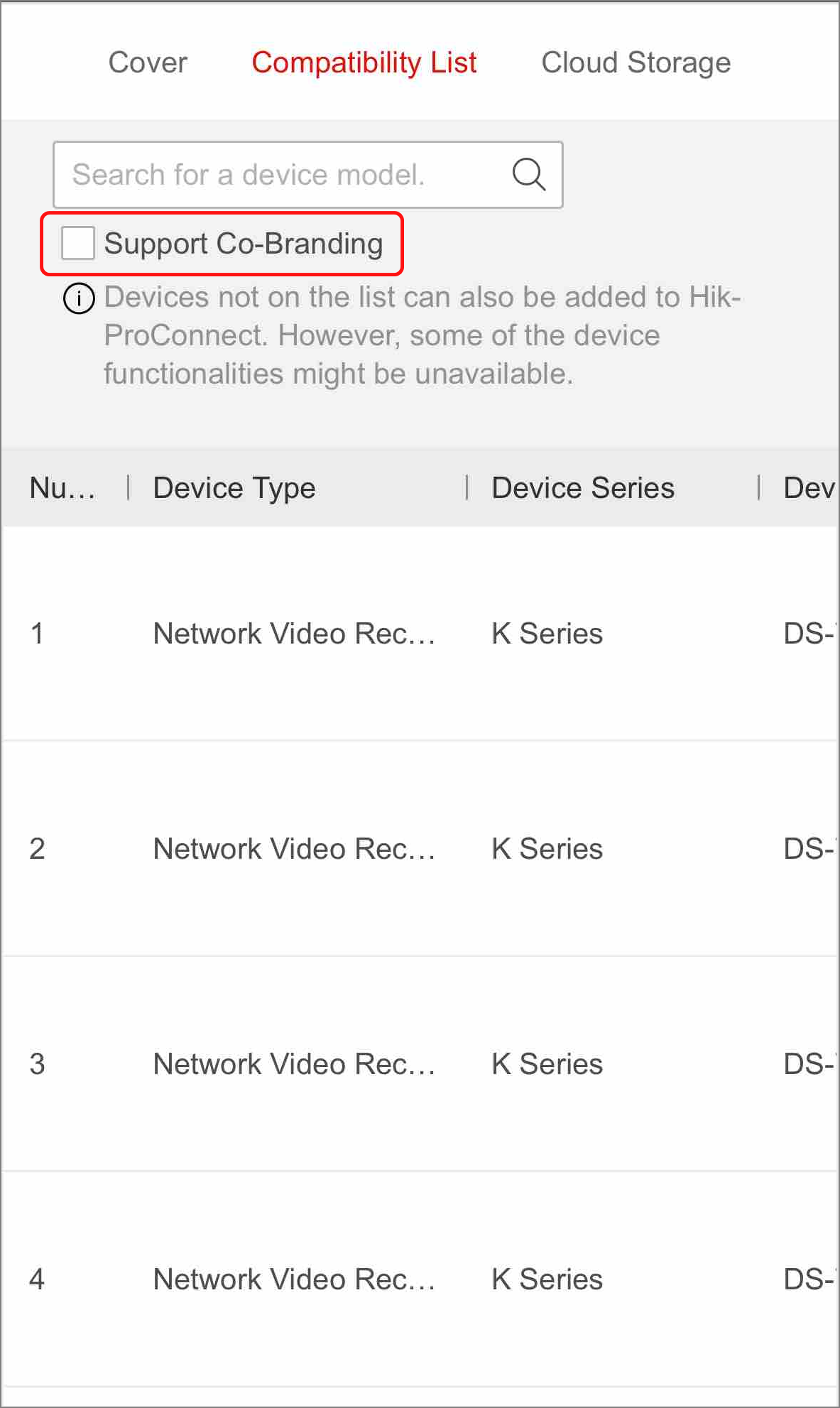
Visit the Portal and scroll down to the bottom of the Portal. Click Device Compatibility List.
Figure 3 Device Compatibility List -
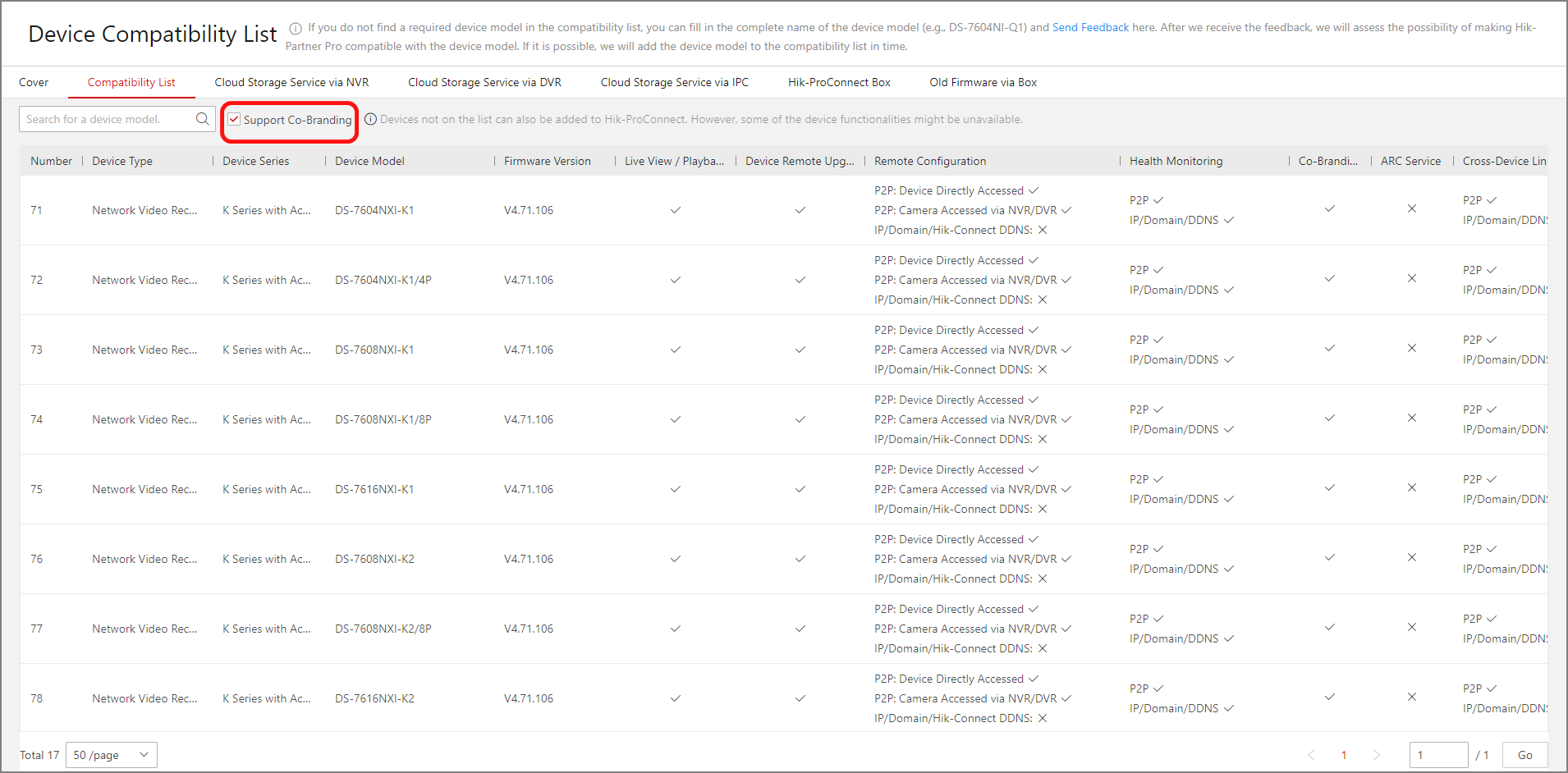
Click , and search for a NVR / DVR model to check whether it supports co-branding.
Figure 4 Compatibility List
Check Device Compatibility for Cloud Storage Service Using the Mobile Client
-
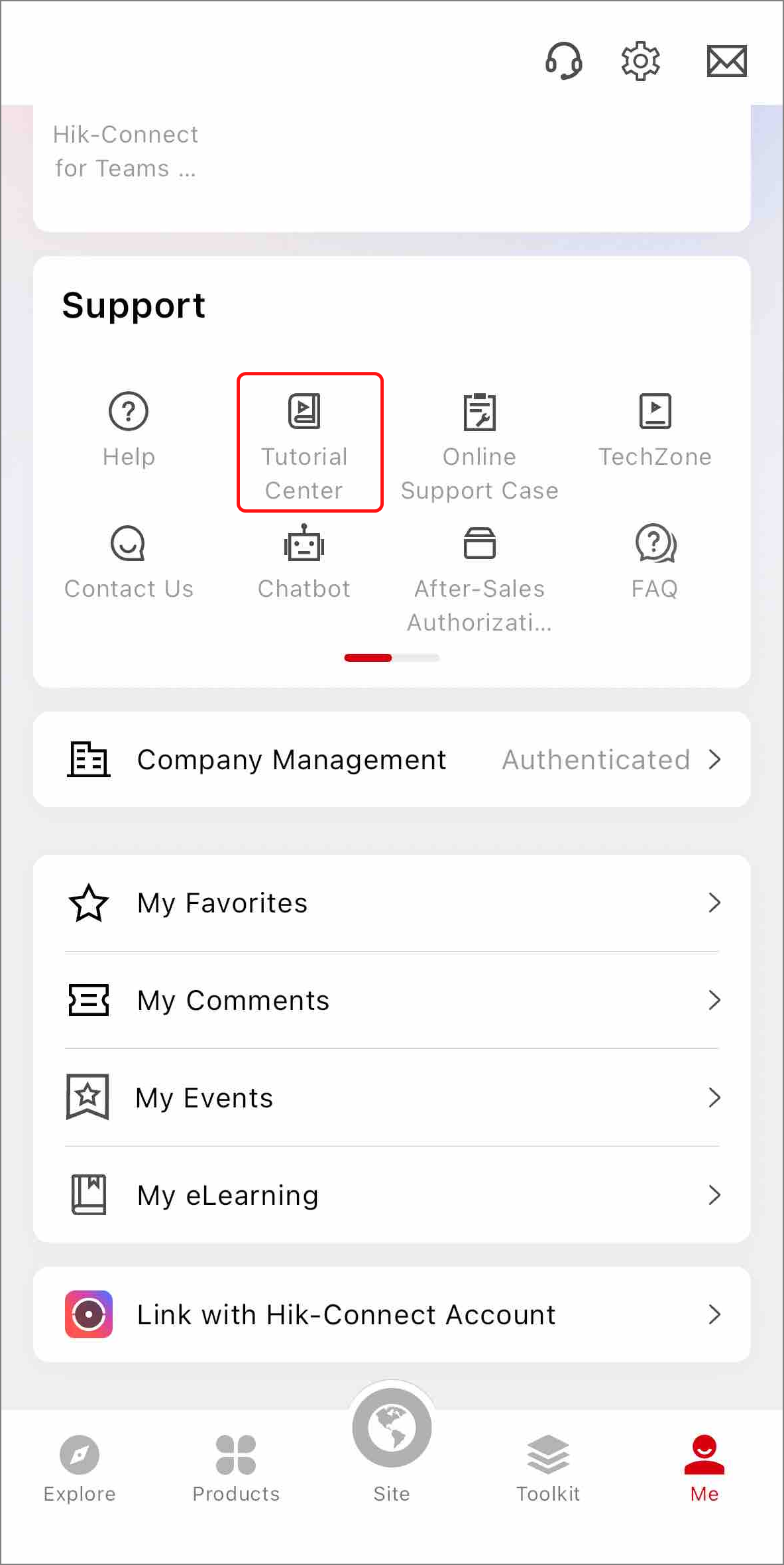
Log in to the Mobile Client, tap .
Figure 5 Tutorial Center -
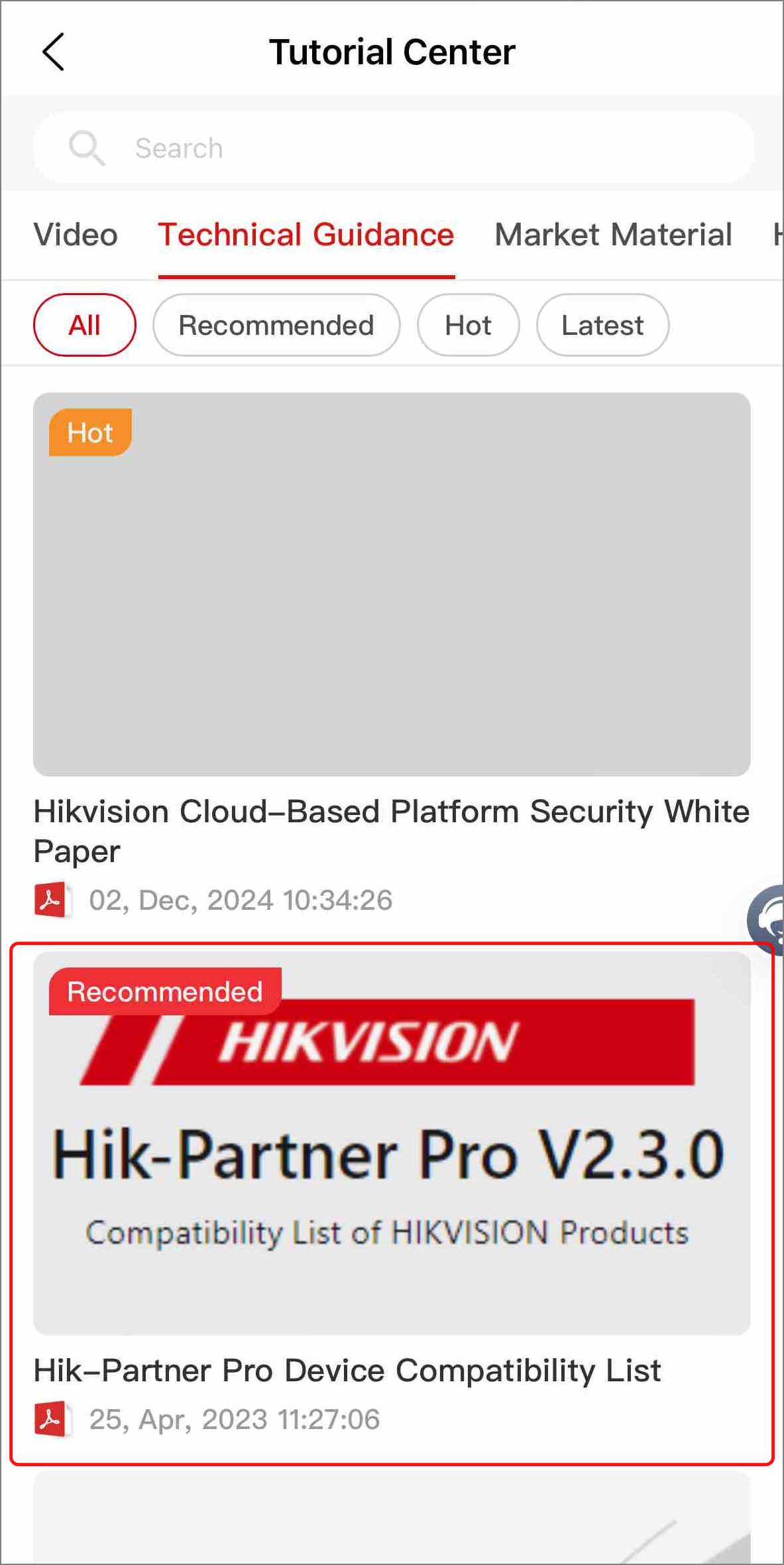
Tap .
Figure 6 Compatibility List -
Tap , and search for a NVR / DVR model to check whether it supports co-branding.
Figure 7 Cloud Storage Compatibility
Get Co-Branding
Ways for Getting Co-Branding for Free
Before purchasing and set up co-branding, check the following ways to get free co-branding:
-
You can redeem points for co-branding services in the Rewards Store. After that, the co-branding service will be available or its validity period will be extended if it is already available.
-
In some countries/regions, you can get the co-branding service for free for one year after authenticating your account and adding 3 devices via P2P.
-
A window with notification about getting the co-branding service for free will pop up when your co-branding service expires in 2 months.
-
You can get the co-branding service for free after purchasing the annual type of health monitoring packages (including All Device Annual Package and Network Camera Annual Package) for the first time.
Purchase Co-Branding
-
Make sure you get your company authenticated.
-
Purchasing co-branding services online is supported only in some countries/areas. Contact a local distributor for details.
-
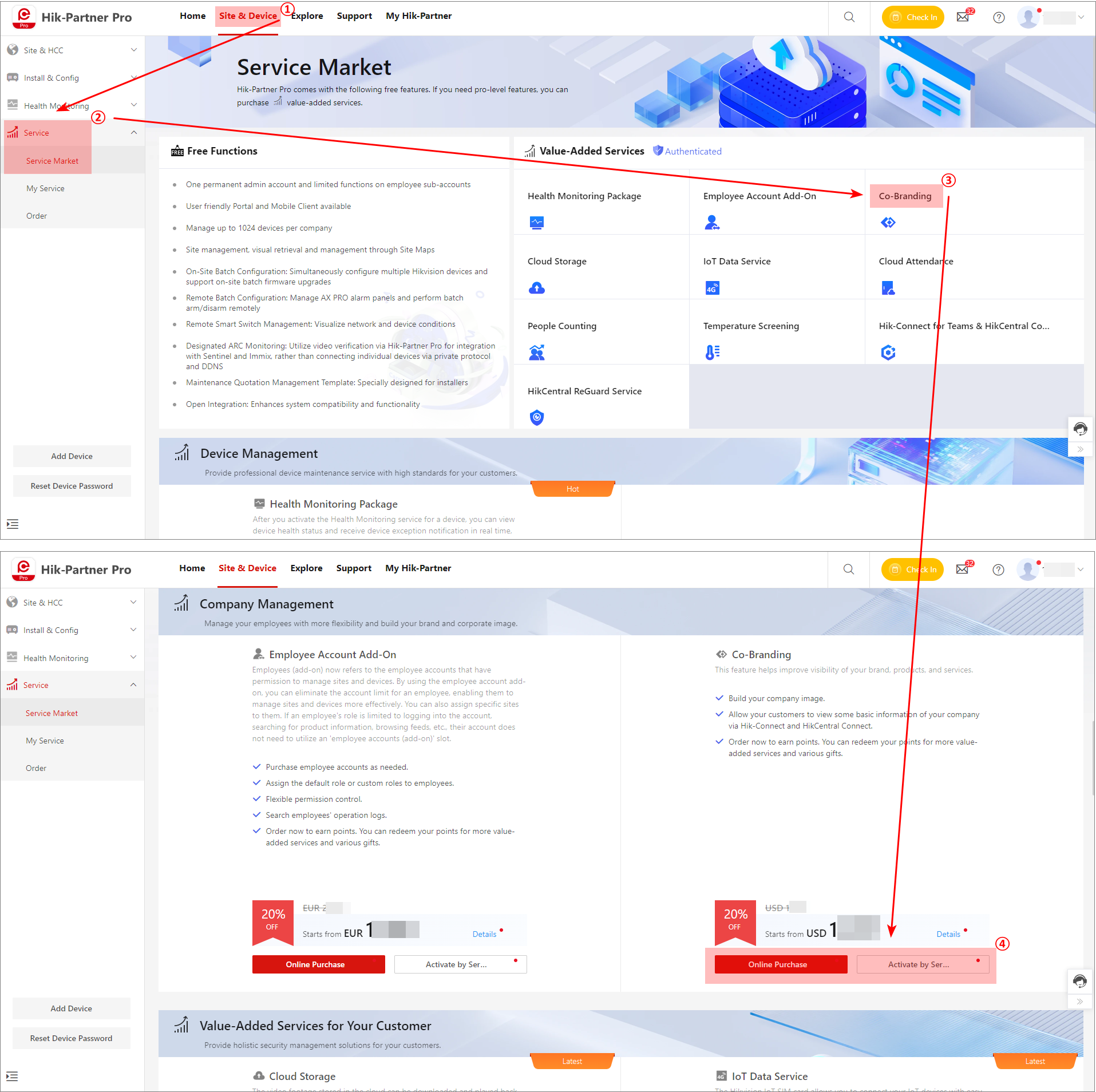
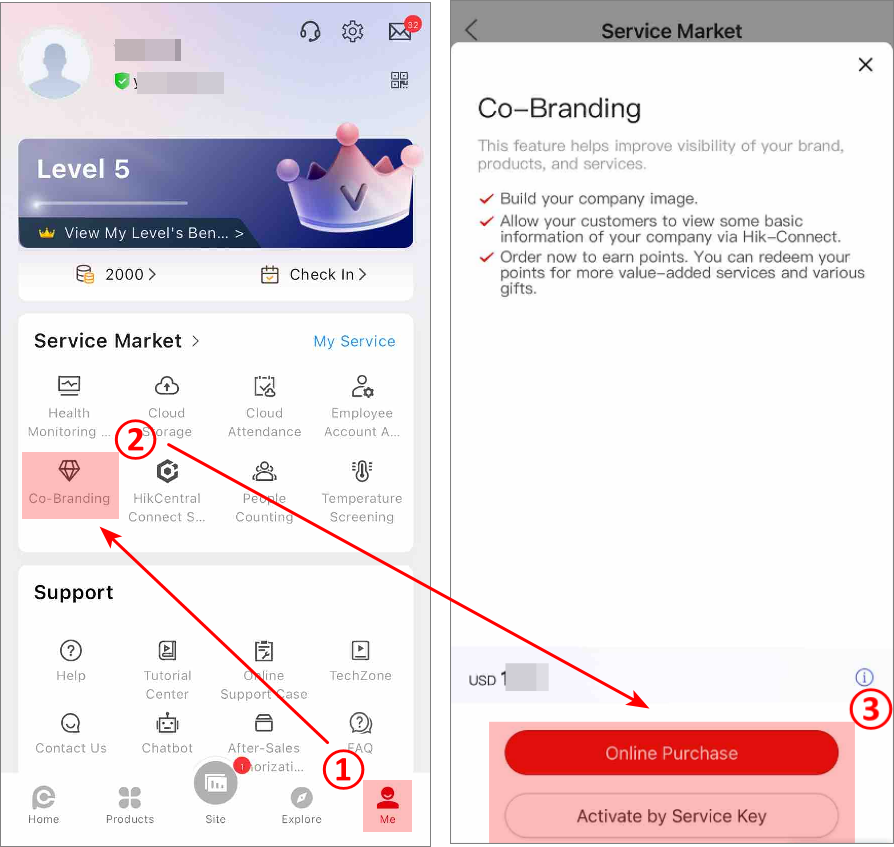
Get the entry of purchasing co-branding service.
Figure 8 The Entry of Purchasing Co-Branding Service on the PortalFigure 9 The Entry of Purchasing Co-Branding Service on the Mobile Client -
Purchase the service in one of the following ways.
Online Purchase on the Portal
-
Specify the amount which determines the validity period, enter your VAT number, and select the payment method.
-
Enter the distributor invitation code and the code from Hikvision sales.
NoteBy entering the codes when you purchase services online, you may get some discounts and the distributor/reseller can earn some rebates.
-
Select Checkout to enter the payment page and complete your payment.
Online Purchase on the Mobile Client
-
Set the service year and enter the invitation code.
-
Select Checkout to pay for the service according to the operating system of your phone.
-
For iOS, sign in with your Apple ID.
-
For Android, go to the GCPay/PingPong payment page to complete the purchase.
-
Activate by Service Key on the Portal and Mobile Client
Enter a service key or multiple service keys (separated by commas) that you have purchased from distributors.
-
-
(Optional) Check your order details on the My Order page.
NoteFor iOS, you can view only the orders made on your phone. Go to the Portal for more order details.
Enable Co-Branding
-
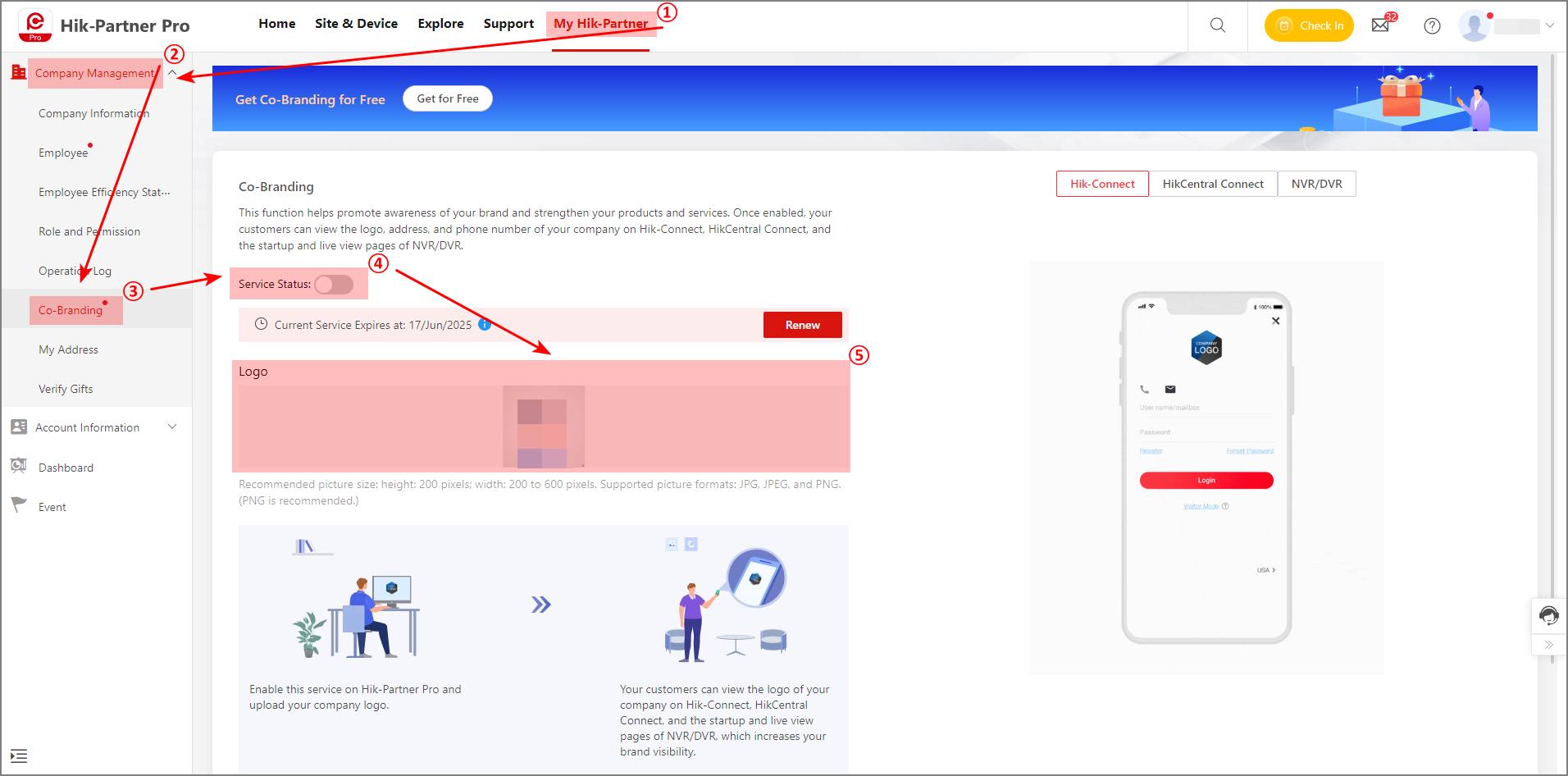
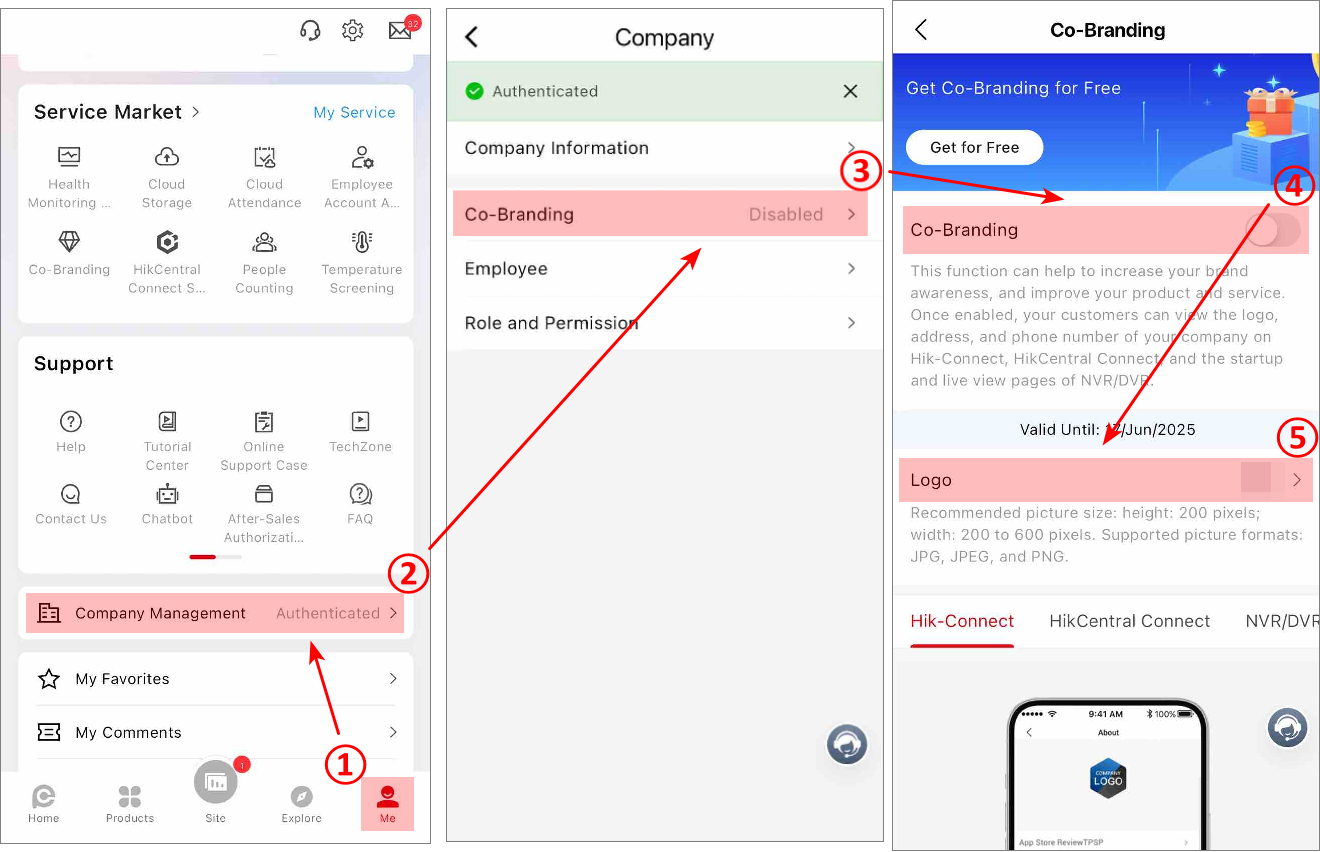
Enter the co-branding service page.
Figure 10 Enter the Co-Branding Service Page on the PortalFigure 11 Enter the Co-Branding Service Page on the Mobile Client -
Switch on the button to enable the co-branding service.
-
Upload your company logo in the Logo area for increased brand visibility.
NoteIf no company logo is uploaded, your company name, instead of your company logo, will be displayed.