Home Page Overview
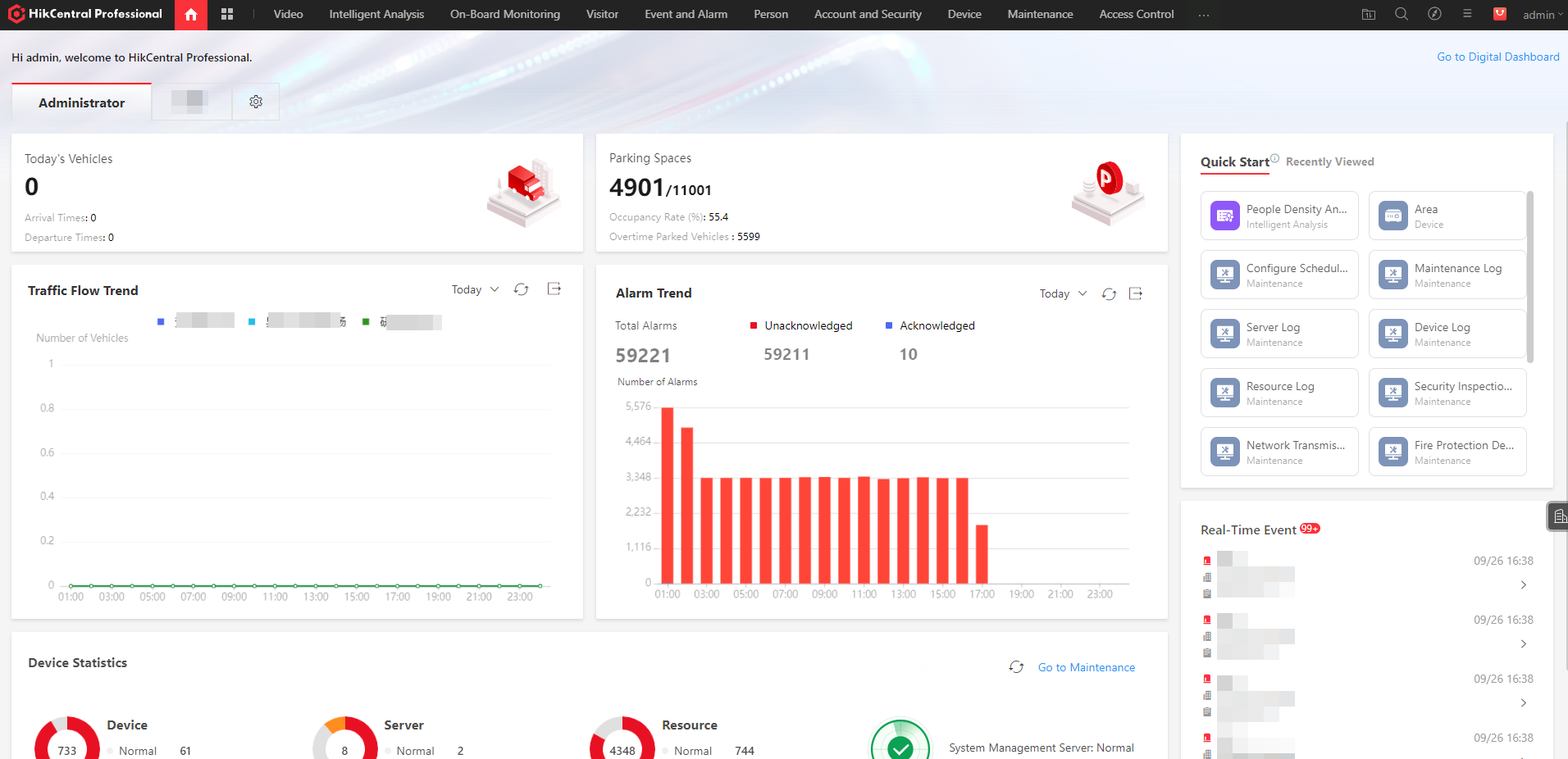
The supported features and parameters are subject to the applications you installed.
|
Section |
Module |
Description |
|---|---|---|
|
Top Navigation Bar |
Navigation Icon |
The navigation bar shows the available functions determined by the Licenses you purchased. On the top left, you can select and favorite frequently used or important modules to the navigation bar on the top for convenient access. |
|
Download Center |
You can view and manage all of the downloading and downloaded tasks on the Web Client. |
|
|
Search Module |
You can search for a specific function module and view the recently viewed pages. |
|
|
Wizard |
Wizards guides you through the management and applications of different modules. |
|
|
Maintenance and Management |
|
|
|
Application Market |
View the current capacity of the platform. Display or hide applications on the Home page. On the application market page, install/uninstall applications, or repair/update installed applications. |
|
|
Account |
|
|
|
Workbench / Digital Dashboard |
Workbench |
You can configure the available workbenches (including the preset workbench) and customize personal workbench by adding the frequently used components. For details, refer to Customize Preset Workbench and Customize Personal Workbench. You can check the default and the added workbenches to display on the Home page for convenient use. |
|
Digital Dashboard |
Click Go to Digital Dashboard to view statistical information about digital campus overview, security control and management, persons, and vehicles. For details, refer to View Digital Dashboard. |





 to view
its details and download it.
to view
its details and download it.