View Digital Dashboard
The platform provides visualized statistics about the digital campus information, including overview, persons, vehicles, and security control and management.
Click to enter the Home page. On the upper-right corner, click Go to Digital Dashboard to enter the Digital Campus page.
 to enter the Home page. On the upper-right corner, click
-
Click to select the time period (today, last 7 days, or last 30 days) to display the statistics.
-
Click to refresh the real-time statistics.
 to select the time period
(today, last 7 days, or last 30 days) to display the statistics.
to select the time period
(today, last 7 days, or last 30 days) to display the statistics. to refresh the real-time
statistics.
to refresh the real-time
statistics.Overview
-
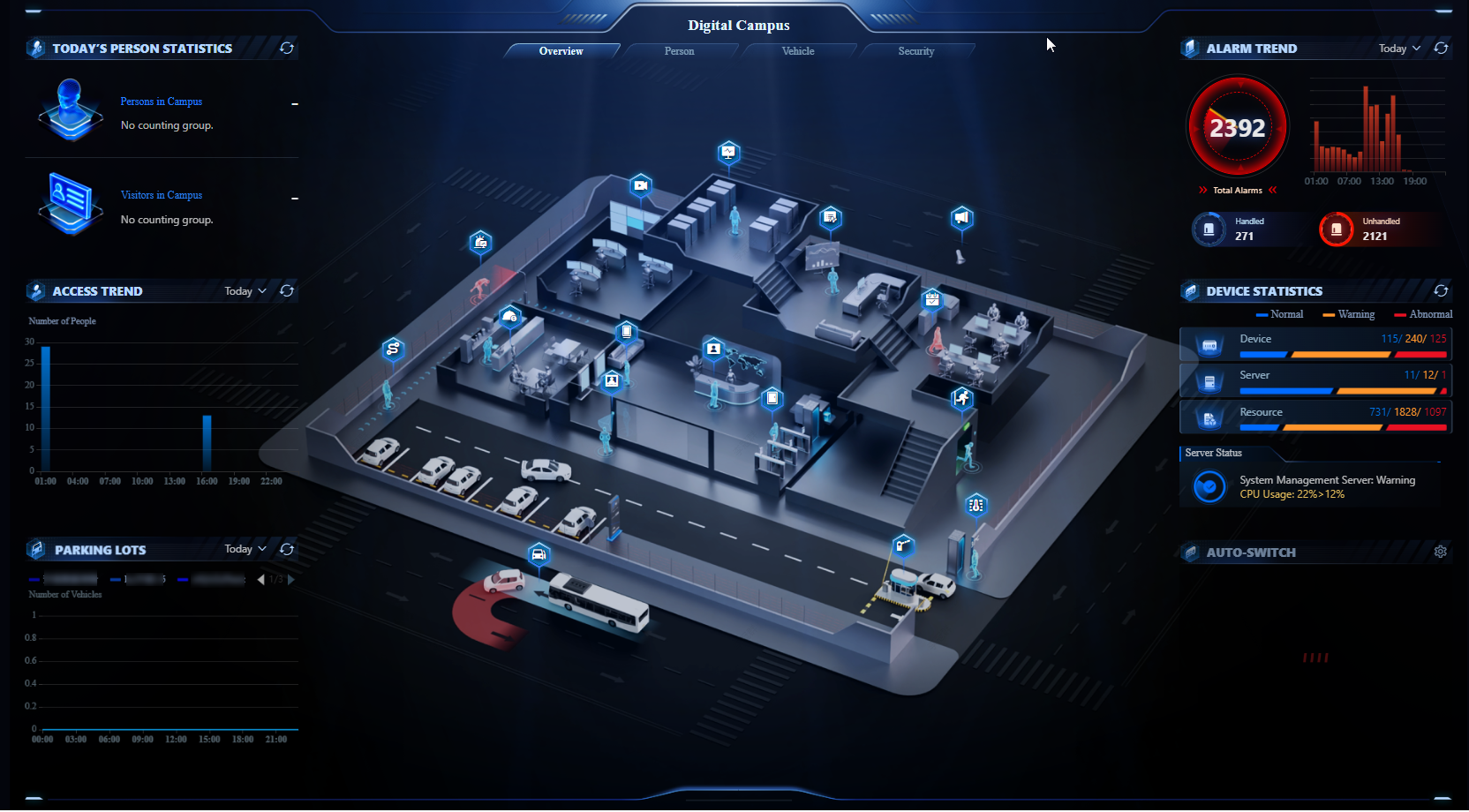
On the left, you can view today's person statistics, access trend, and vehicle parking trend of parking lots.
-
On the right, you can view the alarm trend (including the number of total alarms, handled alarms, and unhandled alarms), and device statistics, and you can set cameras auto-switch.
Person
-
On the left, you can view the total number of persons (including employees and visitors), today's person employee entry trend, and today's visitor entry trend.
-
On the right, you can view the historical employee entry trend and historical visitor entry trend.
Vehicle
-
On the left, you can view the vehicle statistics, internal and external vehicle passing trend, and vehicle parking trend of parking lots.
-
On the right, you can view the parking space statistics, parking space occupancy trend, and parking duration distribution.
Security
-
On the left, you can view the alarm trend (including the number of total alarms, handled alarms, and unhandled alarms), top 5 events, and top 5 areas with alarms.
-
In the middle, you can select to view the live view of events.
-
On the right, you can view the device statistics and device status.