License Management
After installing HikCentral Professional, you have a temporary License for a specified number of devices and limited functions. To ensure the proper use of HikCentral Professional, you can activate the SYS to access more functions and manage more devices. If you do not want to activate the SYS now, you can skip this chapter and activate the system later. You can also view license details and set SSP expiration prompt.
Two types of License are available for HikCentral Professional:
-
Base: You need to purchase at least one basic License to activate the HikCentral Professional.
-
Expansion: If you want to increase the capability of your system, you can purchase an expanded License to get additional features.
-
Only the admin user can perform the activation, update, and deactivation operation.
-
If you encounter any problems during activation, update, and deactivation, please send the server logs to our technical support engineers.
On the top, click Maintenance and Management > License Details to open the License Details pane.
 Maintenance and Management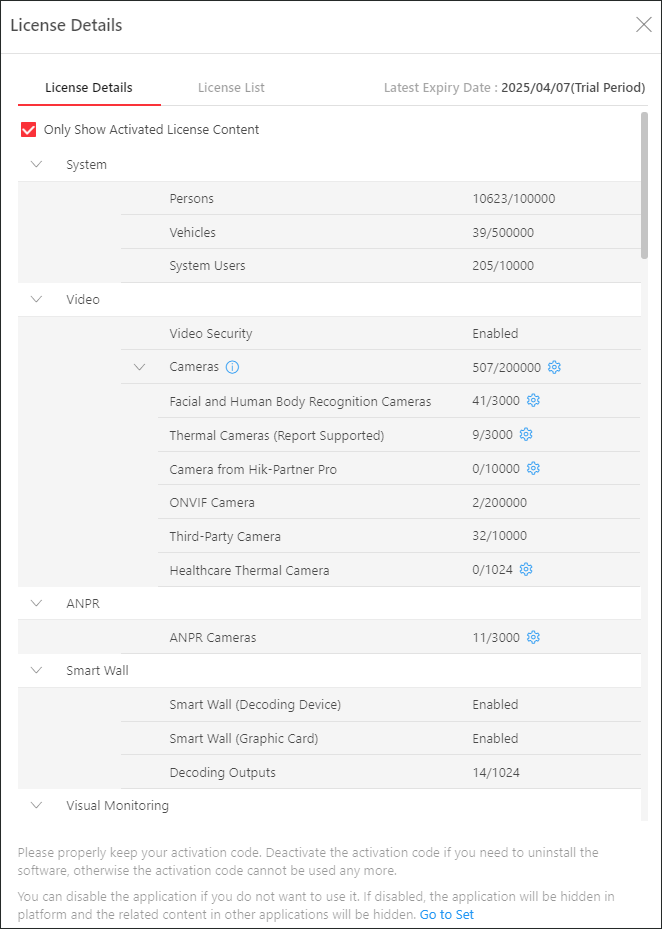
View License Details
You can check the authorization details of the License you purchased and view the number of manageable devices and functions of your platform. If the License is not activated, you can also view the trial period.
-
Click beside the Information Release Channels license to set display screens as devices for information release.
-
Click beside Cameras to show the number of facial and human body recognition cameras / thermal cameras (report supported) / ONVIF cameras / cameras from Hik-Partner Pro, and click to select the added cameras as these types of cameras respectively.
Note-
Configuration of ONVIF cameras is not supported.
-
If you do not configure the facial and human body recognition camera / thermal camera, these cameras' functions (face recognition, plate recognition, and temperature report) cannot be performed normally in the platform.
-
-
Click License List to check all the activated License(s) of your platform and click an activation code to view the related authorization details.
Figure 2 License List Page
 beside the
  beside
  to select the added cameras as these types of
cameras respectively.
to select the added cameras as these types of
cameras respectively.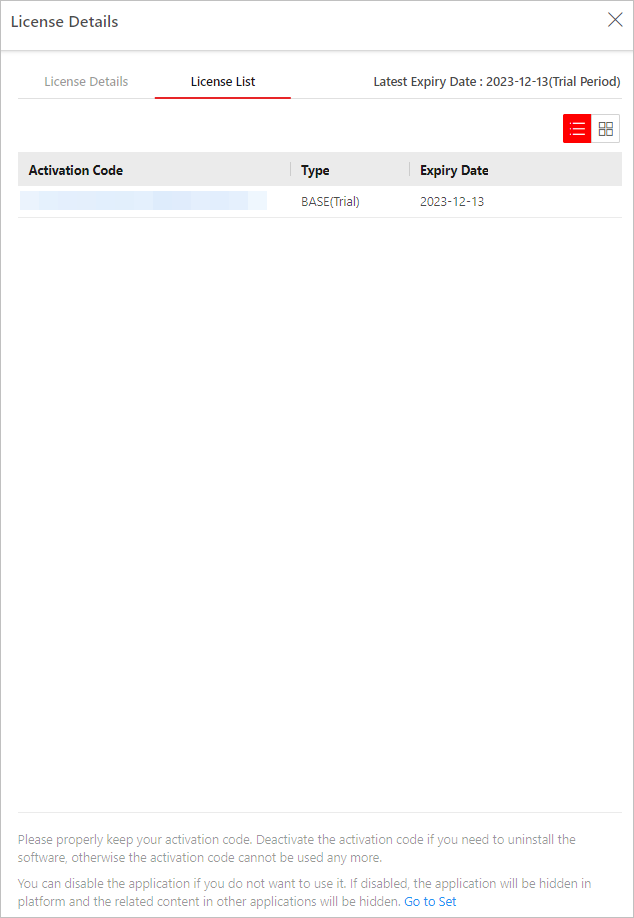
Set SSP Expiration Prompt
SSP (Software Service Program ) refers to the platform's maintenance service, which has an expire date and needs to be upgraded before expiration. You can set SSP expiration prompt on the platform. After that, when the SSP is going to expire, you can receive an email reminding the expiration every day during the configured period.
-
Click beside Software Maintenance Service to enter the SSP Expiration Prompt Settings pane.
-
Set the Overdue Reminder switch to ON.
-
Set the days when you will receive the prompt email before expiration.
Note-
You should enter an integer between 1 to 365.
-
By default, the platform will send a prompt email 30 days before expiration.
-
-
Click Add User to add user(s) who can receive upgrade prompt.
Note-
You should configure the users' email addresses before adding them as recipients. The added users can receive upgrade prompt via the bound email addresses.
-
Up to 64 recipients can be added.
-
You can click to delete the added user(s).
-
-
Click Add Email to add email address(es).
NoteYou can add email of both the platform user(s) and other user(s). The platform will send expiration prompt to the added email address(es).
-
Click Save.
 to delete the
added user(s).
to delete the
added user(s).