Add Administrator
The administrator can log in the device backend and configure the device parameters.
- Long tap on the initial page and log in the backend.
-
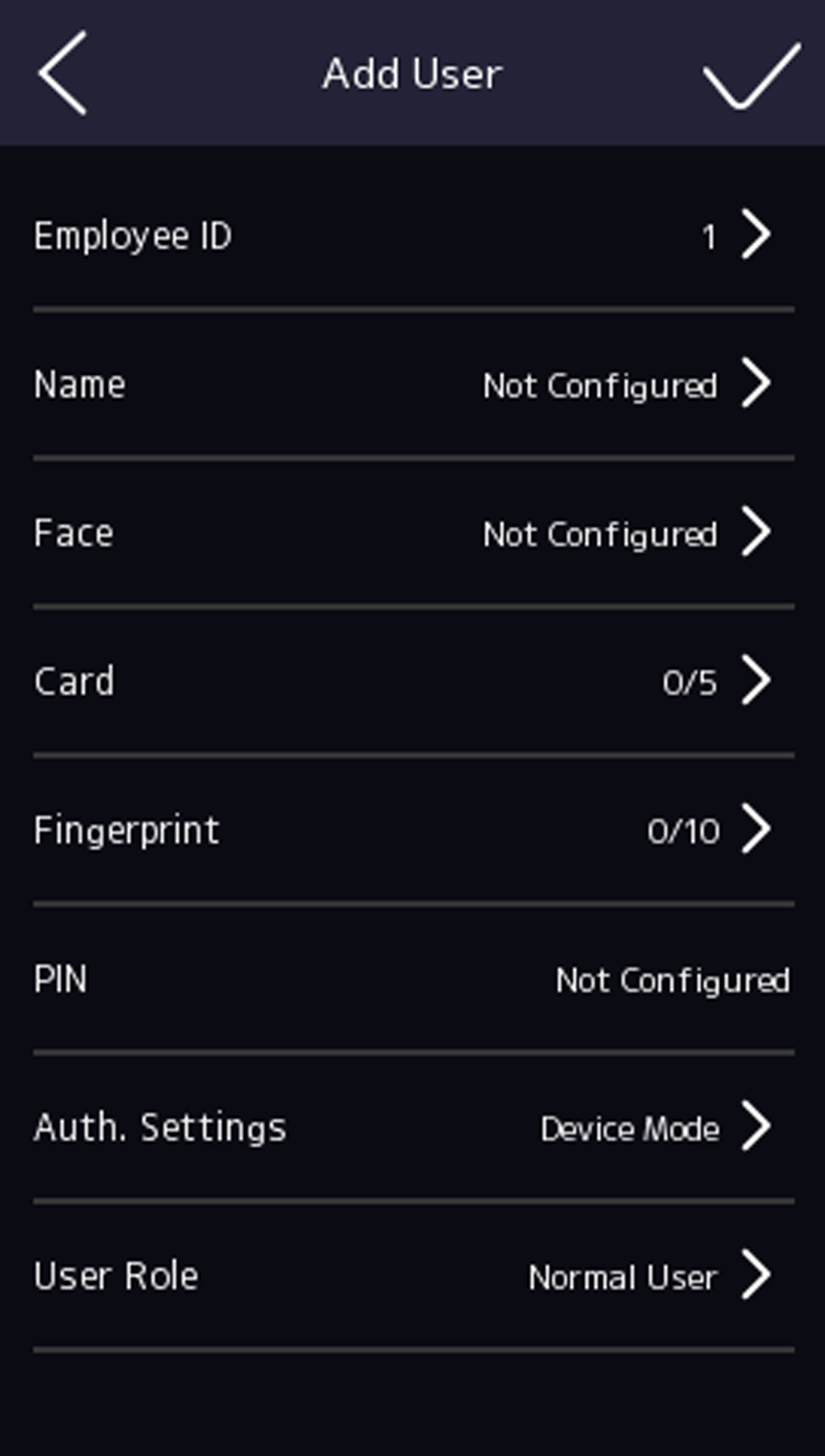
Tap User > + to enter the Add User page.
-
Edit the employee ID.
Note:
-
The employee ID should be less than 32 characters. And it can be a combination of lower letters, upper letters, and numbers.
-
The employee ID should not be duplicated.
-
-
Tap the Name field and input the user name on the soft keyboard.
Note:
-
Numbers, upper case letters, lower case letters, and special characters are allowed in the user name.
-
Up to 32 characters are allowed in the user name.
-
- Optional:
Add a face picture, fingerprints, cards, or Pin for the administrator.
Note:
-
For details about adding a face picture, see Add Face Picture.
-
Note:
For details about adding a fingerprint, see Add Fingerprint.
-
For details about adding a card, see Add Card.
-
For details about adding a password, see Add PIN.
-
- Optional:
Set the administrator's authentication type.
Note:
For details about setting the authentication type, see Set Authentication Mode.
- Enable the Administrator Permission function.
-
Tap
 to save the settings.