Preference Settings
You can configure preference settings parameters.
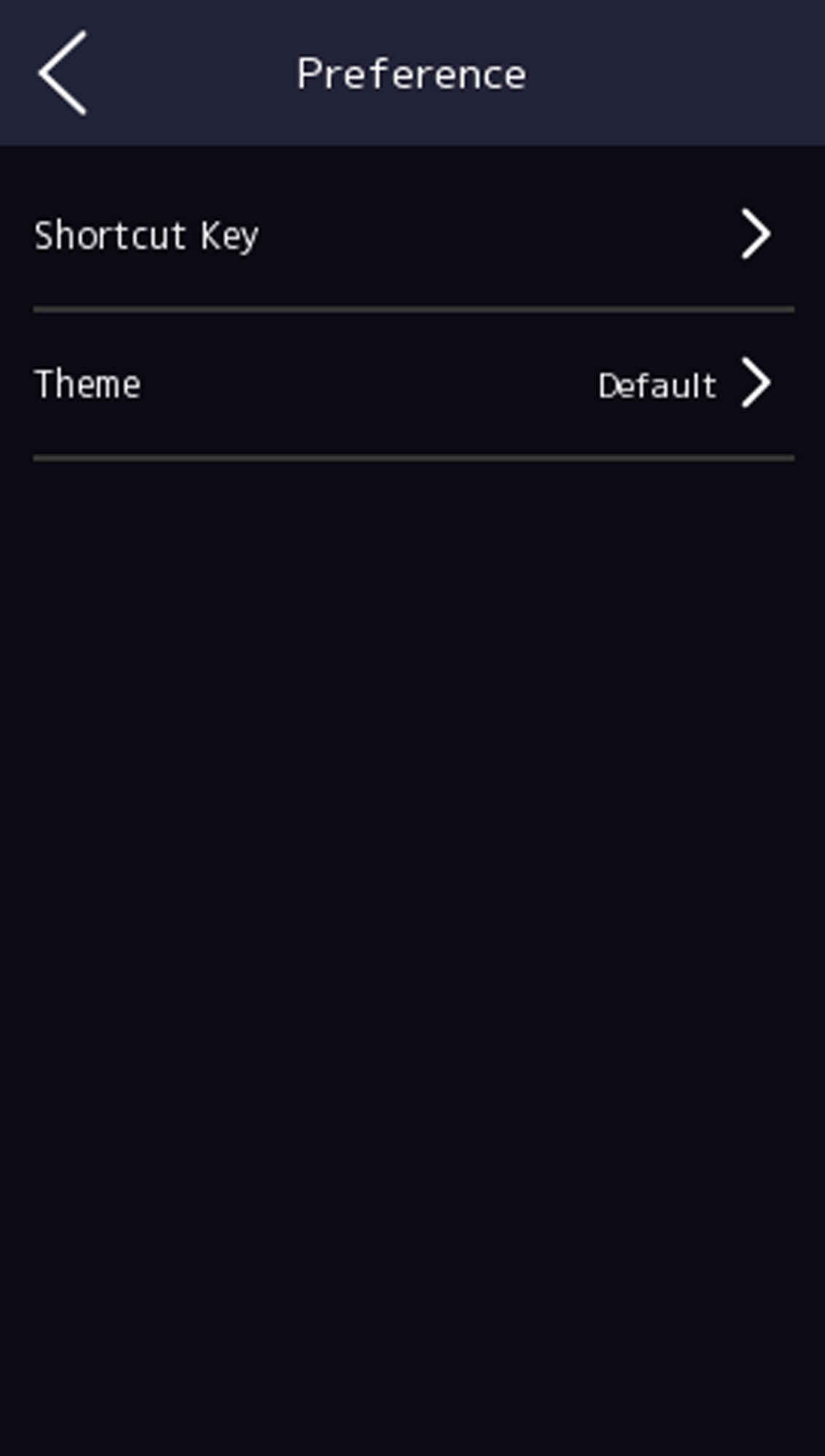 Figure 1 Preference
Settings
- Shortcut Key
-
Choose the shortcut key that displayed on the authentication page, including the password entering function, QR code function, the call function, and call type.
Note:You can select call type from Call Room, Call Center, Call Specified Room No. and Call APP.
- Password
- Enable this function amd you can enter the password to authenticate via password.
- QR Code
-
You can use the QR code scanning function on the authentication interface. The device will upload the information associated with the obtained QR code to the platform.
- Call Room
-
When you tap the call button on the authentication page, you should dial a room No. to call.
- Call Center
-
When you tap the call button on the authentication page, you can call the center directly.
- Call Specified Room No.
-
You should set a room No. When you tap the call button on the authentication page, you can call the configured room directly without dialing.
- Call APP
-
When you tap the call button on the authentication page, you will call the mobile client where the device is added.
- Theme
-
You can set the theme of the prompt window on the authentication page. You can select Theme as Authentication/Simple.
- Authentication
-
The device authentication page will display the live view page. And the person's name, employee ID, face pictures will all be displayed after authentication.
- Simple
-
After selecting this mode, the live view of the authentication page will be disabled, and in the meanwhile, the person's name, employee ID, face pictures will all be hidden.