Add Dock Station Group
Dock station group is a group of persons who are linked to the same dock station(s). After linking persons to dock station(s), the videos and pictures on the persons' body cameras can be copied to these dock station(s).
Up to 64 dock station groups can be added.
-
In
the top left corner of the platform, select
 > Security Monitoring > Video > Dock Station.
-
Click
Add
Dock Station Group to open Add Dock Station
Group panel.
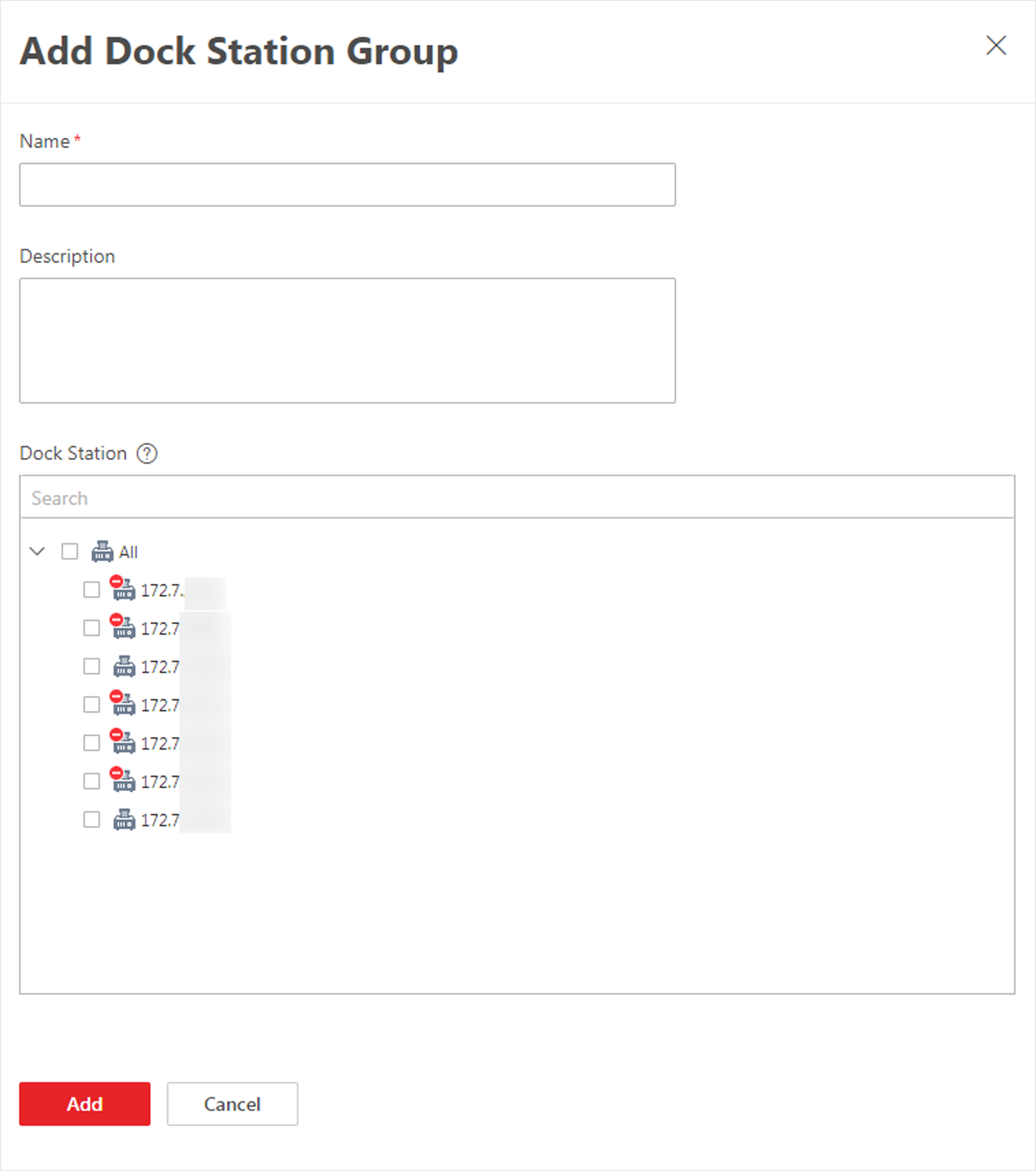 Figure 1 Add Dock Station
Group
Figure 1 Add Dock Station
Group - Optional:
Perform following operations for added dock station groups.
Option Description Edit Dock Station Group
Select a dock station group in the dock station group list and click
 to edit it.
Delete Dock Station Group
Select a dock station group in the dock station group list and click
 .
.Set Person as Super User
Select a person in a dock station group and click Set As Super User to set the person as the super user of the dock station.
Note:Only one super user is allowed for a dock station group.
Cancel Super User
Select the super user and click Cancel Super User.
Check Person Applying Failure Details
Hover the cursor onto the
 and click
Details to view the person applying
failure details.
and click
Details to view the person applying
failure details.Re-Apply Person(s)
Hover the cursor onto the
and click
Retry to re-apply the person(s) to the
dock station(s).Delete Person(s)
Select person(s) from the person list, and then click Delete to delete the selected person(s). Or hover the cursor onto
 next to
Delete, and then click Delete
All to delete all persons in the group.
next to
Delete, and then click Delete
All to delete all persons in the group.Only Display Person(s) Failed to Be Applied
Check Only Display Persons Failed to Be Applied to filter the persons whose information is failed to be applied.
Apply All Person(s)
Click Apply All to apply the person(s) in the person list to the dock station(s) linked to the group.