If you forget the password you use to access the online device, you can
request for a key file from your technical support and reset the device's password through
the platform.
-
Make sure the devices you are going to use are correctly
installed and connected to the network as specified by the manufacturers.
Such initial configuration is required in order to be able to connect the
devices to the HikCentral Professional via
network.
-
The devices should be activated. Refer to Create Password for Inactive Device(s) for details about activating devices.
Perform this task when you need to reset the device's password. Here we take creating
password for the encoding device as an example.
-
In the top left corner of Home page, select .
-
Click on the left.
-
In the Online Device area, view the device status (shown on Security column)
and click icon
 in the Operation column of an
active device.
in the Operation column of an
active device.
The Reset Password window pops up.
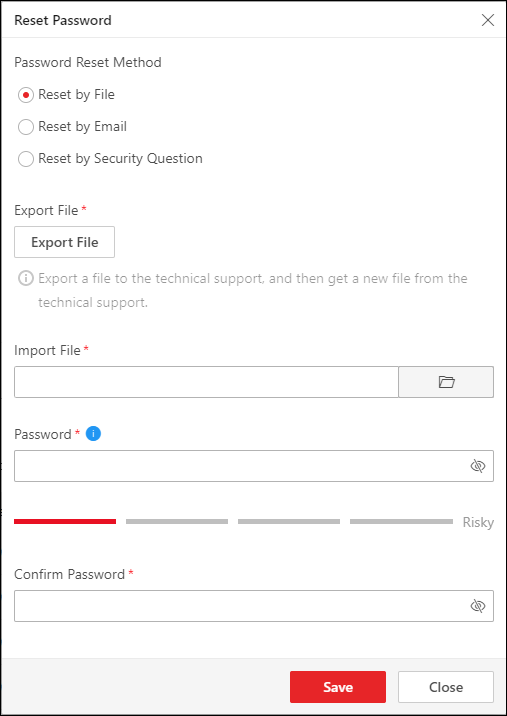 Figure 1 Reset Password
-
Select a password reset method:
| Option |
Description |
|---|
|
Reset by File
|
Click
Export
File to save the device file on
your PC. Send the file to the technical support.
Note:
For the following operations about resetting the
password, contact the technical support.
|
|
Reset by Email
|
Export the QR code and sent it to the email displayed.
You will receive the verification code in 5 minutes. Enter the code,
new password, and confirm password.
|
|
Reset by Security Question
|
Enter the answer to the security question, new password,
and confirm password.
Note:
If you have not set security questions, the window
of setting security questions will pop up, and you should set
the security questions as needed.
|
CAUTION:
The password strength of the device can be automatically checked. We
highly recommend you change the password of your own choosing (using a minimum of 8
characters, including at least three kinds of following categories: upper case
letters, lower case letters, numbers, and special characters) in order to increase
the security of your product. And we recommend you change your password regularly,
especially in the high security system, changing the password monthly or weekly can
better protect your product.
Proper configuration of all passwords and other security settings is the
responsibility of the installer and/or end-user.
-
Click Save to save the change.
 > Basic Management > Device.