Add Speaker Unit to Area for Current Site
You can add speaker units to areas for the current site for management.
The speaker units need to be added to HikCentral Professional for area management. Refer to Group Speaker Units for details.
-
In the top-left corner of the Home page, select
 > Basic Management > Device.
-
In the left panel, select the current site from the drop-down site list to show
its areas.
Note:
The icon
 indicates that the site is the current
site.
indicates that the site is the current
site. -
Click Add on the element page to enter the Add Speaker
Unit page.
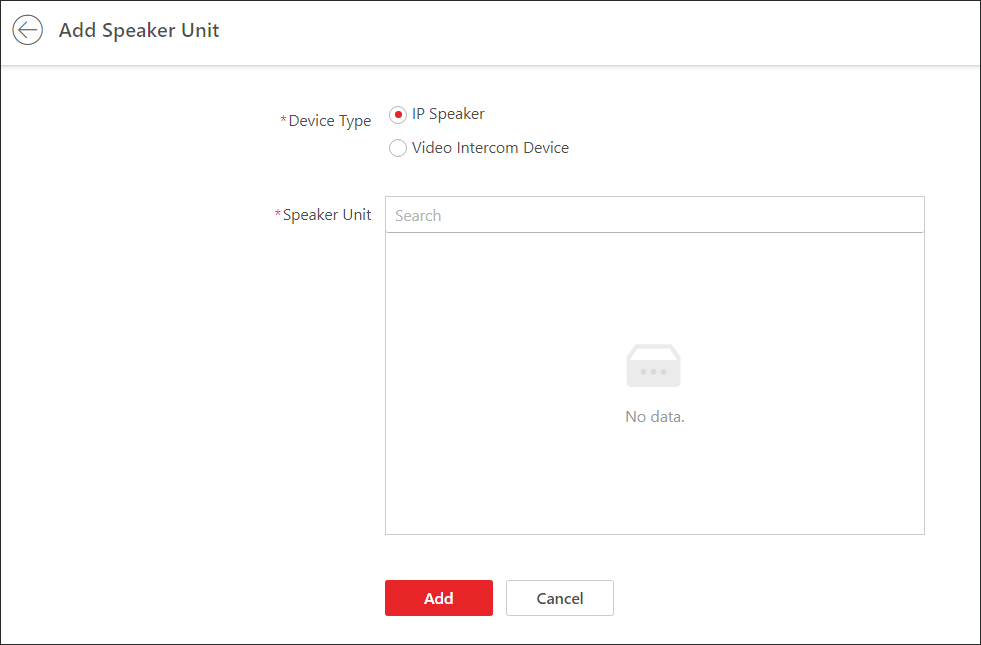 Figure 1 Add Speaker
Unit
Figure 1 Add Speaker
Unit - Optional:
After adding speaker unit(s), you can do one or more of the followings:
Option Description Move to Other Area
Select the speaker unit(s) and click Move to Other Area. Then select the target area to move the selected speaker unit(s) to and click Move.
Adjust Volume
Select speaker unit(s) and click Volume to adjust the alarm volume and/or volume.
Set Geographic Location
Click Set Geographic Location to enter the Map Settings page. You can search for the speaker unit(s) to be added to the map and drag the speaker unit to the map. For details, refer to Add Hot Spot on Map.
Display Speaker Unit of Sub Areas
Check Include Sub-Area to display the speaker units in sub areas.
Search Speaker Units
Enter the name of speaker unit(s) and click
 to search for the
speaker unit(s).
to search for the
speaker unit(s).Delete Speaker Unit
Select the speaker unit(s) and click Delete to delete the speaker unit(s).