Update License - Offline
As your project grows, you may need to increase the connectable number of devices for your HikCentral Professional. If the SYS to be updated cannot connect to the Internet, you can update the system in offline mode.
Contact your dealer or our sales team to purchase a License for additional features.
-
On the top, move the cursor to
 Maintenance and Management to show the
drop-down menu.
Maintenance and Management to show the
drop-down menu.
-
Click Offline Update to update the License in
the offline mode.
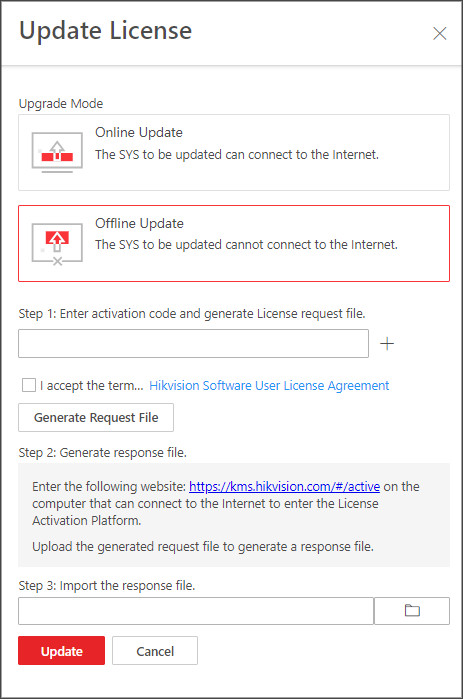 Figure 1 Update License in
Offline Mode
Figure 1 Update License in
Offline Mode -
Enter the activation code of your additional License.
Note:
-
If you have purchased more than one License, you can click
 and enter other
activation codes.
and enter other
activation codes. -
The activation code should contain 16 characters or 32 characters (except dashes).
-
-
Click
 and then select the downloaded
request file.
and then select the downloaded
request file.
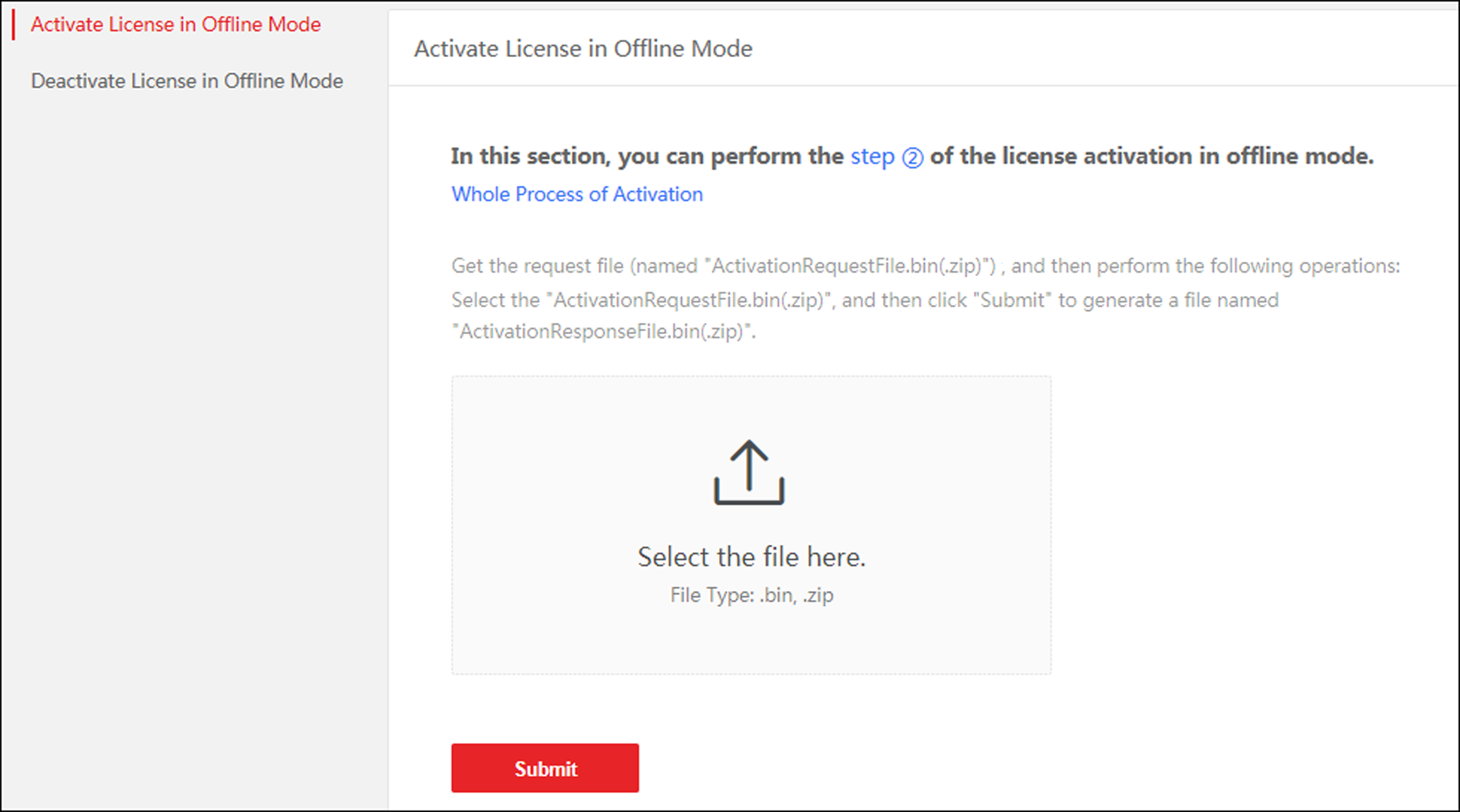 Figure 2 Select Request
File
Figure 2 Select Request
File -
In the offline update panel, click
 and select the downloaded respond file.