View License Details
You can check the authorization details of the License you purchased and view the number of manageable devices and functions of your platform. If the License is not activated, you can also view the trial period.
-
On the top, move the cursor to
 Maintenance and Management to show the drop-down menu.
- Optional:
Click
 beside Cameras (Exclude Cameras Imported from
Remote Site) to show the number
of ANPR cameras / facial and human body recognition cameras / thermal cameras (report
supported)
/
Open Network Video Interface cameras / cameras from Hik-Partner Pro / Dahua
cameras, and click
Configuration to select the added cameras as these
types of cameras respectively.
Note:
beside Cameras (Exclude Cameras Imported from
Remote Site) to show the number
of ANPR cameras / facial and human body recognition cameras / thermal cameras (report
supported)
/
Open Network Video Interface cameras / cameras from Hik-Partner Pro / Dahua
cameras, and click
Configuration to select the added cameras as these
types of cameras respectively.
Note:-
Configuration of Open Network Video Interface cameras and Dahua cameras is not supported.
-
If you do not configure the ANPR camera / facial and human body recognition camera / thermal camera, these cameras' functions (facial recognition, plate recognition, and temperature report) cannot be performed normally in the platform.
-
- Optional:
Click License List to check all the activated License(s)
of your platform and click an activation code to view the related authorization
details.
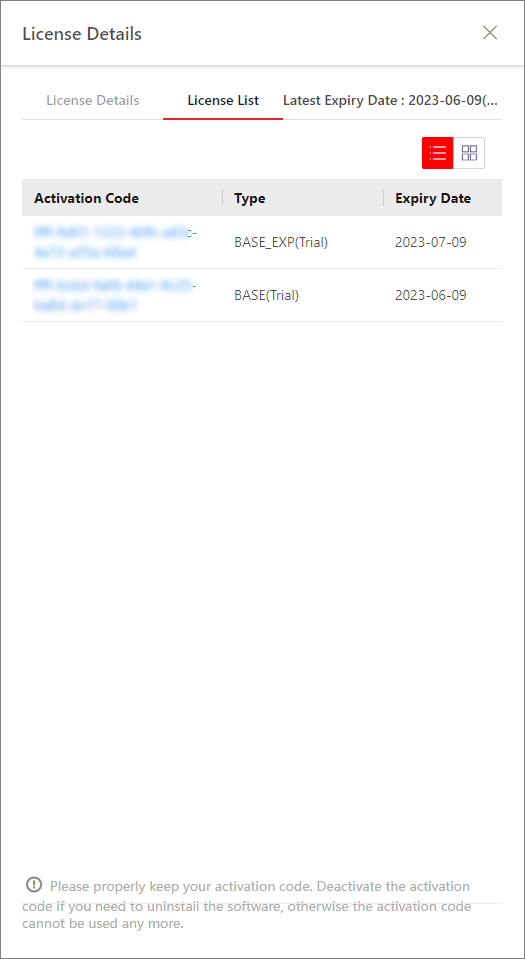 Figure 1 License List
Page
Figure 1 License List
Page