Configure Capture Schedule
You can add a capture schedule to determine when and which camera will capture pictures.
-
In the top left corner of Control Client, select
 > Video > Video Settings > Capture Schedule.
-
Click
 to add a capture schedule.
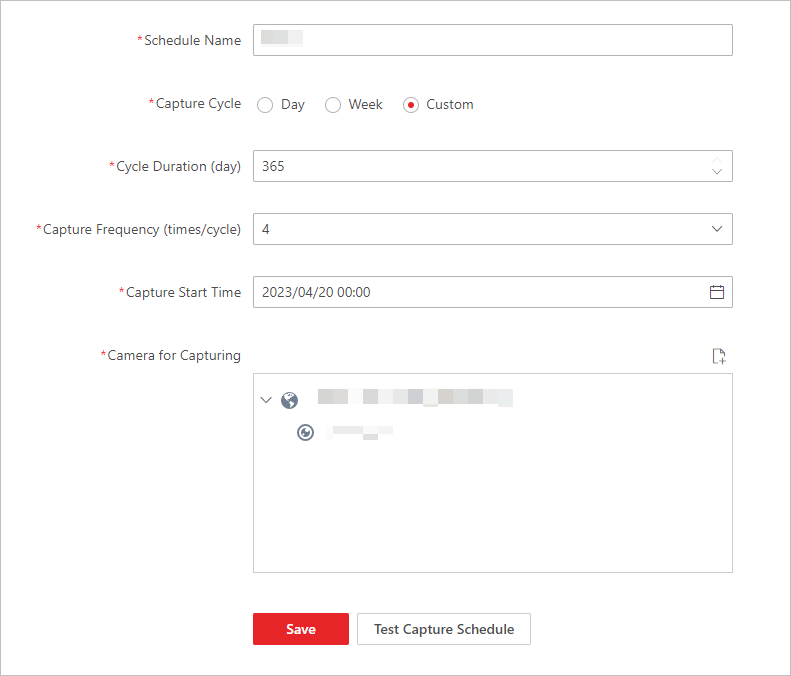 Figure 1 Configure Capture
Schedule
Figure 1 Configure Capture
Schedule