Configure Recording Schedule Template
Recording schedule is time arrangement for video recording. You can configure the recording schedules to record video in a certain period. Two default recording schedules are available: All-day Time-based Template and All-day Event-based Template. All-day Time-based Template can be used for recording videos for all day continuously, and All-day Event-based Template is for recording videos when alarm is triggered. You can also customize the recording schedule.
Perform this task when you need to customize the schedule to record the video files.
-
In the top left comer of the Home page, select
 > Video > Video Settings > Recording Schedule Template.
-
Click
 to enter the Adding Recording
Schedule page.
Note:
to enter the Adding Recording
Schedule page.
Note:Up to 32 templates can be added.
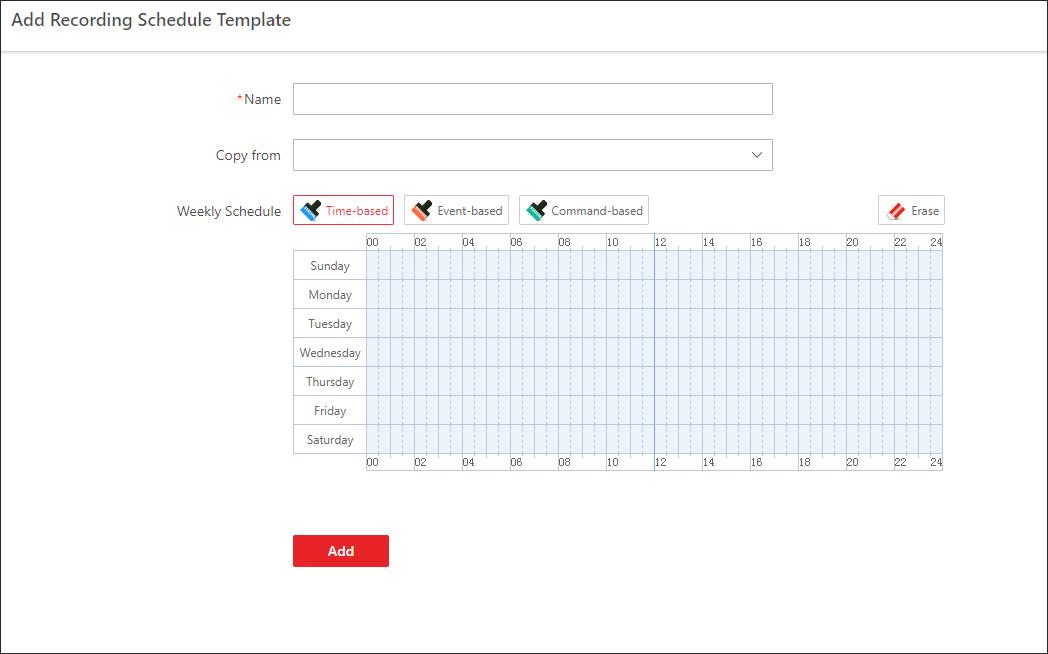 Figure 1 Adding Recording
Schedule Template Page
Figure 1 Adding Recording
Schedule Template Page - Optional:
Perform the following operations on the recording schedule template list
page.
Option Description View Template Details
Click the template to check the detailed settings.
Delete Template
Click  to delete a
template.
to delete a
template.