Topology Details
The topology of devices will display the hierarchical relationships among the devices, device information, link status, alarm information, etc.
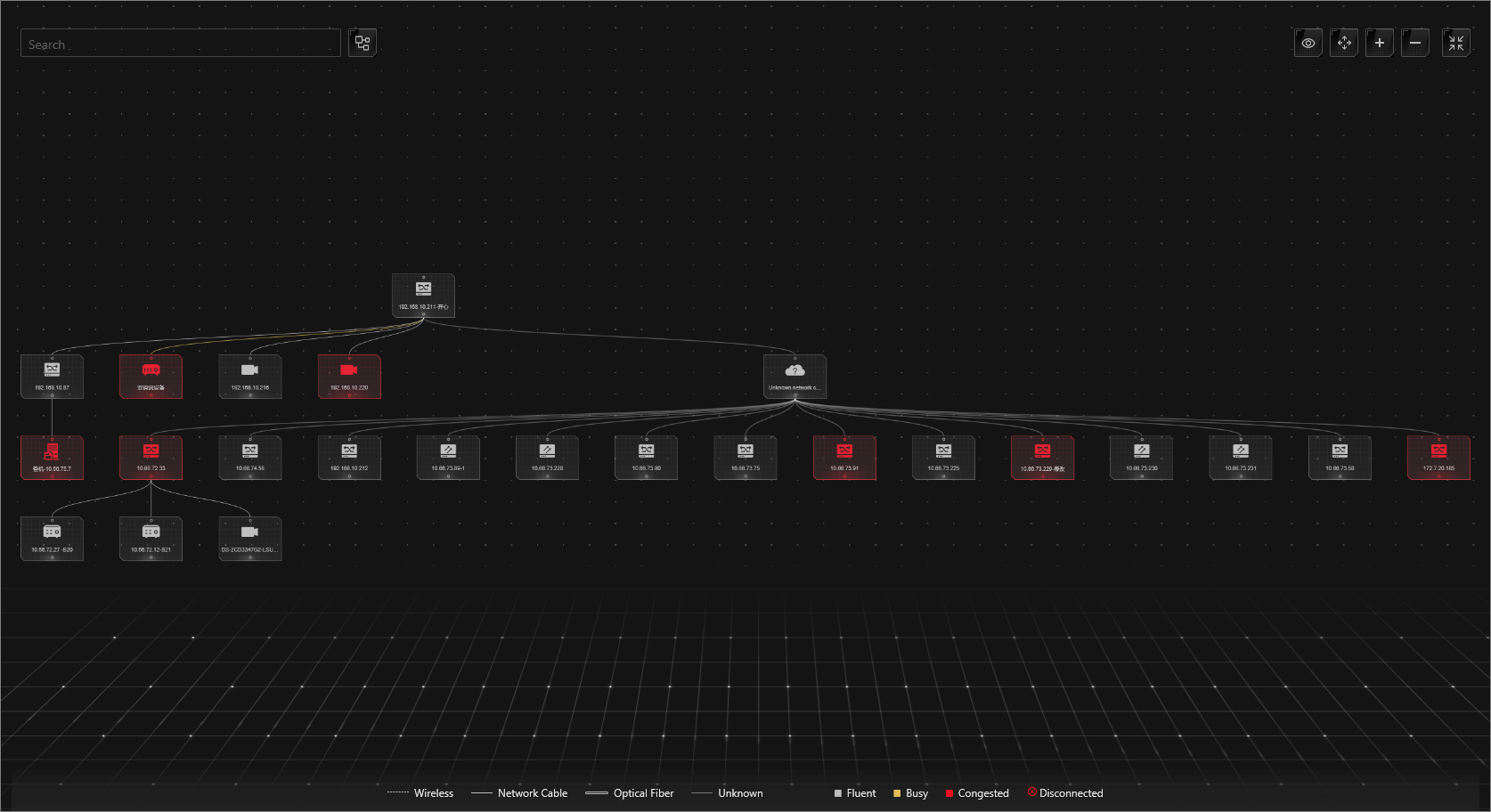 Figure 1 Topology Details
- Device Node
-
The device nodes are displayed by icons, including the System Management Server, Recording Server, network transmission device, encoding device, access control device, video intercom device, network bridge, fiber converter, etc. Each device node displays the device name and IP address.
Note:-
When the device information (device name, IP address, online/offline status) changes, you should manually refresh to generate the topology again or set auto-refresh.
-
When the device hierarchy or physical connection changes, you should manually refresh to generate the topology again.
-
If the node icon is displayed in red, it indicates that the device is abnormal or alarms are triggered. You can view the reason for device exception or alarm details.
-
For the added online devices, the displayed device alias is the same as the device IP address.
-
- View Device Details
-
Click the device node in the topology and click Details in the drop-down list. You can view the device details, including the basic information (i.e., device name, IP address and device model), device usage (e.g., RAM usage, CPU usage, PoE power), arming status and disk array (for encoding device), live video (if the device is linked with a camera), linked lane name / entrance direction / entrance & exit name / barrier control status (if the entrance and exit is linked with a camera), device panel status (i.e., ports and ports usage), and port information (i.e., port name, and peer device type, peer device IP address, and peer device name).
Note:The device details vary with different device models.
- Link
-
The color of link indicates the utilization rate of network bandwidth (red: congested, yellow: busy, gray: fluent). And the shape of link indicates the link type (wireless, network link, optical fiber).
- View Link Details
-
Move the cursor to the link between nodes to display the link details. You can view the upstream rate and downstream rate to determine whether the network status is normal or not. You can also view the connected device type, IP address, port name, and port status.
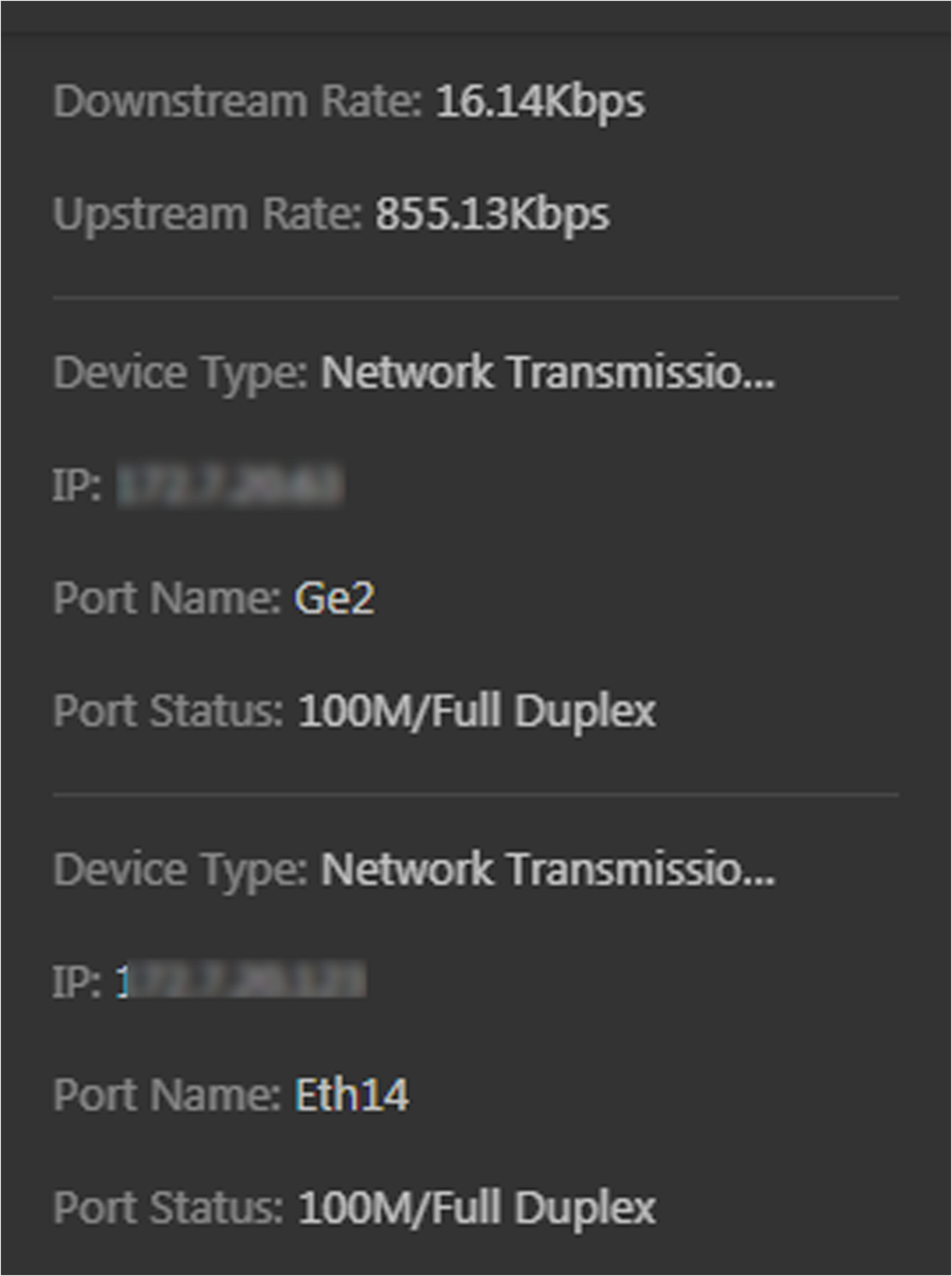 Figure 2 View Link
Details
Figure 2 View Link
Details - View Connection Path
-
If there is a data transmission failure between the devices, you can view the connection path to judge which link is disconnected, so as to restore the link as quickly as possible. Click the device node and in the topology and click Show Connection Path in the drop-down list. According to the information presented in the prompt window, click Common Unknown Node or Select Node to select the peer node, and then click OK. After that, the connection path between the two nodes will be displayed.
- Remote Configuration
-
Click the device node in the topology and click Remote Configuration in the drop-down list to configure the device parameters, including system settings, network and port configuration. You can configure the network parameters and device port according to the network usage. For details, refer to the user manual of the device.
Note:This function should be supported by the device.
- View Device Logs
-
When a device failure happens or trouble shooting is required, you can view the device's logs to know the alarms, notifications, operations and events of the device. Click the device node in the topology and click View Device Logs in the drop-down list to enter the Device Logs page, and you can set the conditions to search the device logs.
Note:This function should be supported by the device.
- Set as Root Node
-
When you need to adjust the topology structure, you can click the device node in the topology and click Set as Root Node in the drop-down list to set the node as the root node.
Note:Only the switch, wireless network bridge, and fiber converter can be set as root node.
- Zoom In/Zoom Out
-
Click
 or
or  to zoom in or zoom out the device node(s) and the
subsidiary device node(s). You can scroll the mouse wheel to zoom in or zoom
out the topology.
to zoom in or zoom out the device node(s) and the
subsidiary device node(s). You can scroll the mouse wheel to zoom in or zoom
out the topology. - Adjust Topology
-
Click the background of the topology to move the topology in up, down, right, or left direction.
- Full Screen
-
Click
 on the upper-right corner of
the topology to display the topology in full-screen mode.
on the upper-right corner of
the topology to display the topology in full-screen mode. - Adaptive View
-
Click
 on the upper-right corner of
the topology to adapt the topology to the current window, to help you know
the whole topology hierarchy quickly.
on the upper-right corner of
the topology to adapt the topology to the current window, to help you know
the whole topology hierarchy quickly. - Search
-
By entering the device name or IP address in the search box, you can quickly locate the device on the topology.