Link Cameras to an Indoor Station
After adding indoor station to the system, you can link cameras to added indoor stations to view video of the linked camera(s) on the indoor station. Up to 16 cameras can be linked to one indoor station.
-
Make sure you have added indoor station(s) to the system. For details, refer to Add a Video Intercom Device by IP Address.
-
Make sure the camera(s) to be linked are correctly installed and are added to the system by Hikvision Private Protocol/ONVIF.
-
In the top left corner
of
Home page, select
 > Passing Management > Video Intercom > Video Intercom Application > Link Camera to Indoor Station.
-
Click
Link.
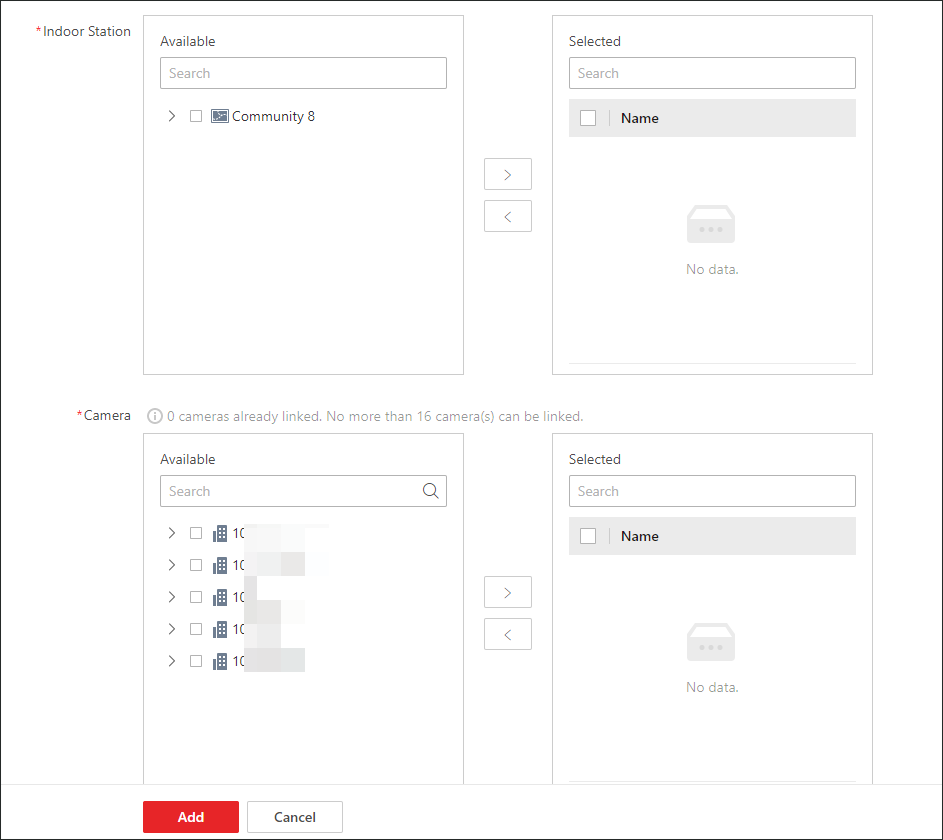 Figure 1 Add Linked CameraNote:
You can also link camera to indoor station in the configuration page of the indoor station. For details, refer to Configure Device Parameters.
- Optional:
Perform the following operations.
Option Description Filter Indoor Stations
-
Click
 on the top right to set conditions
such as Indoor Station, Location Information, or Application Status to filter
door stations.
on the top right to set conditions
such as Indoor Station, Location Information, or Application Status to filter
door stations. -
Click Reset to reset search conditions.
Unlink Doorbell from Indoor Stations
Select indoor stations and click Unlink.
View Linked Cameras
On the page of the added indoor station list, click
 to view linked cameras.
Change Linked Cameras
On the page of the added indoor station list, click an indoor station name to change linked cameras.
-