Add a Personal Approval Flow
Personal approval flow defines the approval process of reviewing applications of a person. Applications of the specified persons should be reviewed according to the personal approval flow.
-
Make sure the current admin user has the permissions for configuring the approval flow. For details about user permissions, refer to Role and User Management.
-
Make sure you have added roles of the approval flow. For details about adding roles, refer to Add an Approval Role.
-
On the top left, select
 > Integrated Service > Attendance.
-
On the left, set the basic information of the
approval
flow.
- Enter the name of the approval flow.
- Set the start time and end time of the validity time period.
- Select the application type (leave, check in&out correction, overtime, and check in&out via Mobile Client).
- Optional: Switch off Enable Approval Flow to disable the approval flow.
Note:The approval flow is enabled by default.
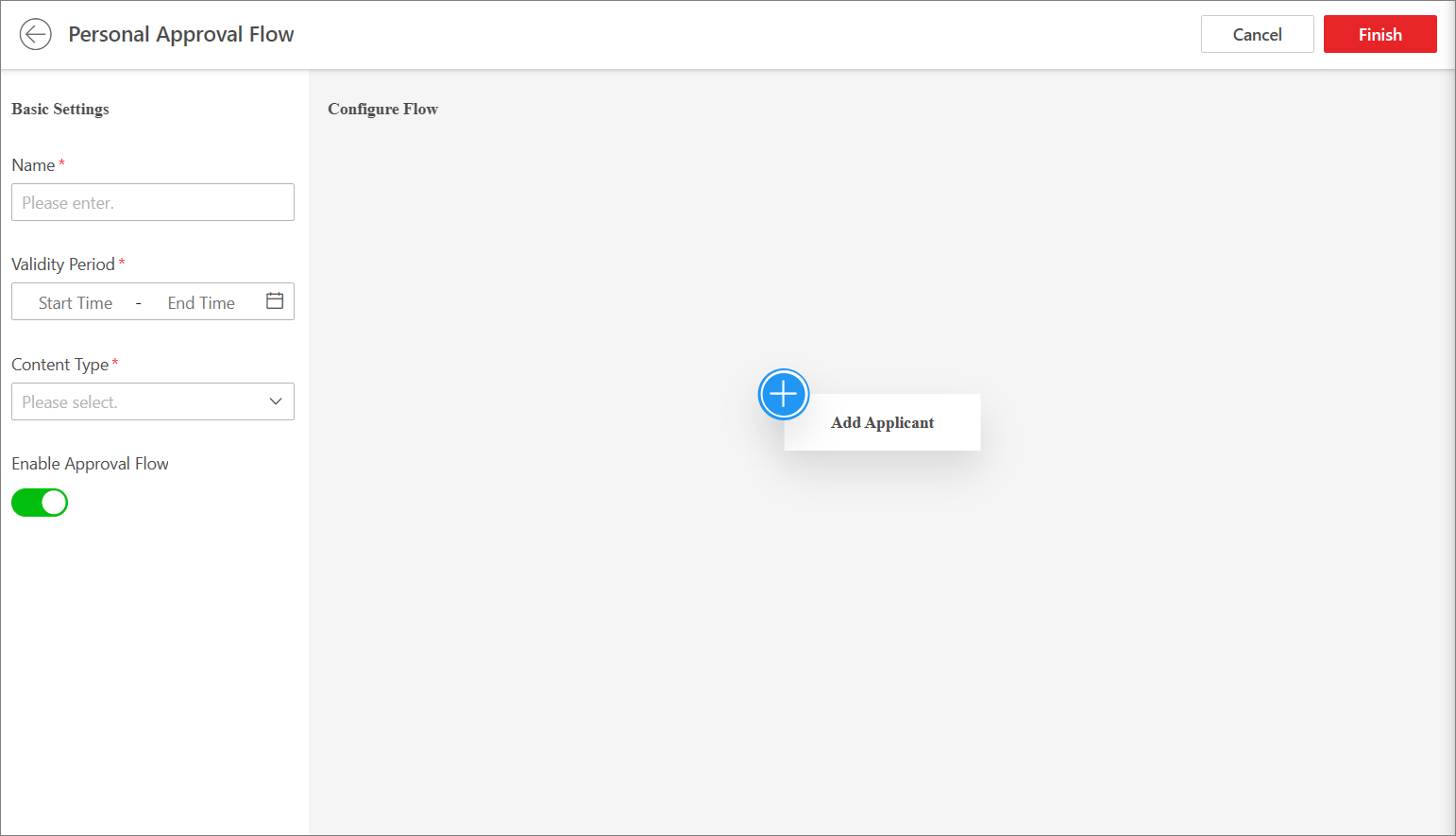 Figure 1 Add Personal
Approval
Flow
Figure 1 Add Personal
Approval
Flow -
Click Add Applicant and
 to select the applicant(s).
Note:
to select the applicant(s).
Note:If you check Select All Persons, all persons who matched the search conditions you set will be selected.
-
Click
 to add the reviewer(s) for the
approval
flow.
Note:
to add the reviewer(s) for the
approval
flow.
Note:You can repeat this step to add more reviewers and persons to be notified for the approval flow.
-
Click Finish.
The approval flow will be added to the approval flow list.
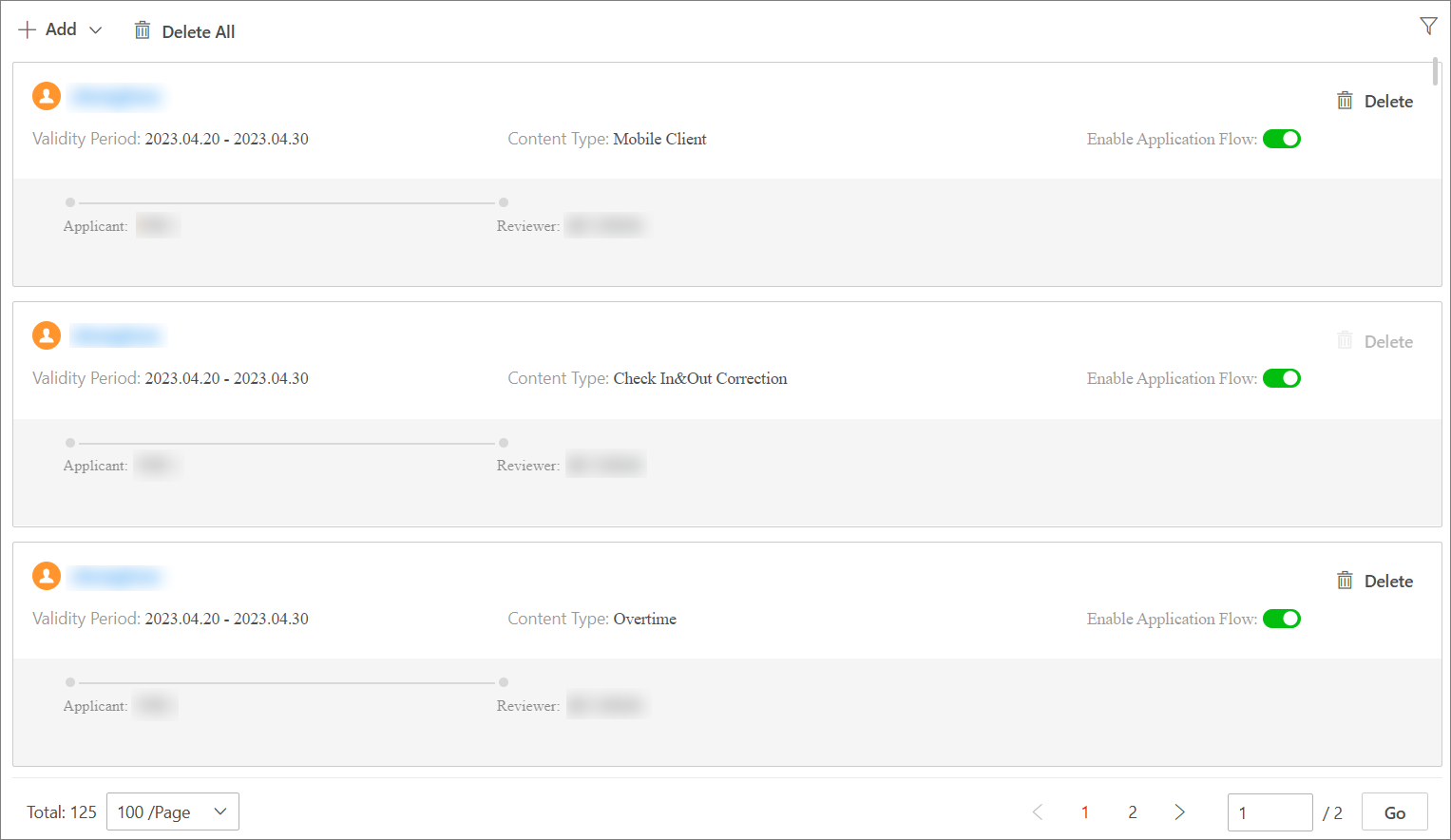 Figure 2 Approval
Flow List
Figure 2 Approval
Flow List - Optional:
Perform the following operations as needed.
Option Description Edit Approval Flow
In the approval flow list, click the name of the approval flow to edit it.
-
Click Reviewer to edit the reviewer's approval role and the role to be notified (if any).
-
Click
 to delete
the node of the
approval
flow.
to delete
the node of the
approval
flow.
Disable Approval Flow
When adding an approval flow, it is enabled by default. You can disable the flow in the approval flow list.
Delete Approval Flow
In the approval flow list, you can click Delete to delete an approval flow, or click Delete All to delete all approval flows.
Filter Approval Flow
On the upper-right corner, click
 , specify conditions
such as person name,
approval
flow type, or content type, and click Filter
to filter the
approval
flows.
, specify conditions
such as person name,
approval
flow type, or content type, and click Filter
to filter the
approval
flows. -