Perform Manual Panorama Tracking
During live view, you can enable the panorama tracking manually to locate or track the target appeared in the view of bullet or box camera with a linked speed dome. You can also check and test the calibration results about panorama tracking settings for auto-tracking.
Make sure you have configured the panorama tracking rules for the box or bullet camera on Web Client. For more details, refer to User Manual of HikCentral Professional Web Client.
-
In the top left corner of the Client, select
 > Video > Video Security.
-
Click
 on toolbar of box/bullet camera
to enable manual panorama tracking.
Note:
on toolbar of box/bullet camera
to enable manual panorama tracking.
Note:If you choose to enable manual panorama tracking, the auto panorama tracking will not take effect; if you choose not to enable manual panorama tracking and enable Auto-Tracking when configuring panorama tracking on the Web Client, when the configured VCA event is triggered by target, the linked speed dome will perform the automatic panorama tracking.
-
Click or draw a rectangle on the live view image of the box/bullet camera, and
the speed dome will switch to the close-up view.
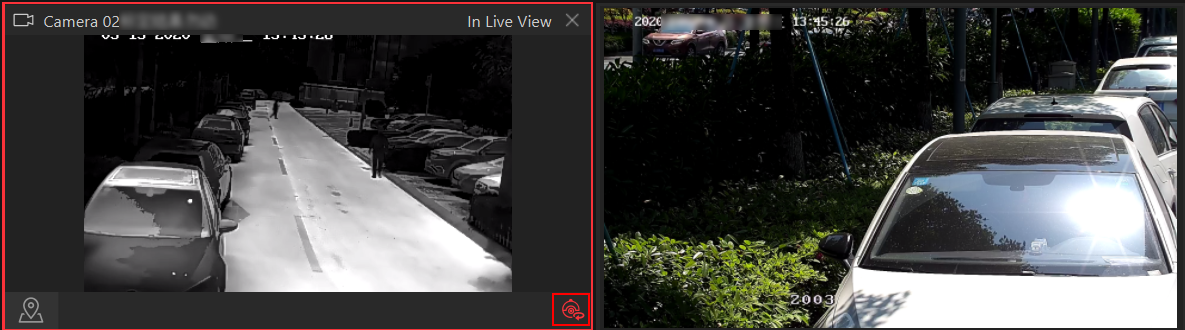 Figure 1 Manual Panorama
Tracking
Figure 1 Manual Panorama
Tracking