PTZ Control
The PTZ control for cameras with pan/tilt/zoom functionality is provided. You can set the preset, patrol and pattern for the cameras on the PTZ control panel.
The PTZ control function should be supported by the camera.
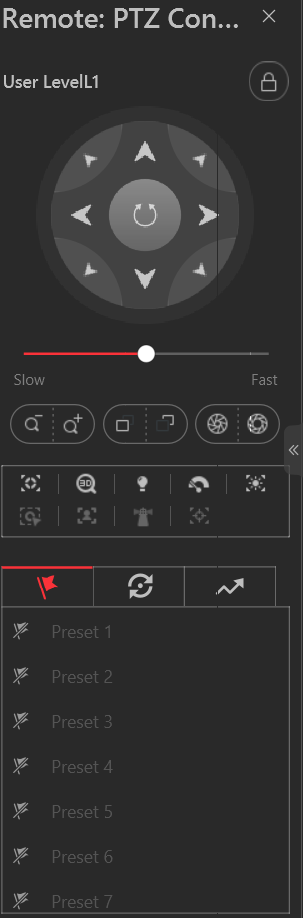 Figure 1 PTZ Control Panel
The following buttons are available on the PTZ control panel:
|
|
Lock the PTZ for a designated time period. When the PTZ is locked, users with lower PTZ control permission levels cannot change the PTZ controls. Note:
For details about setting the PTZ control permission level, refer to the User Manual of HikCentral Professional Web Client. |
|
|
Direction Button, Auto-scan and PTZ speed. |
|
|
Zoom in or out the video for cameras that do not have their own optical zoom capabilities. Click again to disable the function. |
|
|
Used for adjusting the luminance of the image. The larger the iris is, the more the light enters, and the brighter the image will be. |
|
|
Click Focus + move the focal point forward, and click Focus - to move the focal point backward. |
 |
Auxiliary Focus: Click to focus automatically. |
 |
3D Positioning: Click on the desired position in the video image and drag a rectangle area in the lower right direction, then the dome system will move the position to the center and allow the rectangle area to zoom in. Click to drag a rectangle area in the upper left direction to move the position to the center and allow the rectangle area to zoom out. |
 |
Light: Click to fill light. |
 |
Wiper: Use the wiper to clear the dust on the camera lens. |
 |
Lens Initialization: Initialize the lens and focus again for a clear image. |
 |
Manual Tracking: For speed dome with auto-tracking function, enable the auto-tracking (via right-click menu) for it and click the icon to manually track the target by clicking on the video. |
 |
Manual Face Capture: Click this button, and hold the left mouse button to select a face in the image to capture it. The picture will be uploaded to the server for viewing. |
 |
Park Action: For the speed dome with one-touch park function, click the icon and the speed dome saves the current view to the preset No.32. The device starts to park at preset No. 32 automatically after a period of inactivity (park time). For setting the park time, refer to user manual of the speed dome. |
 |
Auto Track: For cameras support and tracking, click the icon and select the target (person or vehicle) in the live view to arm and track this target. |


 /
/
 /
/
 /
/
-
In the live video display window, you can click the icon
 to enable window PTZ
control. Move the cursor to the direction you desired and click on the image to
pan or tilt.
to enable window PTZ
control. Move the cursor to the direction you desired and click on the image to
pan or tilt. -
You can click
 and drag the cursor with a white arrows to the
direction you desired for a quick direction control.
and drag the cursor with a white arrows to the
direction you desired for a quick direction control. -
You can click
 to get
device
PTZ configuration.
to get
device
PTZ configuration.