Check In/Out Remotely
You can check in or check out directly on the Mobile Client without actually presenting or authenticating at an attendance check device.
Ask Administrator to Enable Check-In/Out on Mobile Client
If you cannot see the Check In tab, it means that you do not have the permission to check in/out on the Mobile Client yet.
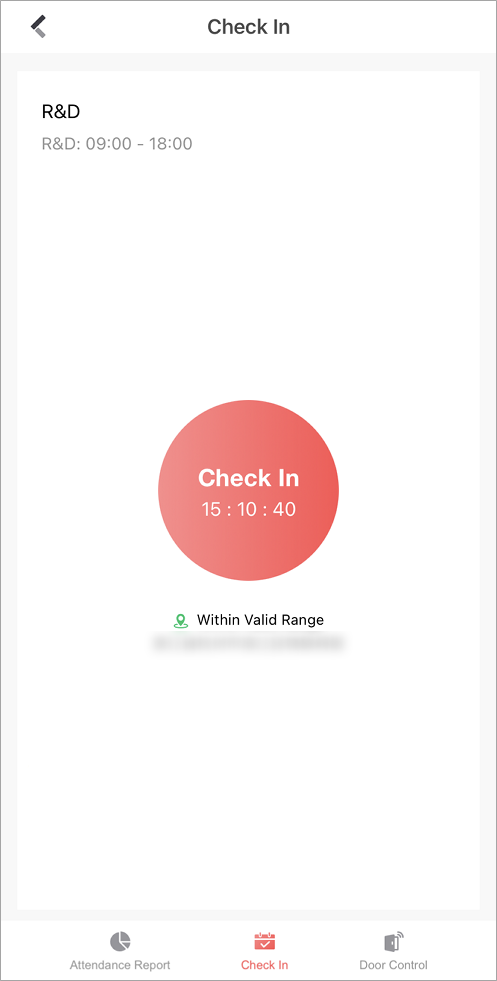 Figure 1 Check In Tab in Cloud
Attendance
You can ask the administrator of the attendance system to enable Check-In/Out by Mobile Client for you on the Hik-Connect Portal. The administrator also needs to set the locations of each attendance site and the valid check-in range.
If the attendance system has no attendance check device added, you cannot check in/out on the Mobile Client even if the feature is enabled for you.
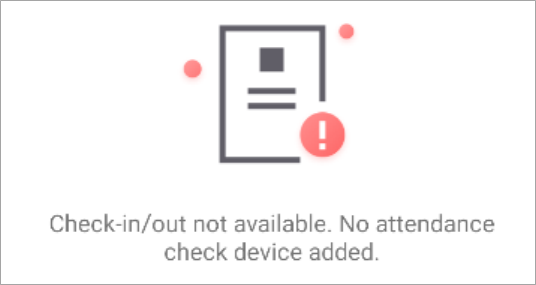 Figure 2 No Attendance Check Device
Check In/Out on the Mobile Client
If you have acquired the permission to check in on the Mobile Client, you can tap Check In whenever you are within the valid check-in range of any attendance site.
After checking in/out, you can view the recent attendance records.
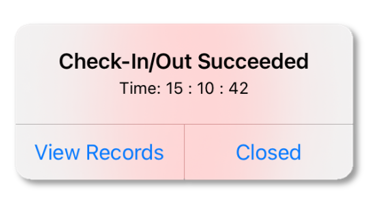 Figure 3 Pop-Up Notice on Recent Check-In/Out
If You are not Within Valid Range...
If you are not within the valid check-in range of any attendance site, check-in/out will be unavailable.
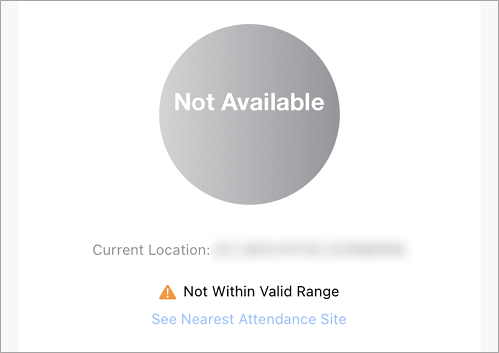 Figure 4 Check-In/Out
Unavailable
You can tap See Nearest Attendance Site to check the nearest site for checking in/out.
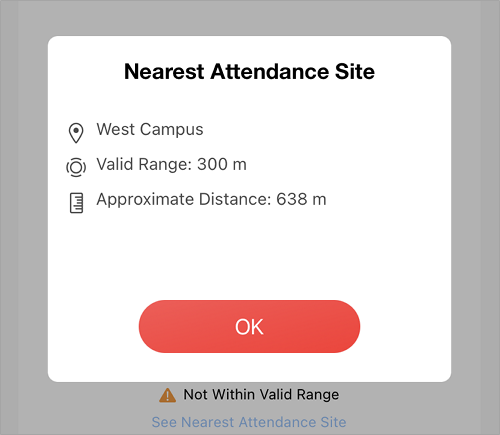 Figure 5 See Nearest Attendance
Site
If You are Working from Home or on a Business Trip...
If you are not required to work at a fixed location, the administrator can enable Allow Offsite Check-In for you.
You can tap Check In Offsite to check in outside the valid check-in range of any attendance site.
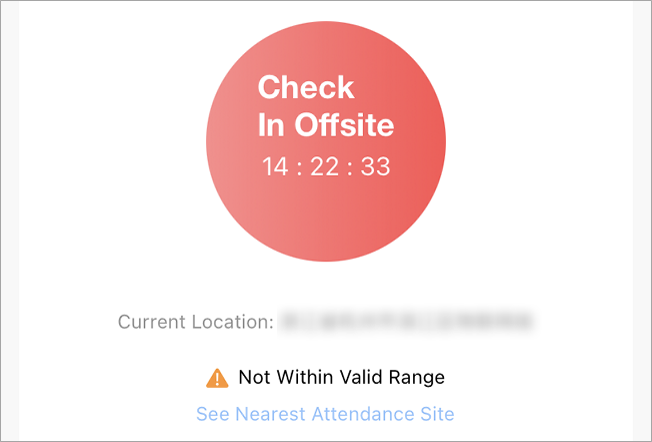 Figure 6 Check In Offsite