Device Authorization Management
You can grant authorization and permissions of the devices in your Hik-Connect account to a Service Provider. With device authorization and permissions, the Service Provider is able to control and configure the devices, thereby managing and maintaining the devices for you.
You can manage device authorization in .
Authorized devices are grouped in "Sites" which are created by your Service Provider.
Grant Device Authorization and Permissions to Service Provider
-
If your Service Provider has sent device authorization application to you, you can grant authorization by approving the application. See Approve Device Handover and Authorization Application for details.
-
To authorize a Service Provider with more devices, follow the steps below.
-
Tap .
-
Select devices and permissions.
-
Tap OK and the devices will be authorized to the Service Provider and added to the Site.
-
Edit Device Permissions
You can edit devices permissions for Service Provider in the following two ways.
-
Bulk Edit the Permissions of Devices in a Site:
Tap Services, and you can see all Service Providers.
Tap a Service Provider, and tap Edit to edit device permissions.
-
Edit the Permissions of a Single Device:
Go to the Home page, in the device list, tap
 > Settings of a device to enter the device settings page. Tap to edit device permissions.
Cancel Device Authorization
Tap Services, you can see all Service Providers, and tap a Service Provider.
Tap > Cancel Authorization to cancel the authorization of ALL devices in the Site.
You can keep the Site if there are value-added services activated.
View Service Details
Tap Services, and you can see all Service Providers.
The number of service times is displayed, and tap it to view details.
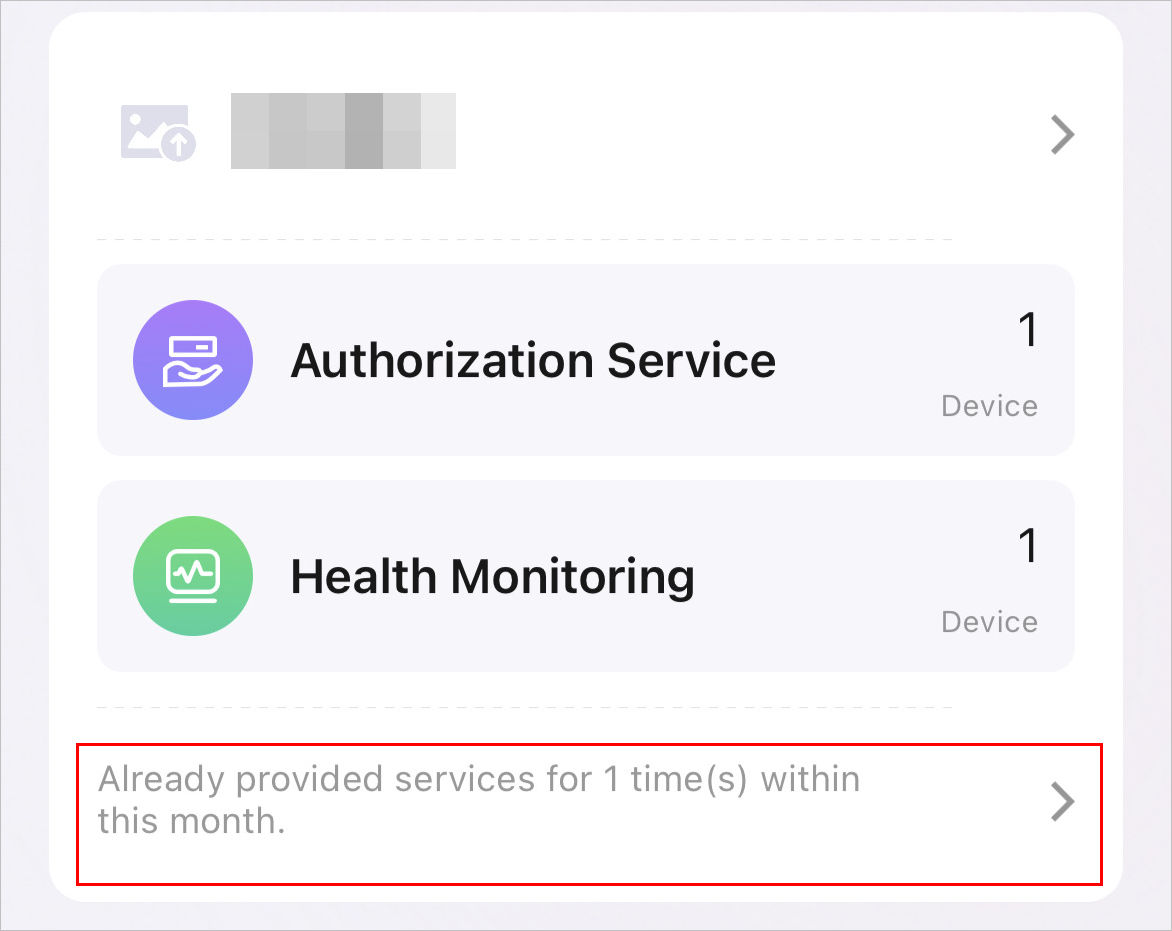 Figure 1 Service Details
You can filter by date to view service details.