Start Live View / Playback of Camera
You can start live view or playback of one or multiple cameras.
Start Live View / Playback of One Camera
-
Start Live View of One Camera: Double click a camera, or drag a camera from the camera list to the viewing grid, or right click a camera and click Open to start live view of the camera.
-
Start Playback of One Camera: After starting live view of a camera, draw the timeline backwards on the playback panel to start playback of the camera.
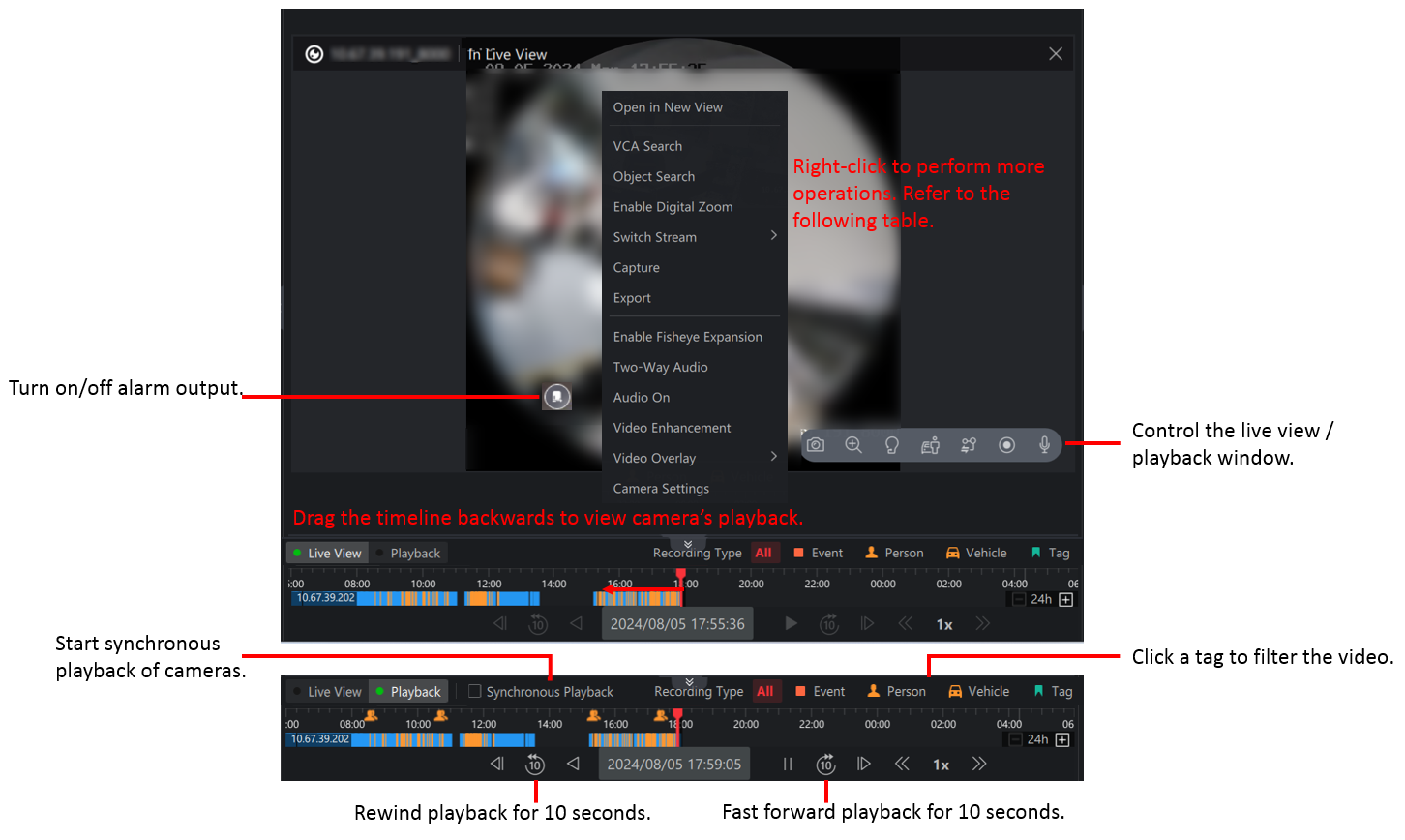
During live view or playback, you can right click the window or click the icons in the lower right corner of the window to control the live view or playback window. Refer to the following table for the supported operations.
|
Function |
Explanation |
Live View |
Playback |
|---|---|---|---|
|
Open in New View |
Open the live view / playback window in a new view. |
√ |
√ |
|
Smart Search / VCA Search |
Smart Search: draw an area on the video to detect whether there are persons and/or vehicles entering this area. VCA Search: draw an area on the video to detect whether there are moving objects in this area or objects entering this area. You can view the detected results on the right side of the page. Click a result to view the related video or right click a result to enter the Intelligent Search page. For details about VCA configuration, refer to VCA Configuration. |
√ |
√ |
|
Object Search |
Detect faces and human bodies in the video and search for the related objects. You can filter the searched results by time and similarity, hover on a search result to view the details, right click a search result to view the related video or enter the Intelligent Search page. |
√ |
√ |
|
Enable Digital Zoom |
|
√ |
√ |
|
Stream Switch |
Switch streams to main stream, sub stream, fourth stream, or smooth stream. |
√ |
√ |
|
Capture |
Take a snapshot of the current video image. |
√ |
√ |
|
Export |
Export the video. |
× |
√ |
|
Start Recording |
Record a video for the desired time period. |
√ |
× |
|
Enable PTZ Control |
Refer to PTZ Control During Live View for details. |
√ |
× |
|
Enable Target Tracking |
Continuously track the selected target (person/vehicle) in the video. |
√ |
× |
|
Enable Smart Linkage |
Locate the target appeared in the video. |
√ |
× |
|
Enable Fisheye Expansion |
The wide-angle view of the camera is displayed. In this mode, the perspective and angles of objects in the video image will be distorted. |
√ |
√ |
|
Two-Way Audio |
Start two-way audio with the camera or NVR device. |
√ |
√ |
|
Audio On/Off |
Turn on/off the audio of the video. |
√ |
√ |
|
Light On/Off |
Turn on/off the light of the camera. |
√ |
× |
|
Video Enhancement |
Adjust the video image such as brightness and saturation. |
√ |
√ |
|
Video Overlay |
Display the needed information on the live view / playback image. |
√ |
√ |
|
Camera Settings |
Set camera parameters such as recording parameters. Refer to View and Configure Details of Encoding Devices. |
√ |
√ |
 and then click on the video
image to zoom in.
and then click on the video
image to zoom in.These functions should be supported by the device: PTZ control, smart linkage, target tracking, two-way audio, audio on/off and light on/off.
Start Live View / Playback of Multiple Cameras
-
Start Live View of Multiple Cameras:
-
Press the ctrl key, select cameras, and drag them from the camera list to the right window to start live view of multiple cameras.
-
Press the ctrl key, select cameras, right click the cameras and click Open to start live view of multiple cameras.
-
-
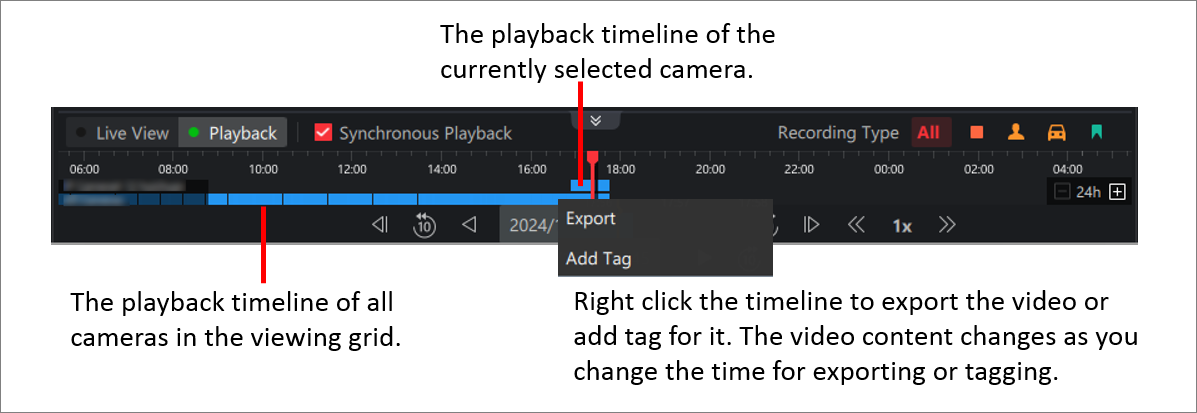
Start Playback of Multiple Cameras: Select a live view window, and drag the timeline on the playback panel backwards to start playback of the camera. Repeat the above operations to view playback of multiple cameras.
During live view or playback, you can select multiple live view or playback windows and right click to batch control them. Refer to the following table for the supported operations.
|
Function |
Explanation |
|---|---|
|
Export Video File |
Export the video file within the selected time range. |
|
Audio On/Off |
Turn on/off the audio of the video. |
|
Close Window |
Close the live view / playback windows. |
Configure Parameters for Video Monitoring
Right click the blank area in the viewing grid, and configure the following parameters.
- View Scale
-
Original Resolution indicates to play a video in its original size, and the image may not fill the live view / playback window. Full Screen indicates that the image will fill the entire live view / playback window.
- Decoding Mode
-
Hardware decoding is to decode based on GPU, while software decoding is on CPU. Choose the decoding mode according to your GPU/CPU performance.