Start a Roll Call
After configuring the emergency solution, you can start a roll call by one click once an emergency happens.
In
the top left corner of Home page, select  > Integrated Service > Emergency Mustering > Roll Call.
Click Trigger Emergency to display the data of emergency counting groups.
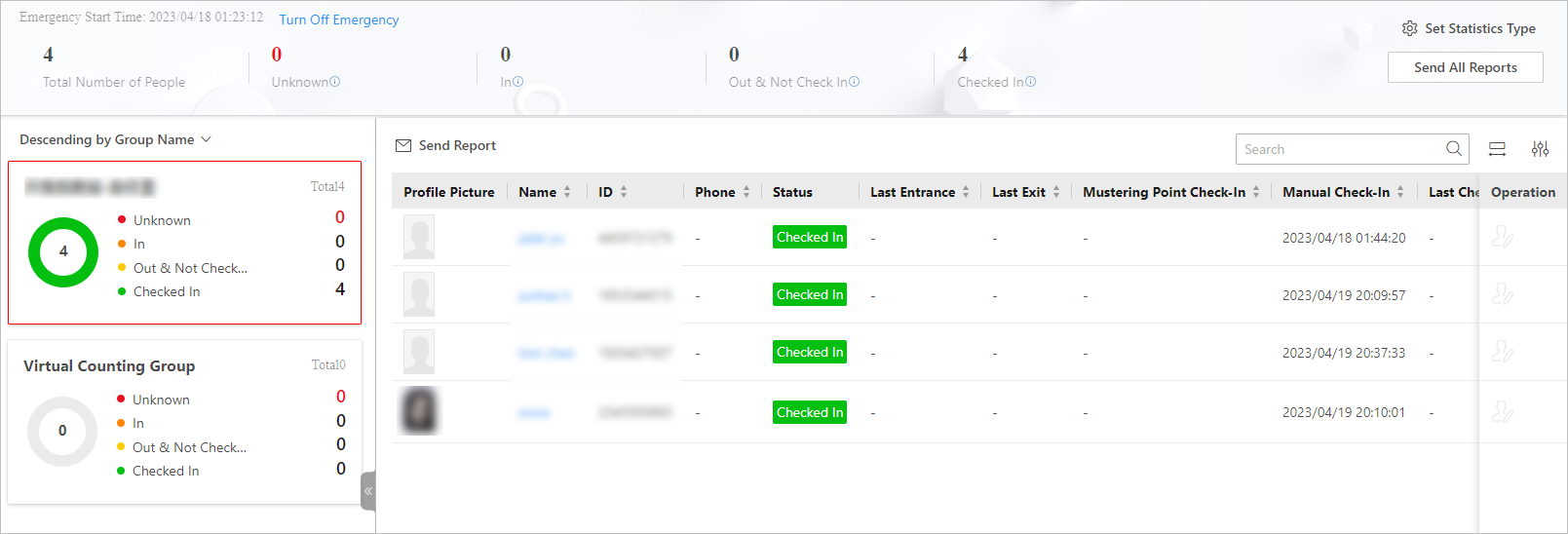 Figure 1 Data of Emergency
Mustering
Figure 1 Data of Emergency
MusteringOn the top left, the total number of persons in emergency counting groups is displayed. On the right of the total number of persons, the number of persons in danger and safe are both displayed. The persons in danger refer to persons who are still inside (checked in at the entrance point but did not check out at the exit point) the place where the emergency happens and the persons who did not check in at the entrance point. The persons who are safe refer to persons who have checked out at the exit point but not checked in at the mustering point and persons who have checked in at the mustering point.
You can click Set Statistics Type on the right and check person statuses that need to pay attention to, and the selected statuses will e displayed.
The data of each emergency counting group is also displayed. You can click a
group name to enter the page of the group for details. Click  to check in a person who shows at the mustering point but the
person status is not Checked In.
to check in a person who shows at the mustering point but the
person status is not Checked In.
The virtual counting group refers to a group consisting of persons who are not added to any emergency counting group.
Perform the following operations if you need.
-
Click Turn Off Emergency to end the emergency status of the platform.
-
Click Send All Reports and select an email template to send the data of all the emergency counting groups to the recipients.
-
Click
 beside each column heading to sort the persons by name,
ID, phone No., etc.
beside each column heading to sort the persons by name,
ID, phone No., etc. -
Click
 and check the items to be displayed in the person
list of the counting group.
and check the items to be displayed in the person
list of the counting group. -
Click
 and select Complete Display of
Each Column Title or Incomplete Display of Each Column Title. The column width
will be self-adjusted according to the settings.
and select Complete Display of
Each Column Title or Incomplete Display of Each Column Title. The column width
will be self-adjusted according to the settings.
-
It is extremely important to remember that the data displayed and the reports contained in the email can only ever be accurate if all users follow the conventions of the system.
-
During the emergency, editing the emergency solution is not allowed. You should end the emergency before editing it.