Manage Vehicle Lists
A vehicle list can group multiple vehicles so that you can manage them more easily.
Make sure you have selected the vehicle list(s) allowing for further management by the role linked with your account. See Add Role for details on permission settings.
Up to 100 vehicle lists can be added.
-
On the top navigation bar, select
 > Basic Management > Vehicle to enter the vehicle management page.
-
At the top of the left pane, click
 to open the Add Vehicle List pane.
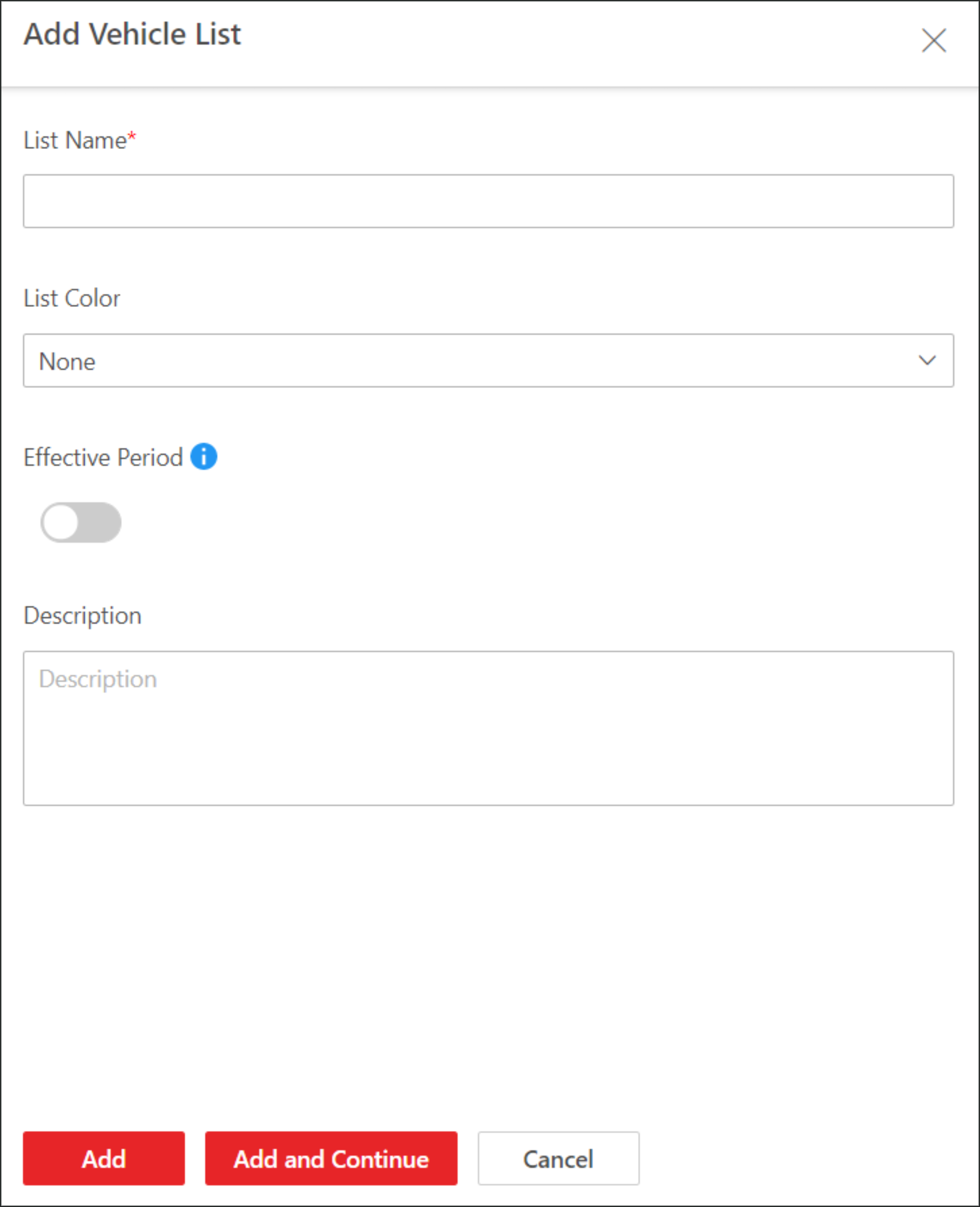 Figure 1 Add Vehicle List
Page
Figure 1 Add Vehicle List
Page - Optional:
Select the added list and click Add to search for
vehicles to be added to the list.
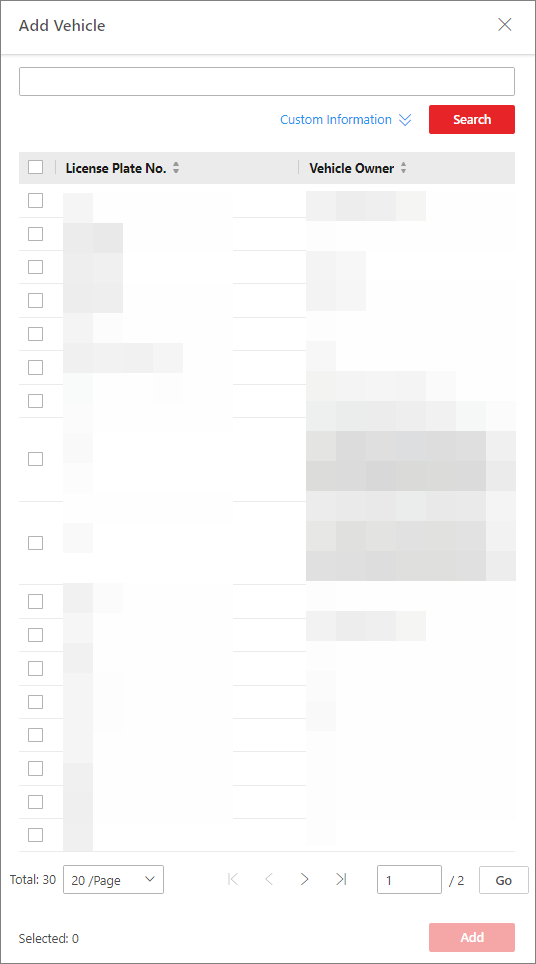 Figure 2 Add Vehicles to
ListNote:
Figure 2 Add Vehicles to
ListNote:You can enter a keyword to search for vehicles on the Add Vehicle pane. Or you can click Custom Information to display vehicles' custom information fields, enable the field(s), and enter the corresponding keywords to make the search result more accurate. For more about the custom vehicle information, refer to Customize Vehicle Information.
- Optional:
Perform the following operation(s) after adding vehicle lists or adding
vehicles to lists.
Option Description Search for Vehicle Lists
At the top of the left pane, enter a keyword in the search box to search for specific vehicle lists.
Edit a Vehicle List
Select a vehicle list on the left pane and click
 at the top to edit
it.
at the top to edit
it.Delete a Vehicle List
Select a vehicle list on the left pane and click
 at the top to delete
it.
at the top to delete
it.Remove Vehicle(s) from List
-
Select a vehicle list on the left pane to show its vehicles, check the vehicle(s), and click Delete to remove them from the current list.
-
Select a vehicle list on the left pane to show its vehicles, click
 > Delete All beside Delete to
remove all vehicles from the current list.
> Delete All beside Delete to
remove all vehicles from the current list.
Move Vehicle(s) to Another List
Select a vehicle list on the left pane to show its vehicles, check the vehicle(s), and click Move to move them from the current list to another list.
Export Vehicles in List
Select a vehicle list on the left pane to show its vehicles, and click Export All to export vehicles in the current list to the local PC.
Filter Vehicles in List
Select a vehicle on the left pane to show its vehicles, click
 in the top right
corner of the right pane and set conditions to filter specific
vehicles in the current list.
in the top right
corner of the right pane and set conditions to filter specific
vehicles in the current list. -