Configure Fuzzy Matching Rules for License Plate Search
When searching for vehicles by license plate number on the Control Client, the system supports fuzzy matching. You can first set the fuzzy matching rules according to actual needs.
-
On the top navigation bar, select
 > Basic Management > Vehicle to enter the vehicle management page.
-
Click Add.
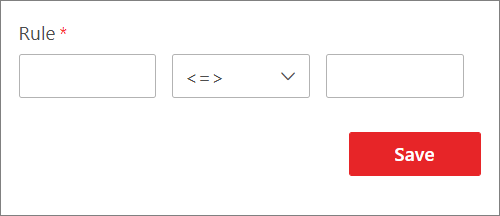 Figure 1 Add Fuzzy Matching
Rule
Figure 1 Add Fuzzy Matching
Rule - Optional:
Perform the following operations if needed.
Option Description Edit Rule
Click
 in the Operation column of a rule to edit it.
Enable/Disable Rule
Click
 /
/ in the Operation
column of a rule to enable/disable it.
in the Operation
column of a rule to enable/disable it.Delete Rule
Click
 in the Operation column of a rule to delete it.