Batch Import Vehicles to Blocklist
You can batch add multiple vehicles to the blocklist. Once added, the vehicles cannot enter the parking lot during the period you set.
-
On the top navigation bar, select
 > Basic Management > Vehicle to enter the vehicle management page.
-
Click Import.
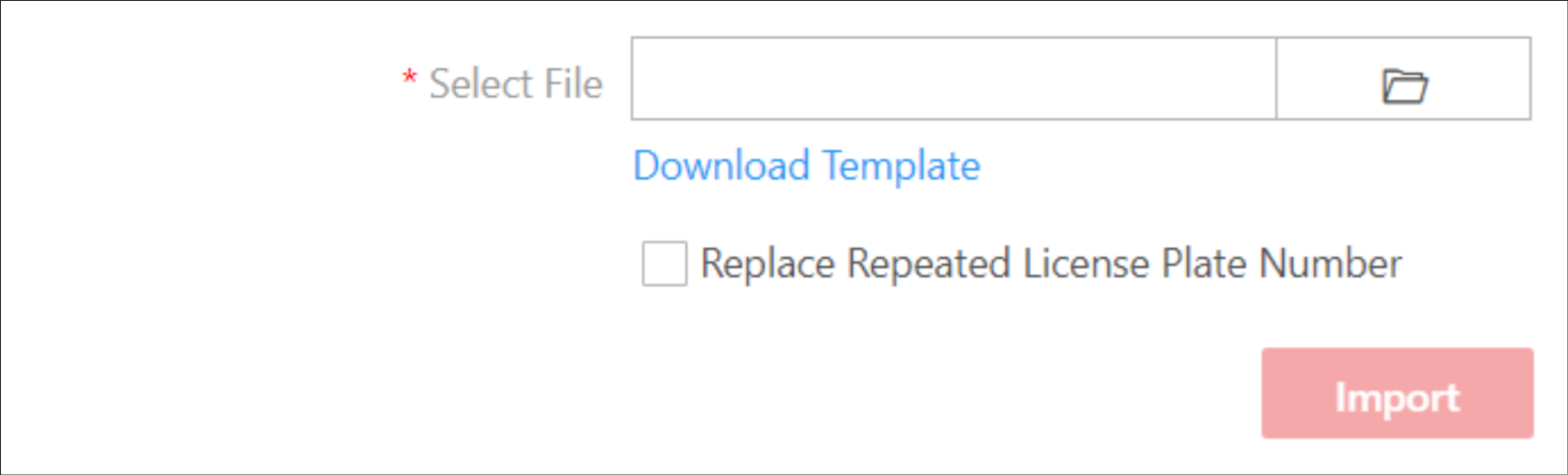 Figure 1 Import File
 - Optional:
Perform the following operations if needed.
Option Description Remove Vehicle(s) from Blocklist
-
Select vehicle(s) and click Delete to remove the vehicle(s) from the blocklist one by one or in a batch.
-
Click
 next to
Delete and click
Delete All to remove all vehicles
from the blocklist.
next to
Delete and click
Delete All to remove all vehicles
from the blocklist.
Export Vehicle Information
Click Export All to save the information of all vehicles in the blocklist to the local PC.
Search for Vehicles
Enter a keyword in the search box and click
 to search for
vehicles by license plate No., owner's first/last name, phone
number, or description.
to search for
vehicles by license plate No., owner's first/last name, phone
number, or description. -