Add Call Schedule Template
Call schedule template defines when door stations can call indoor stations or the call center. For example, if a resident is absent from home during workdays, while he/she is at home during weekends and holidays, the resident can customize a schedule template which calls the management center during workdays and calls the indoor station during weekends and holidays.
-
On the top navigation bar, select
 > Passing Management > Video Intercom > Basic Configuration > Call Schedule Template.
-
Click
 to add a schedule
template.
to add a schedule
template.
The two default templates, namely All-Day Call Schedule Template for Indoor Station and All-Day Call Schedule Template for Call Center, cannot be edited or deleted.
- Optional:
Edit weekly schedule.
Option Description Draw Task Time
Click a grid or drag the cursor on the time line to draw a time period during which the task is activated.
Set Precise Time
Move the cursor to a drawn period, and then adjust the period in the pop-up dialog shown as
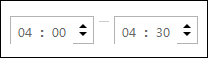 .
.Erase Task Time
Click Erase, and then click a grid or drag the cursor on the time line to erase the drawn time period.
- Optional:
Select a template from the template list, and then click
 to delete it.
Set call schedule for indoor stations and call center to define in which time period door stations can call indoor stations or call center. For details, refer to Add a Call Schedule for a Door Station.