You can batch import the users (including the user name, real name, and
email) in the AD domain to the platform and assign roles to the domain users.
-
On the top, select .
-
Select Roles on the left.
-
Click Import Domain Users.
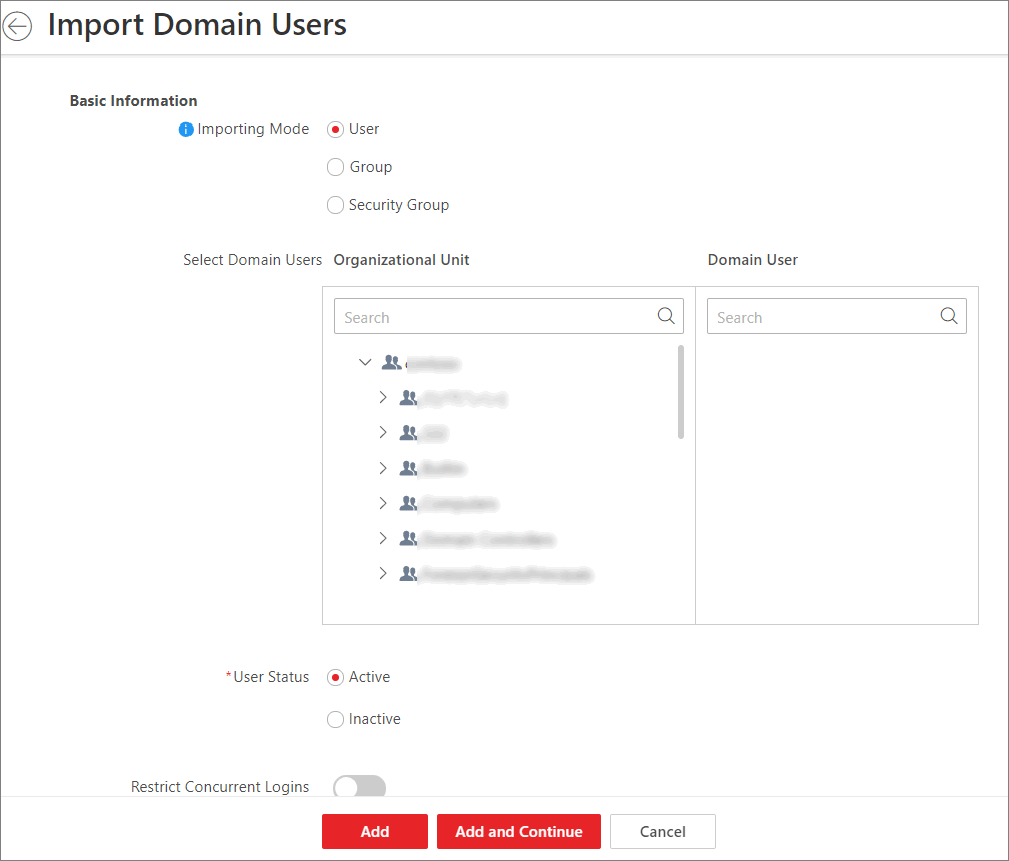 Figure 1 Import Domain
Users
Figure 1 Import Domain
Users
-
Select an importing mode.
- User
-
Import individual users. Select an organization unit
and select one or more domain users in this organization
unit.
- Group
-
Select an organization unit to import all the domain
users in this organization unit.
- Security Group
-
Import all the domain users in the security
group(s). Select an organization unit and select one or more
security groups in this organization unit.
-
Select domain users from active directory.
-
Select the user status as
Active or Inactive.
- Optional:
To limit the maximum IP addresses logged in to the platform using the user
account, switch on Restrict Concurrent Logins
and enter the maximum number of concurrent logins.
-
Set the permission level (1-100) for PTZ control in PTZ Control
Permission.
Note:
The larger the value is, the higher permission level the
user has. The user with higher permission level has the priority to
control the PTZ unit.
When two users control the PTZ unit at the same time, the user
who has the higher PTZ control permission level takes control of the
PTZ.
-
Select the roles that you want to assign to the domain users.
Note:
-
If no role has been added, two default roles are
selectable: administrator and operator.
- Administrator
-
The role that has all permissions of the
HikCentral Professional.
- Operator
-
The role that has all permissions of the
HikCentral Professional
Control Client.
-
If you want to add new roles, you can click
Add.
See Add Role for details.
Click
a role on the list and
then
View Role Details
to
view the Basic Information and Permission Settings of the
role.
-
Complete importing the domain users.
- Optional:
After importing the domain user information to the platform, if the user
information in domain is changed, click Synchronize Domain
Users to get the latest information of the users imported to the
platform. If the users are imported by group, it will synchronize the latest
user information from the domain group (including added users, deleted users,
edited users, etc., in the group).
After successfully adding the domain users, the users can log in to the
HikCentral Professional via the Web
Client and
Mobile Client with their domain accounts and passwords.
 > Basic Management > Account and Security.