You can change the password of your currently logged-in user account via Web
Client.
-
Move the cursor to the user name at the top-right corner of the Web
Client.
-
In the drop-down list, click Change Password to open the
Change Password panel.
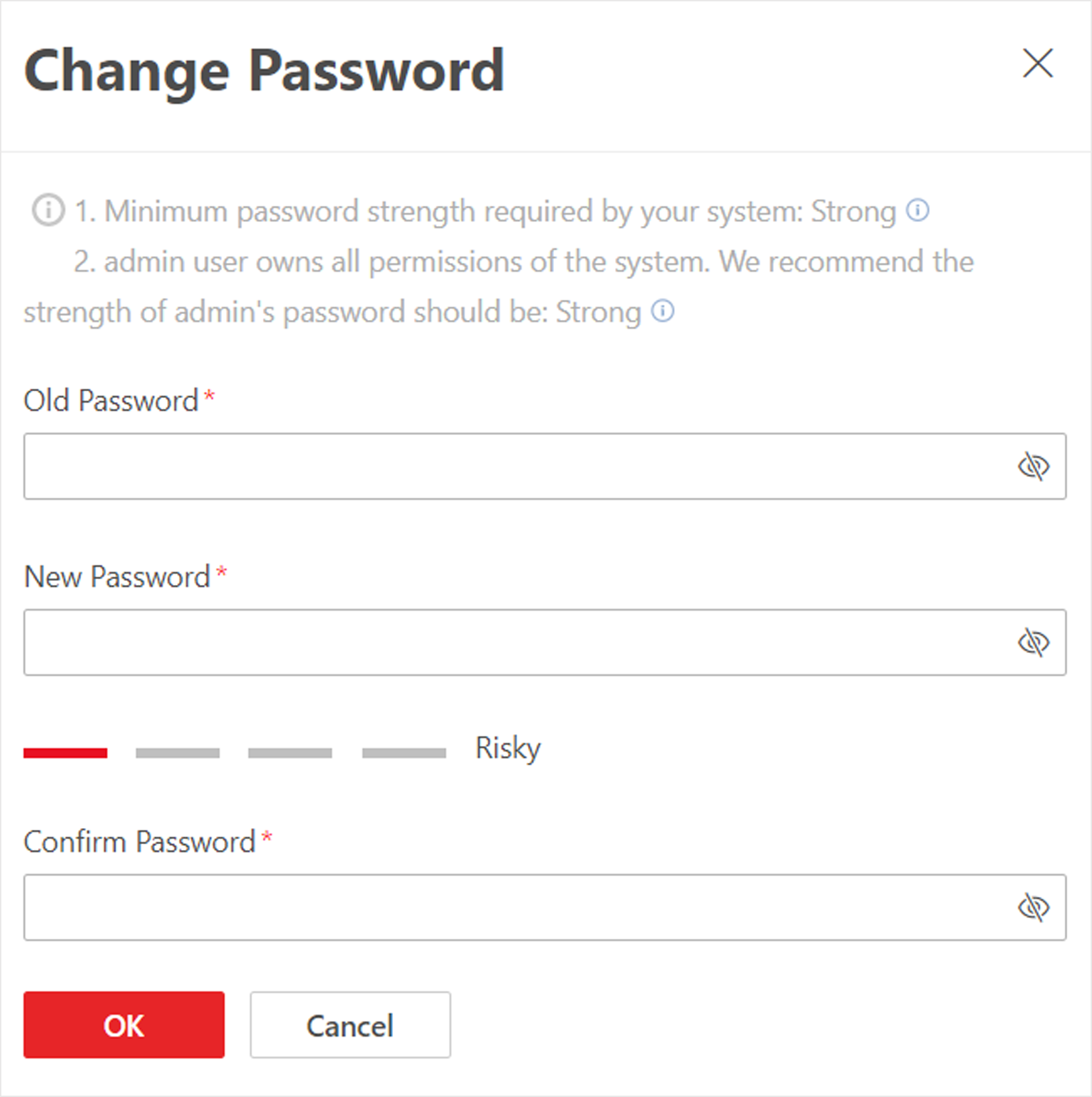 Figure 1 Change Password
Panel
Figure 1 Change Password
Panel
-
Enter the old password and new password, and confirm the new password.
CAUTION:
The password strength of the device can be checked by the system. We
highly recommend you change the password of your own choosing (using a minimum of 8
characters, including at least three kinds of following categories: upper case
letters, lower case letters, numbers, and special characters) in order to increase
the security of your product. And we recommend you reset your password regularly,
especially in the high security system, resetting the password monthly or weekly can
better protect your product.
Proper configuration of all passwords and other security settings is the
responsibility of the installer and/or end-user.
-
Click OK to save the change.