Search for Passing Vehicles Detected by Cameras and UVSSs

If the added ANPR (Automatic Number Plate Recognition) cameras and UVSSs (Under Vehicle Surveillance Systems) are properly configured, and the vehicles' license plates are successfully detected and recognized, you can search for the related passing vehicle information.

Make sure the License you purchased supports ANPR function.

  1. On the top navigation bar, select > Passing Management > ANPR > Passing Vehicle Search.
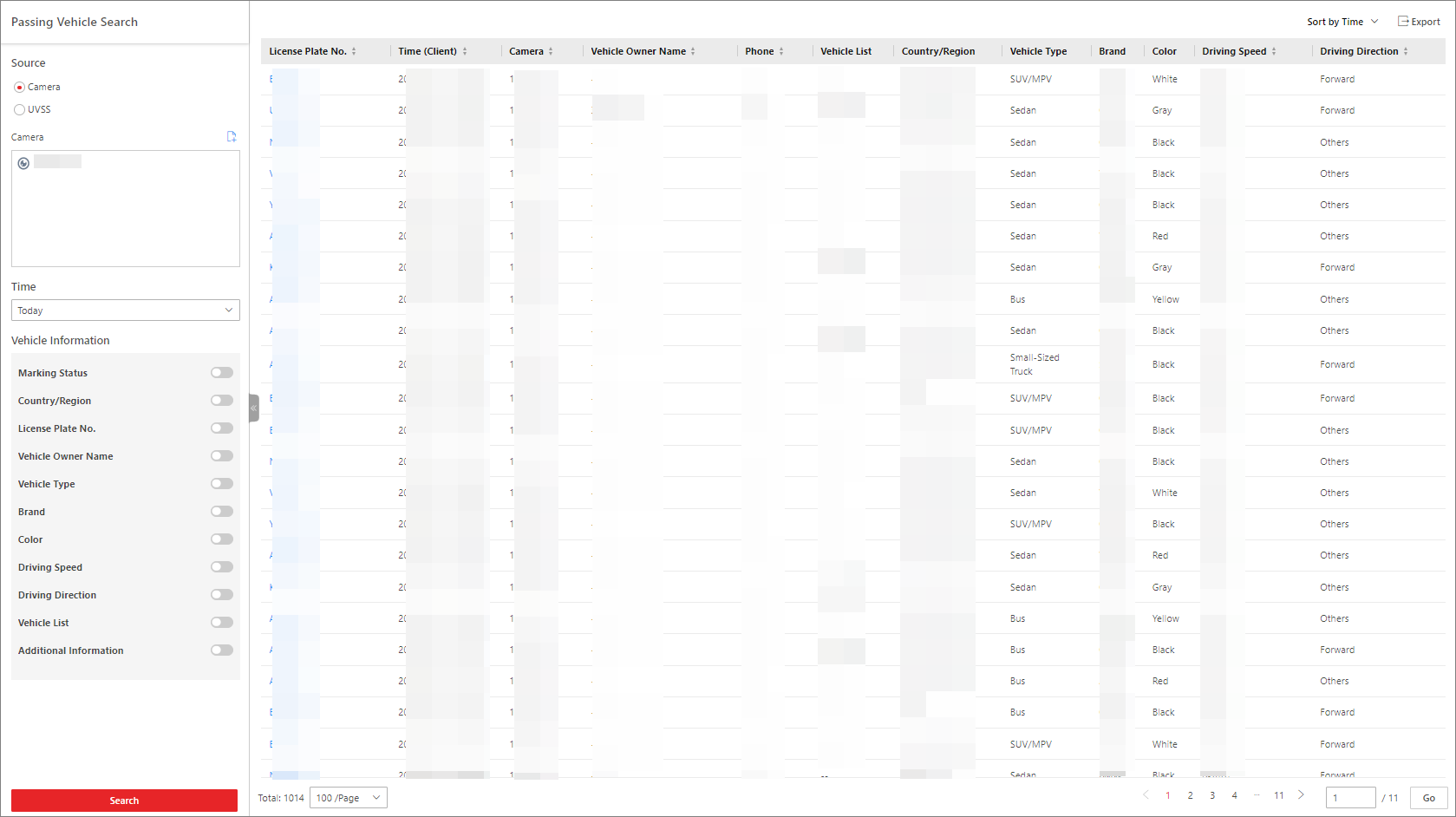
    Figure 1 Passing Vehicle Search Page
  2. Select a type of sources that detected the passing vehicles.
  3. Select the source(s).
    • If Camera is selected as the source type, click , select the current site or a remote site, and specify the ANPR camera(s).

    • If UVSS is selected as the source type, check the UVSS(s).

  4. Select Today, Yesterday, Current Week, Last 7 Days, or Last 30 Days from the drop-down list as the time range for search, or click Custom Time Interval to customize a time range.
  5. Switch on and set the search condition(s) according to your needs. Here we only introduce some conditions that you may confuse.
    Country/Region

    The country/region where the vehicle's license plate number is registered.

    License Plate Number
    • No License Plate: Search for vehicles without license plates.

    • With License Plate: Enter a keyword to search for vehicles by license plate number.

    Driving Speed

    A range of vehicle driving speed. This condition is available only when the source type is selected as Camera.

    Driving Direction
    • Forward: The vehicle moved toward the camera with its headstock facing the camera.

    • Reverse: The vehicle moved away from the camera with its rear facing the camera.

    • Other: The vehicle moved toward or away from the camera in other directions.

    Vehicle List

    Search passing vehicles in the specific vehicle list(s). This condition is available only when the source type is selected as Camera.

    Additional Information

    The item(s) of additional vehicle information you customized. For how to customize vehicle information, refer to Customize Vehicle Information.

  6. Click Search.

    The matched passing vehicles will be displayed on the right.

  7. Optional: Perform the following operation(s) after searching for passing vehicles.
    Option Description

    View Vehicle Details

    Click a license plate number in the License Plate No. column to open the vehicle details pane.

    You can view the captured vehicle / undercarriage / license plate picture, the recognized license plate number, the vehicle owner information, the vehicle information, and the detection source information.

    Export Passing Vehicles

    Click Export and select Excel or CSV as the exported file format.

    Note:
    • If you select Excel as the file format, you can check Export Picture to save pictures contained in the search results to the local PC with the exported file.

    • No more than 500 passing vehicles with captured pictures can be exported in the Excel format at one time. Otherwise, you need to go to the Control Client to export them.

    • No more than 100,000 passing vehicles without captured pictures can be exported at one time.

    Sort Search Results

    Sort by Time

    Sort search results by the time when vehicles are passing through the camera or UVSS.

    Sort by Vehicle Passing Times

    Sort search results by times that vehicles passed through the camera or UVSS.