For
ANPR cameras, you can generate a report to show the number of passing
vehicles detected by specified cameras during specified time periods.
-
On the top navigation bar, select .
-
Select the camera(s) for this report.
-
Click
 in the Camera field to
open the Select Camera pane.
in the Camera field to
open the Select Camera pane.
-
On the pane, select a site from the drop-down list to show its
areas.
-
Click an area to show its cameras which support the ANPR
function.
Note:
Only the online ANPN cameras will be displayed
here.
-
Check the camera(s) for analysis.
Note:
No more than 20 ANPR cameras can be selected for one
time analysis.
-
Click anywhere outside the Select Camera pane to finish selecting the
camera(s).
-
Select the report type as daily report, weekly report, monthly report, or
annual report, or customize the time interval for a report.
- Daily Report
-
The daily report shows data on a daily basis. The
platform will calculate the number of vehicles in each hour of
one day.
- Weekly Report / Monthly Report / Annual Report
-
As compared to the daily report, the weekly report,
monthly report, and annual report can be less time-consuming,
since they are not to be submitted every day. The platform will
calculate the number of vehicles in each day of way week, in
each day of one month, and in each month of one year.
- Custom Time Interval
-
Customize the days in the report to analyze the
number of vehicles in each day or month of the custom time
interval.
-
Set the time or a time period for analysis.
Note:
-
For the daily/weekly/monthly/annual report, you can
select the current day/week/month/year, the last
day/week/month/year, or specify a day/week/month/year in which
the number of vehicles will be calculated.
-
For the custom time interval report, you need to set
the start time and end time to specify the time period in which
the number of vehicles will be calculated.
-
Click Generate Report.
The statistics of passing vehicles detected by all the selected
camera(s) are displayed on the right pane.
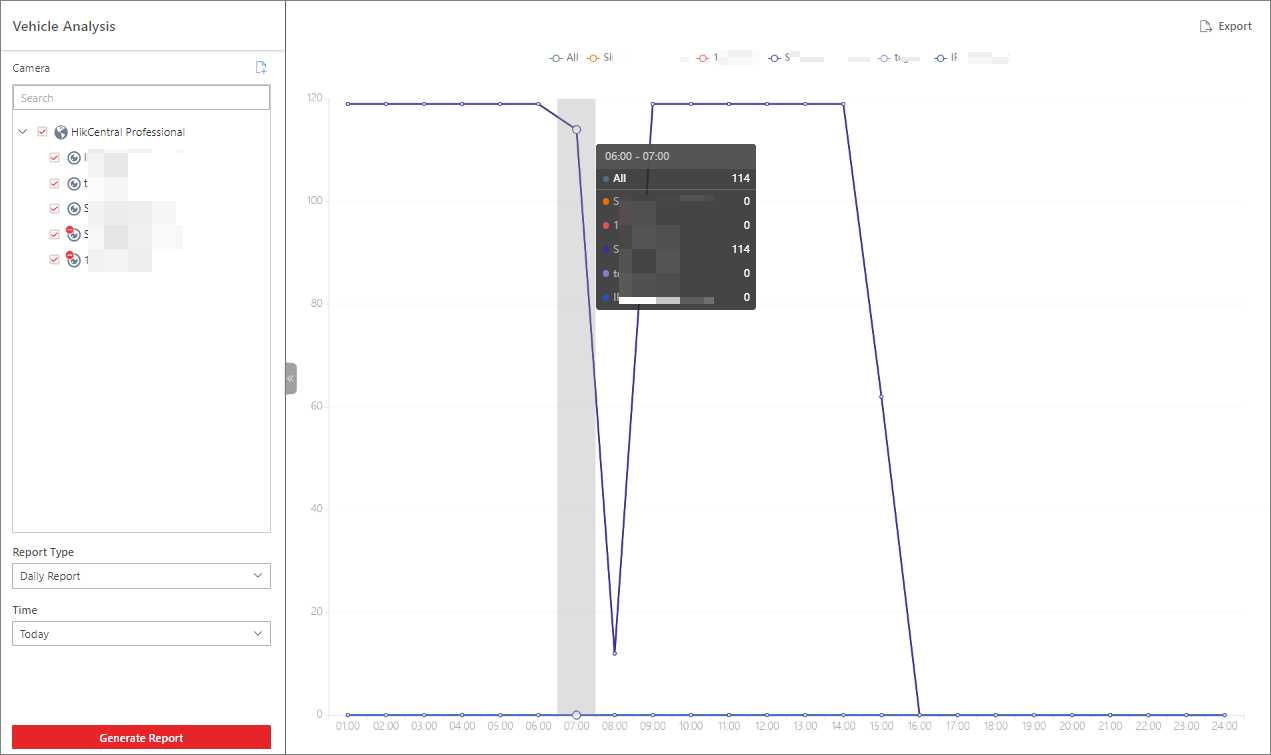 Figure 1 Vehicle Analysis
Report
Figure 1 Vehicle Analysis
Report
- Optional:
Export the generated report to the local PC.
-
Click Export in the top right corner of the
report pane.
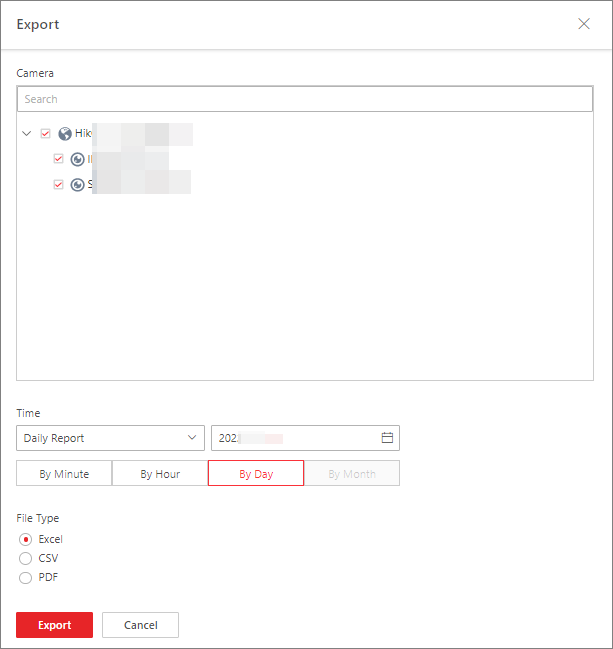 Figure 2 Export Vehicle
Analysis Report
Figure 2 Export Vehicle
Analysis Report
- Optional:
Select the camera(s) contained in the report and change the report type
or time.
-
Select a shorter time period to view more detailed data of each
camera.
- By Minute
-
The exported report shows the detailed data of
each minute for each camera (if the camera has been
configured to report vehicle analysis data to the
platform every minute). This period is only available
for the daily report.
- By Hour
-
The exported report shows the detailed data
of each hour for each camera. This period is available
for the daily / weekly / monthly / custom time interval
report.
- By Day
-
The exported report shows the detailed data
of each day for each camera. This period is available
for all types of reports.
- By Month
-
The exported report shows the detailed data
of each month for each camera. This period is available
for the monthly/annual report.
-
Set the exported file format to Excel,
CSV, or PDF.
-
Click Export to start exporting the
report.
 > Passing Management > ANPR > Vehicle Analysis.