How to Join Sell-Out Promotions
Sell-out promotions are activities that offer buyers discounts or free products when discount conditions are met.
-
This feature is only available to some users in some countries/regions.
-
Only the Installer Admin account can access this feature.
|
Your Role |
Description |
Related Topics |
|---|---|---|
|
Installer or Other Buyers |
|
|
|
Reseller, Distributor, or Other Providers |
|
Step 1: Buyers Submit and Modify Intentions
On the sell-out promotion page, you can view the promotional rules and products, add the products to your cart, and submit your purchase intentions to selected providers (resellers or distributors). After your intentions are confirmed, you can go to the providers offline and purchase the products according to the prices of your intentions.
For Buyers: Submit and Modify Purchase Intentions Using the Portal
-
Find the entry for a sell-out promotion on the Event page or on the banner of the Home page.
On the sell-out promotion page, you can view the promotion validity period, promotional discounts, and details about each product (product picture, product model, discount conditions, price, available quantity, etc.).
NoteA combo product is for selling a bundle of individual (single) products as one product.
Figure 1 Example Sell-Out Promotion -
(Optional) Click Rules to view the promotional rules, which offer detailed descriptions of the conditions you have to meet in order to get discounts and free products.
-
On each product card, click Add to Cart to add a specific number of products to your cart.
-
Click Cart to manage added products in your cart and to continue the submitting process.
For each product, indicates that the following discount condition is satisfied and you can get the corresponding discount or free products.
Figure 2 Cart for Sell-Out Promotion -
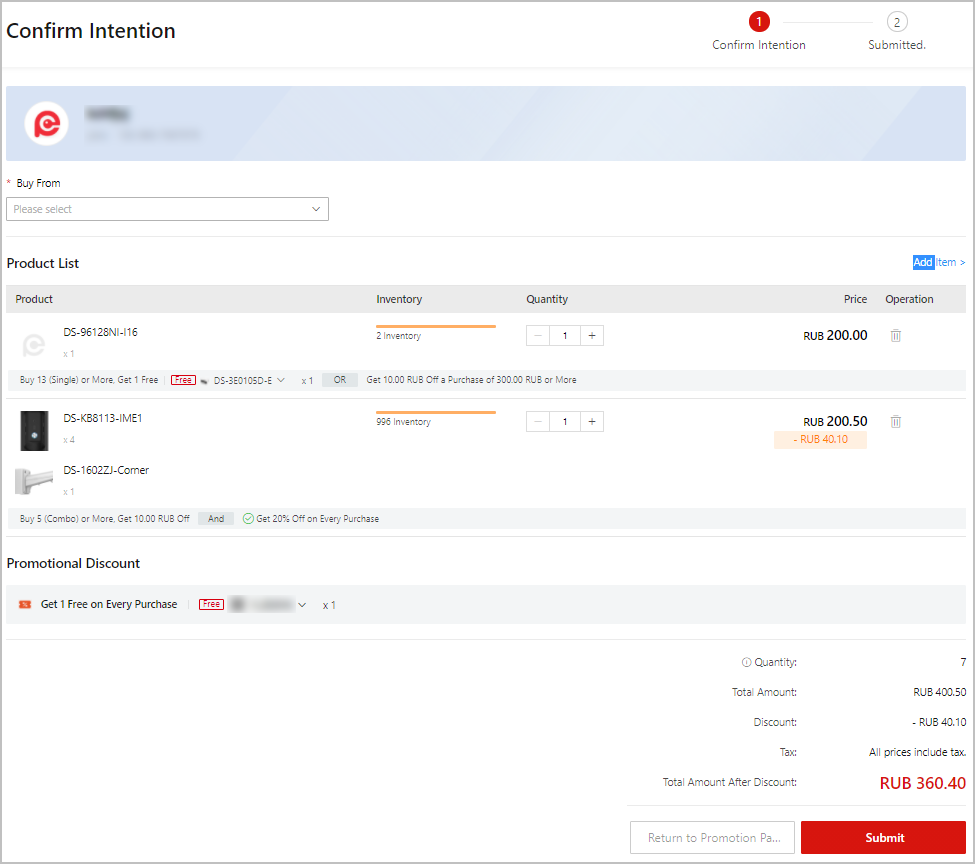
Check the products and click Next to go to the Confirm Intention page. Select a distributor or reseller to purchase the products.
NoteThe quantity in the summary contains the number of free gift products, the number of individual products in combo products, and the number of single products.
Figure 3 Confirm Intention -
Click Submit to submit your intention.
-
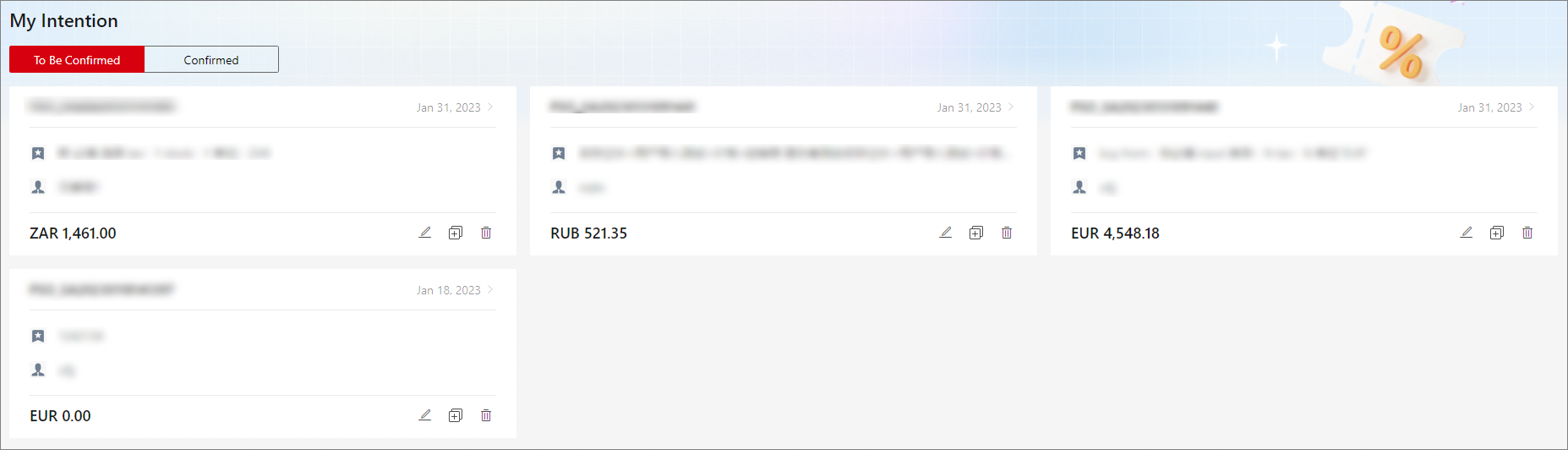
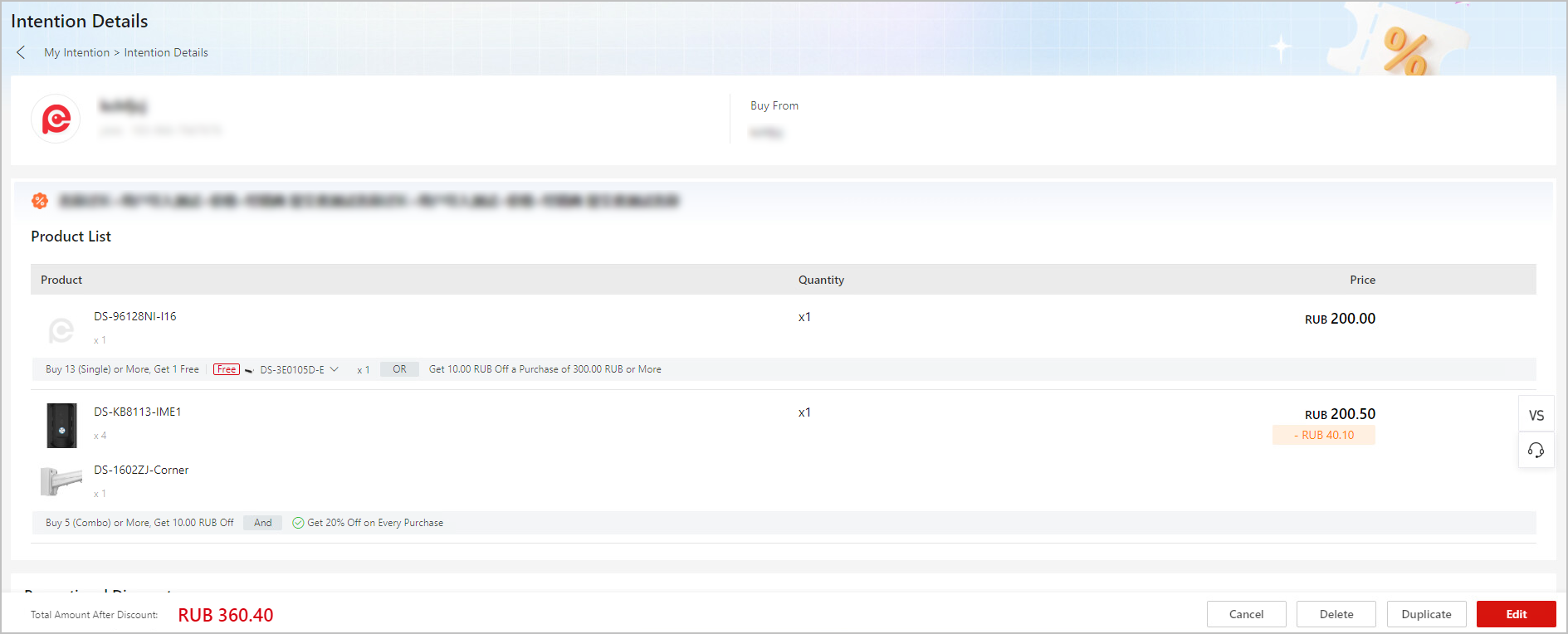
(Optional) Click My Intention to modify your intentions before the provider confirms it.
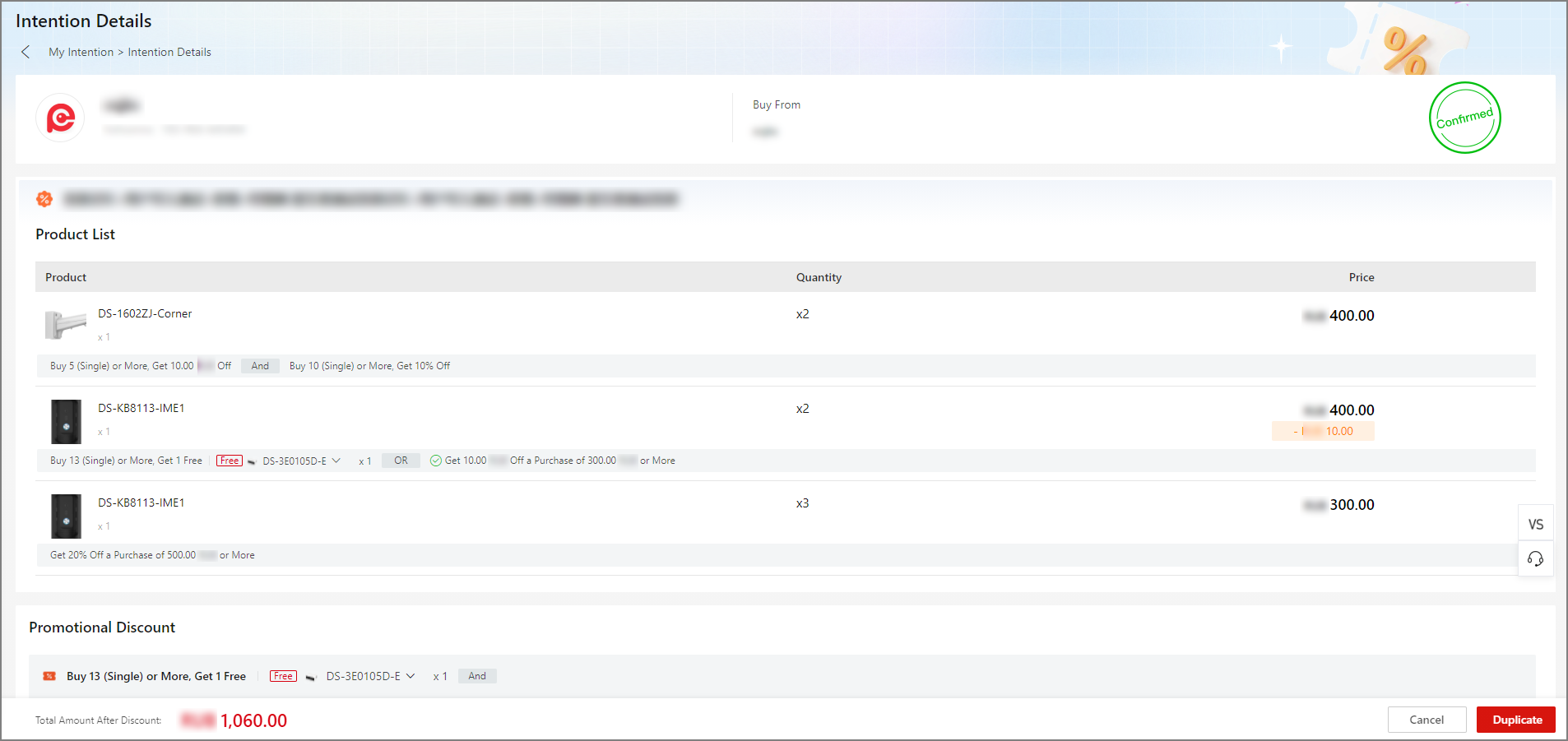
NoteTo go to the My Intention page, you can also click My Intention on the promotion page, or go to .
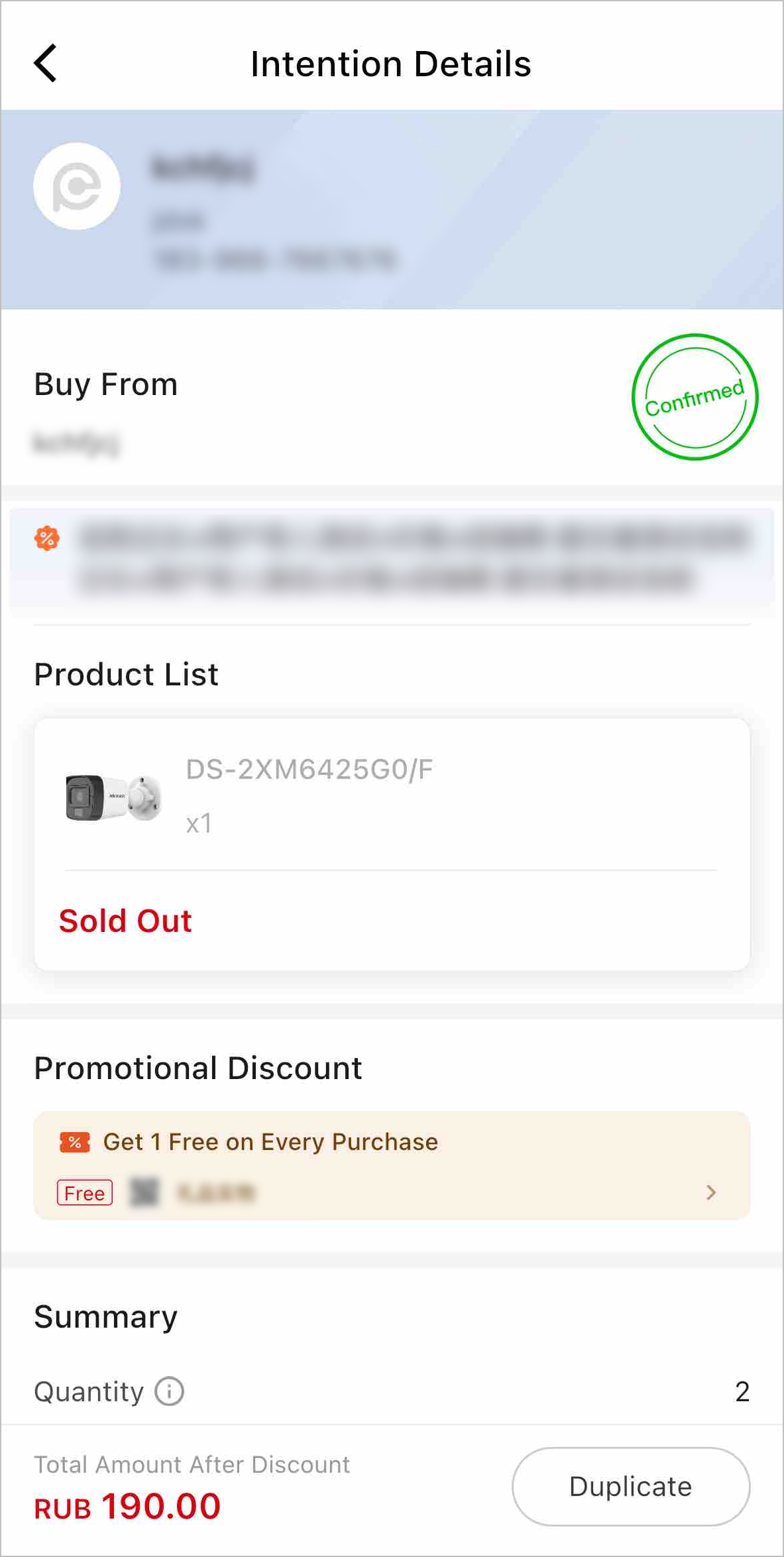
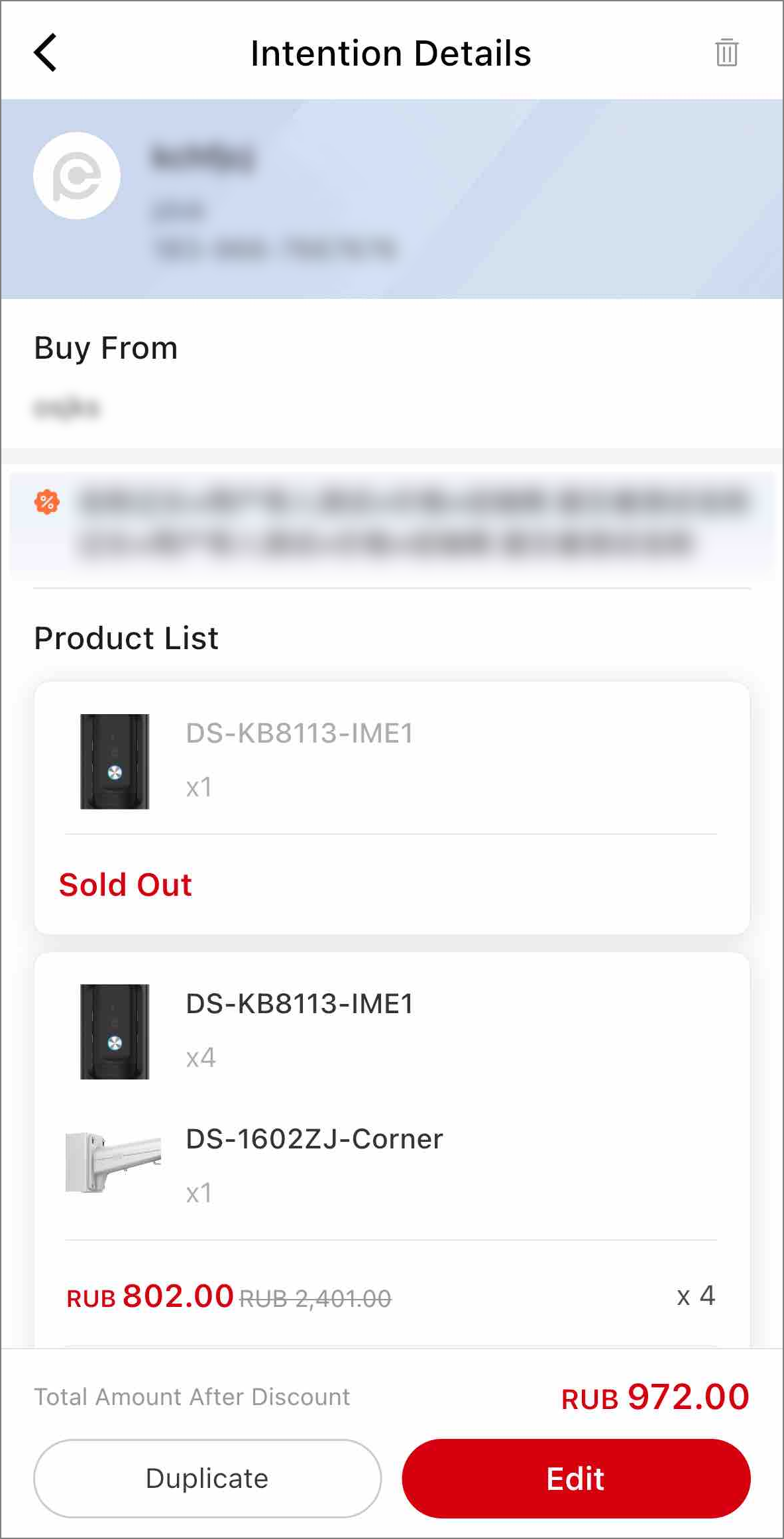
My IntentionIntention Details (Confirmed)Intention Details (To Be Confirmed)
 indicates that the
following discount condition is satisfied and you can get the
corresponding discount or free products.
indicates that the
following discount condition is satisfied and you can get the
corresponding discount or free products.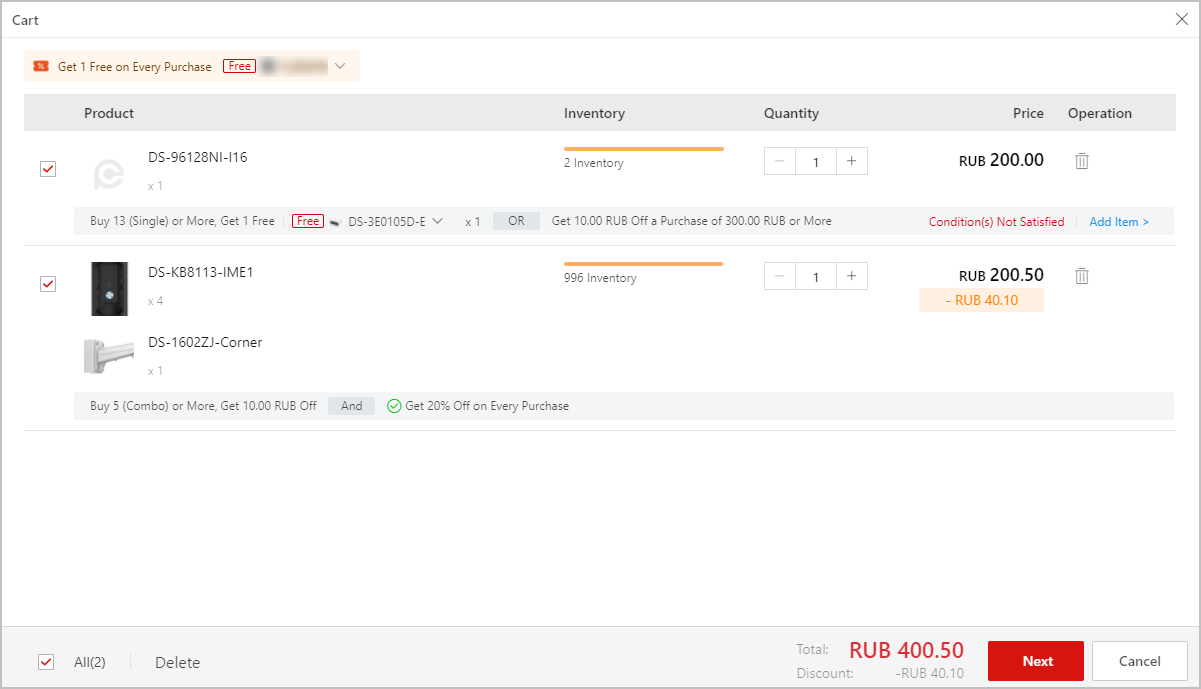
For Buyers: Submit and Modify Purchase Intentions Using the Mobile Client
-
Find the entry for a sell-out promotion on the Event page or on the banner of the Home page.
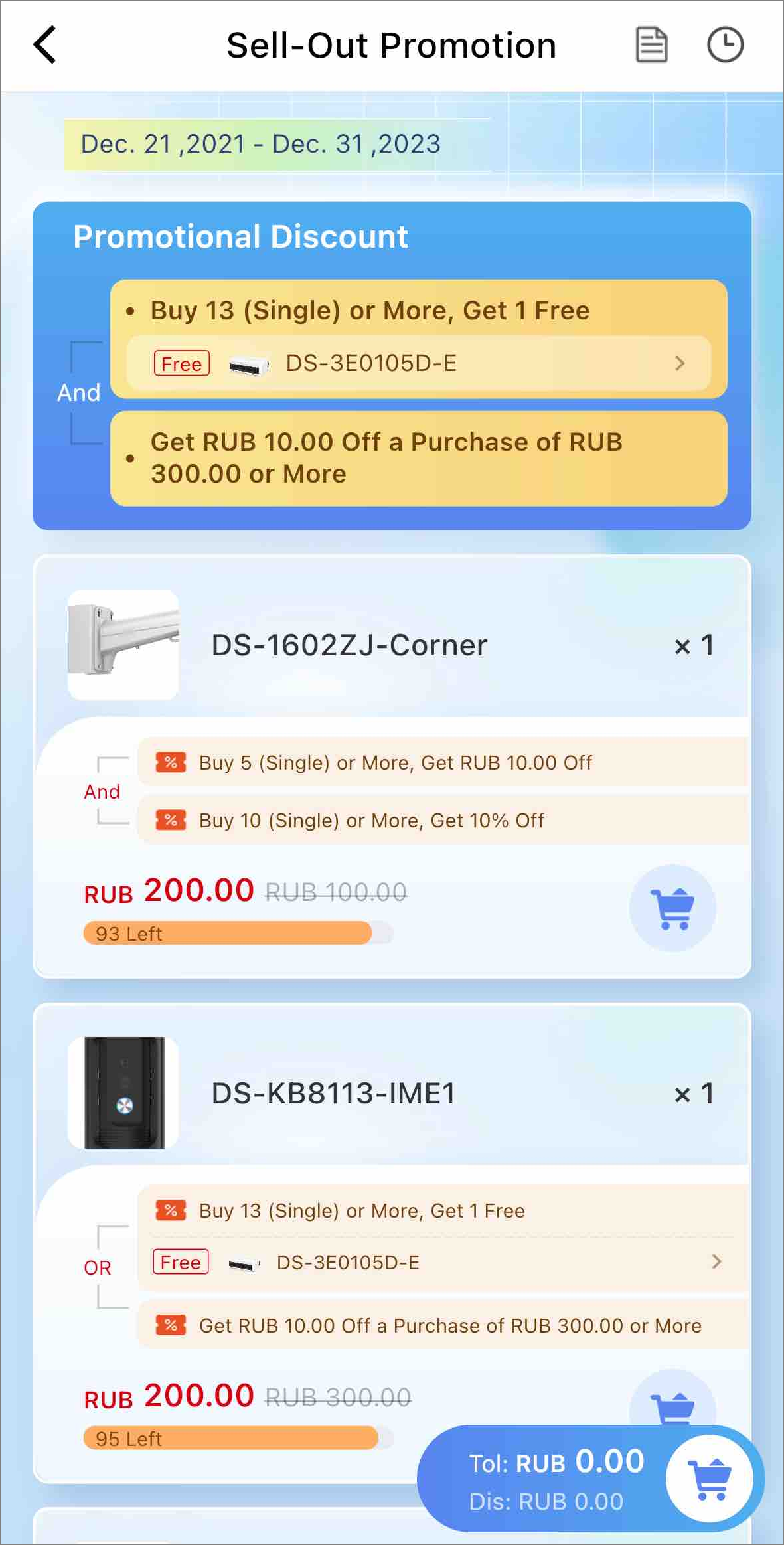
On the sell-out promotion page, you can view the promotion validity period, promotional discounts, and details about each product (product picture, product model, discount conditions, price, available quantity, etc.).
NoteA combo product is for selling a bundle of individual (single) products as one product.
Figure 4 Example Sell-Out Promotion -
(Optional) Tap to view the promotional rules, which offer detailed descriptions of the conditions you have to meet in order to get discounts and free products.
-
On each product card, tap to add one product to your cart. Tap again to add one more.
-
Tap to manage added products in your cart and to continue the submitting process.
For each product, indicates that the following discount condition is satisfied and you can get the corresponding discount or free products.
Figure 5 Cart for Sell-Out Promotion -
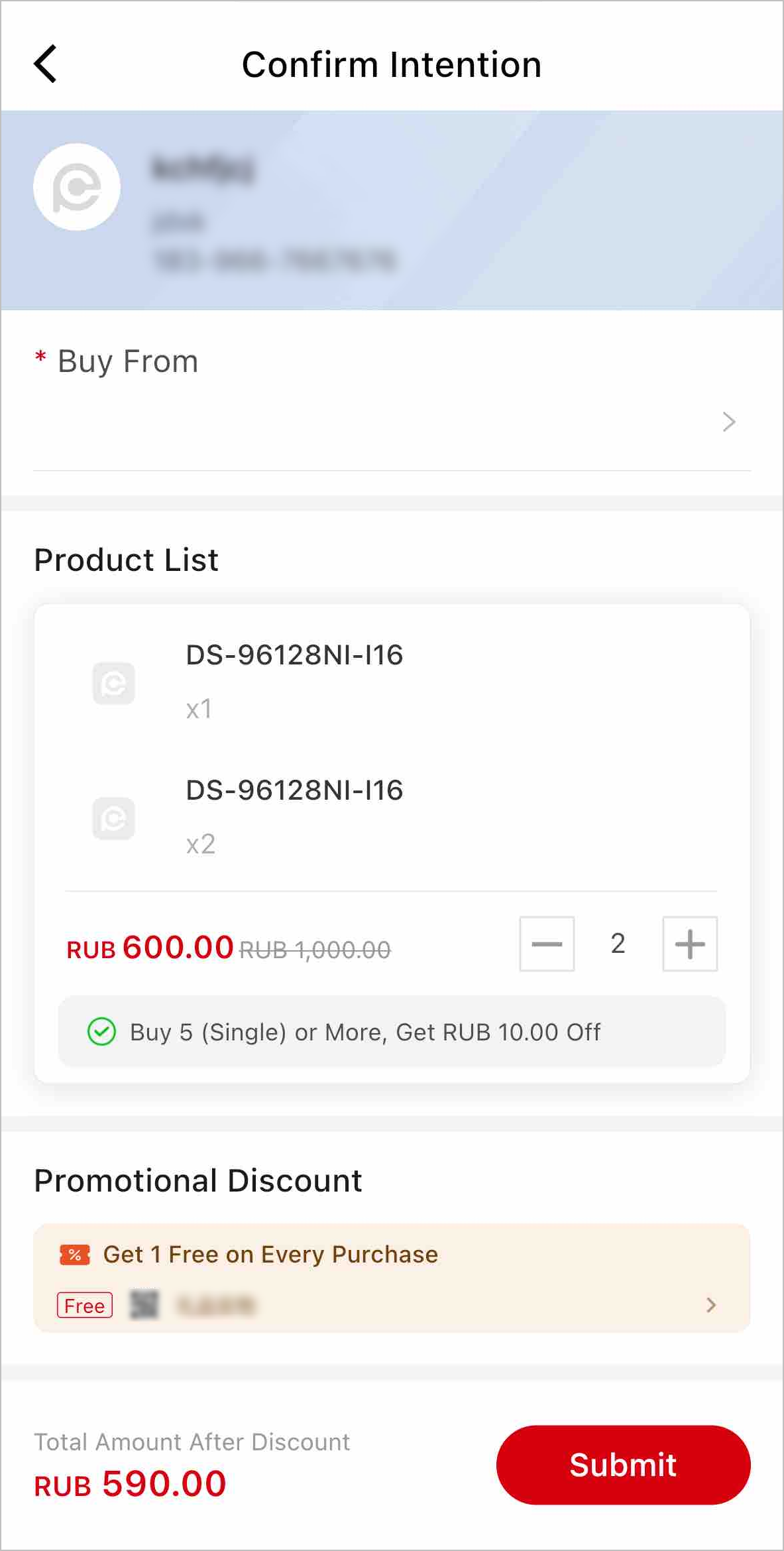
Check the products and tap Next to go to the Confirm Intention page. Select a distributor or reseller to purchase the products.
NoteThe quantity in the summary contains the number of free gift products, the number of individual products in combo products, and the number of single products.
Figure 6 Confirm Intention -
Tap Submit to submit your intention.
-
(Optional) Tap My Intention to modify your intention before the provider confirms it.
NoteTo go to the My Intention page, you can also tap on the promotion page, or go to .
My IntentionIntention Details (Confirmed)Intention Details (To Be Confirmed)
 to view the promotional
rules, which offer detailed descriptions of the conditions you have to
meet in order to get discounts and free products.
to view the promotional
rules, which offer detailed descriptions of the conditions you have to
meet in order to get discounts and free products. to add one product to
your cart. Tap again to add one more.
to add one product to
your cart. Tap again to add one more. to manage added
products in your cart and to continue the submitting process.
to manage added
products in your cart and to continue the submitting process.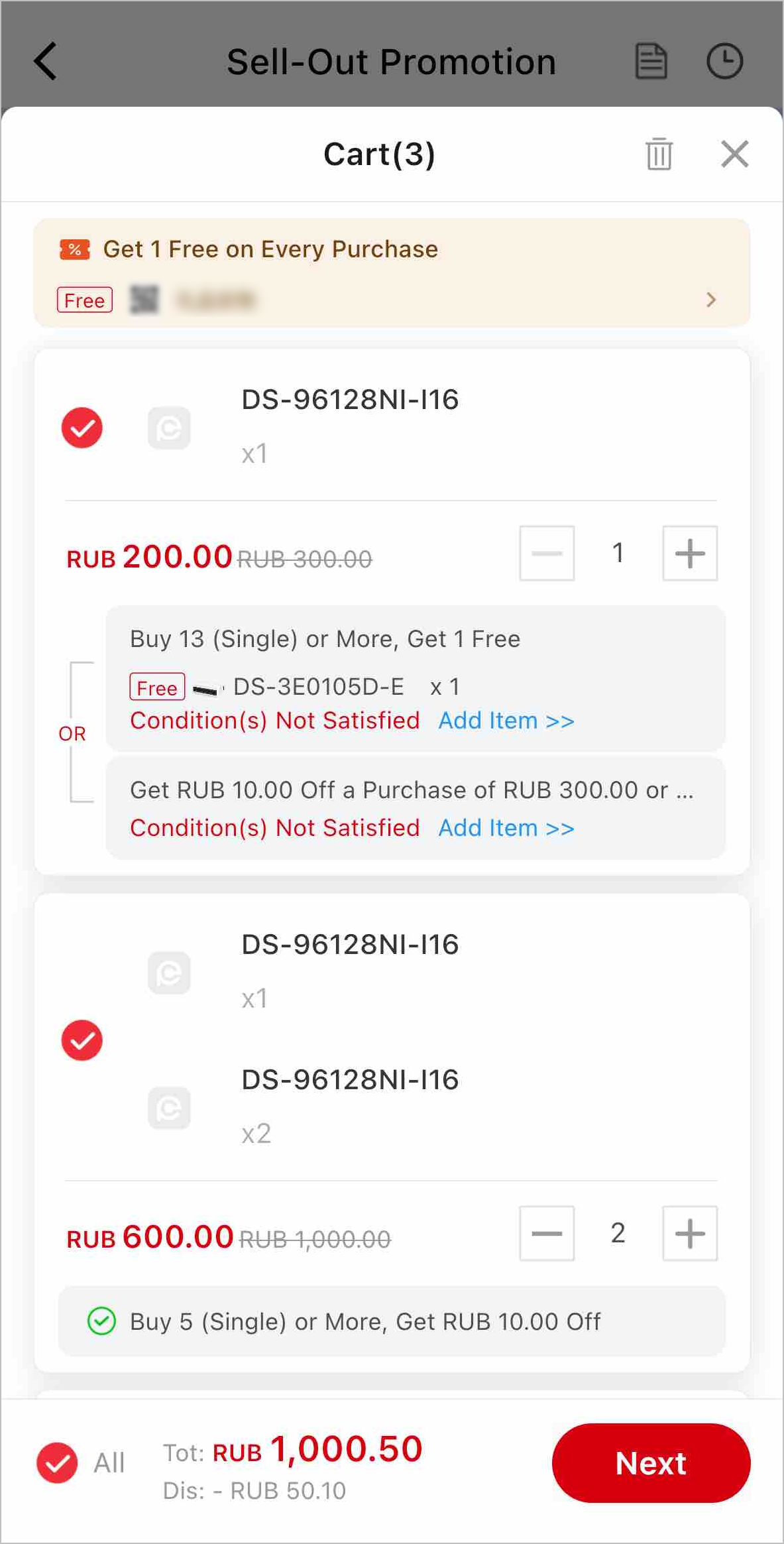
 on the promotion
page, or go to
on the promotion
page, or go to 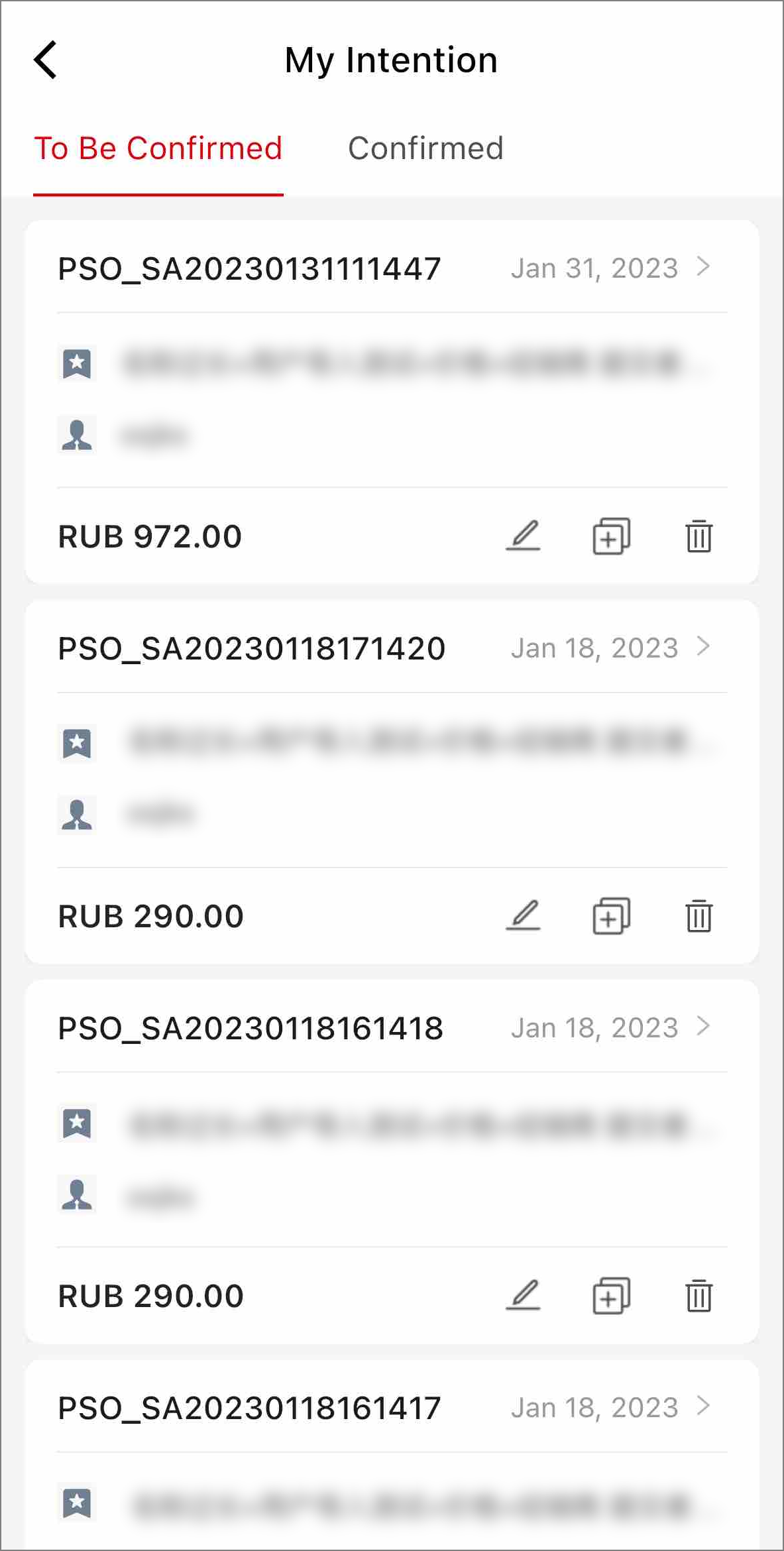
Step 2: Providers Confirm Intentions from Buyers
If you are a distributor or reseller who is on the provider list for the sell-out promotion, you will be able to receive purchase intentions. You can decide whether to confirm a purchase intention, so the submitter can come to you and purchase the products.
For Providers: Confirm Intentions Using the Portal
-
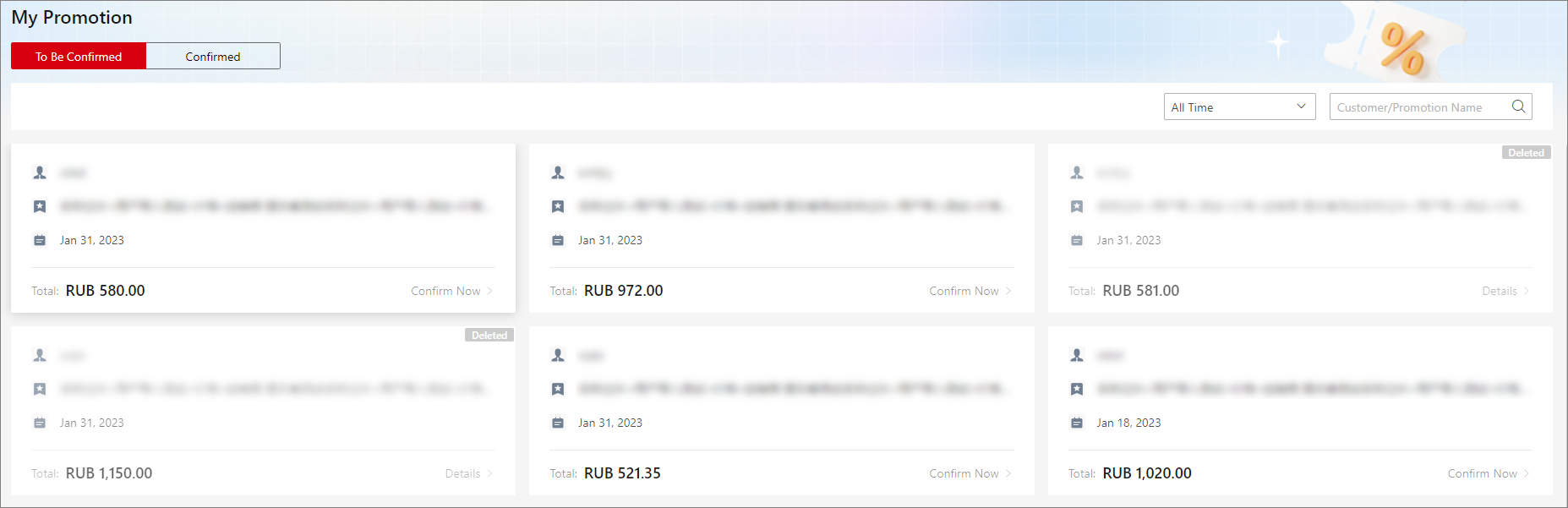
Click .
Figure 7 My Promotion -
Click an intention card, check the intention details (product list, promotional discount, total amount after discount, etc.), and then click Confirm to confirm the intention.
For confirmed intentions, you can click Export to export them to XLSX files.
Intention Details (To Be Confirmed)Intention Details (Confirmed)
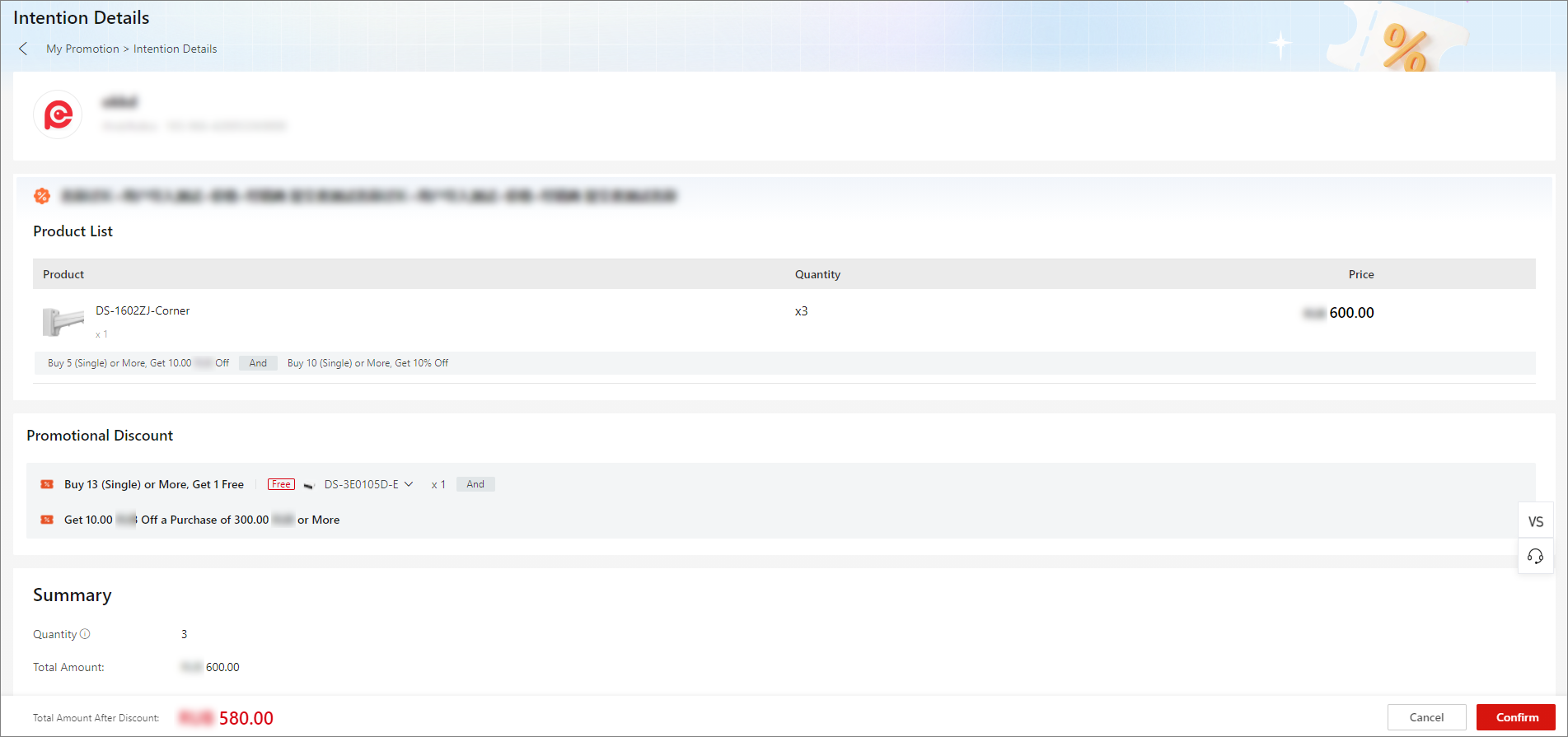
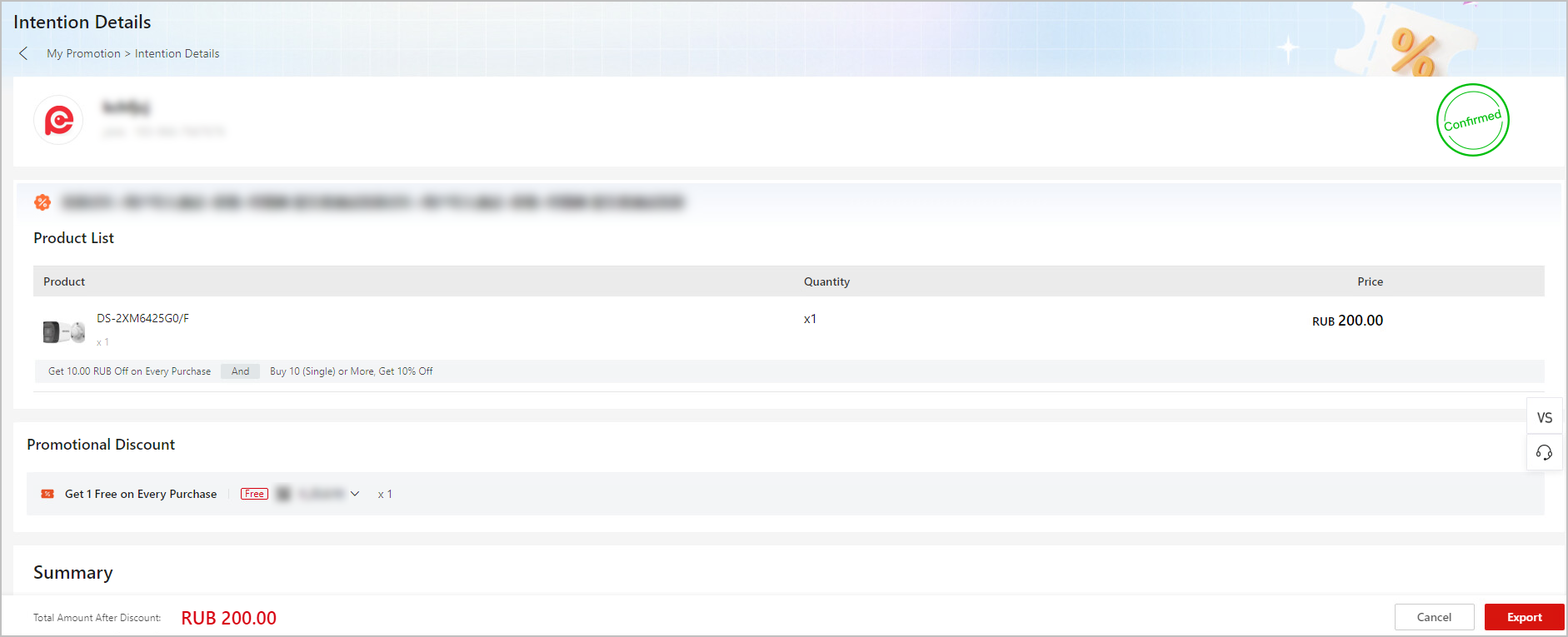
For Providers: Confirm Intentions Using the Mobile Client
-
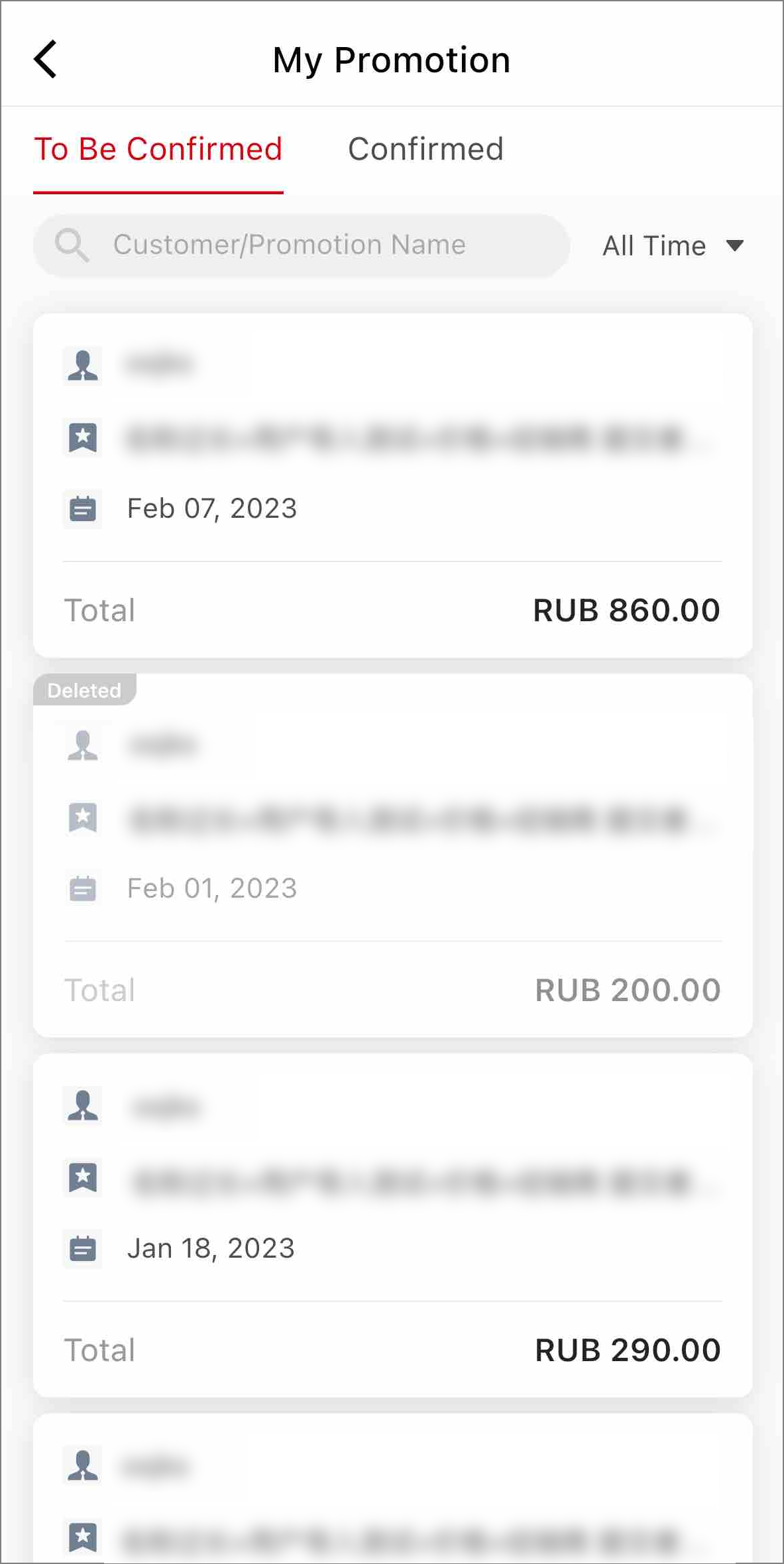
Tap .
Figure 8 My Promotion -
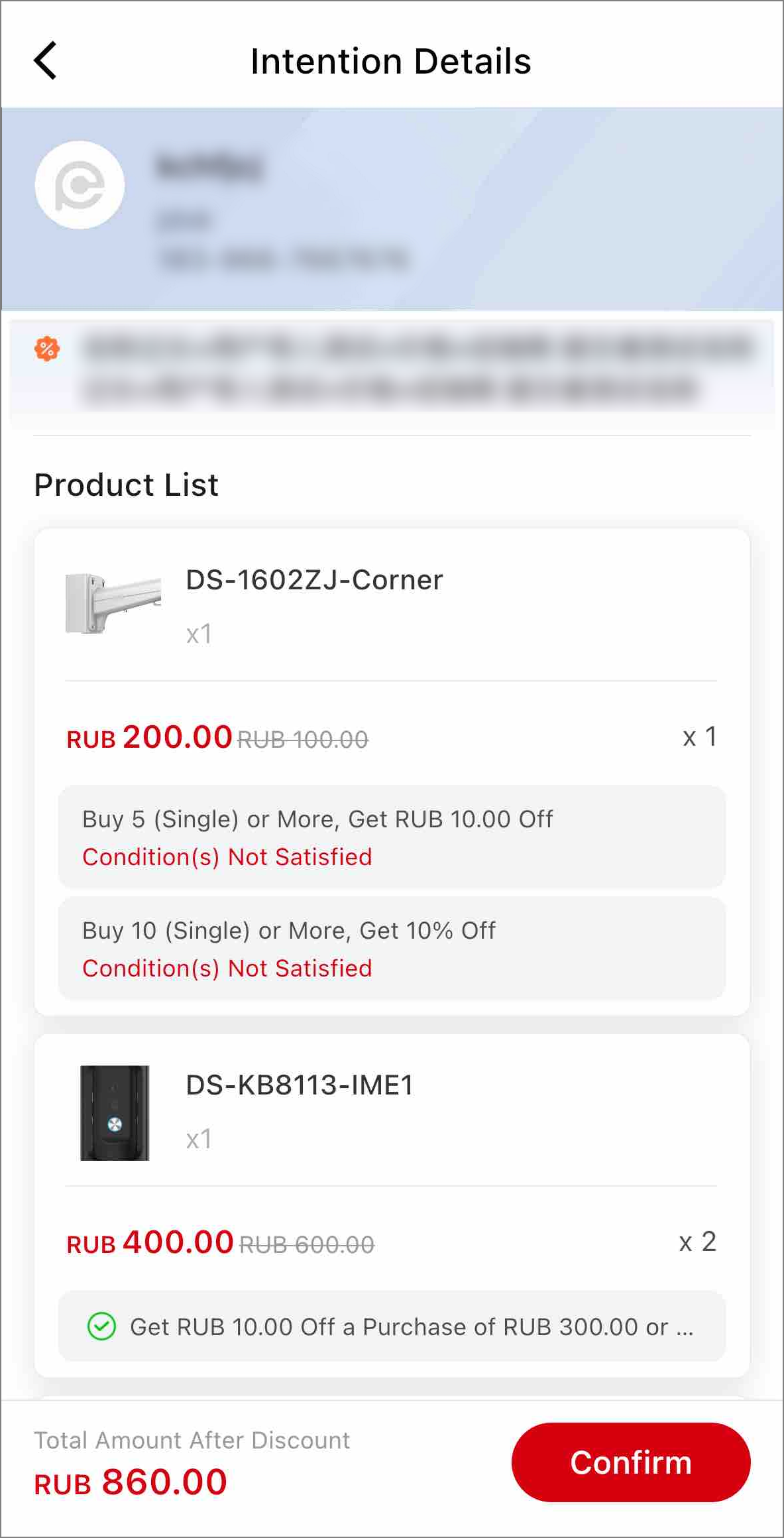
Tap an intention card, check the intention details (product list, promotional discount, total amount after discount, etc.), and then tap Confirm to confirm the intention.
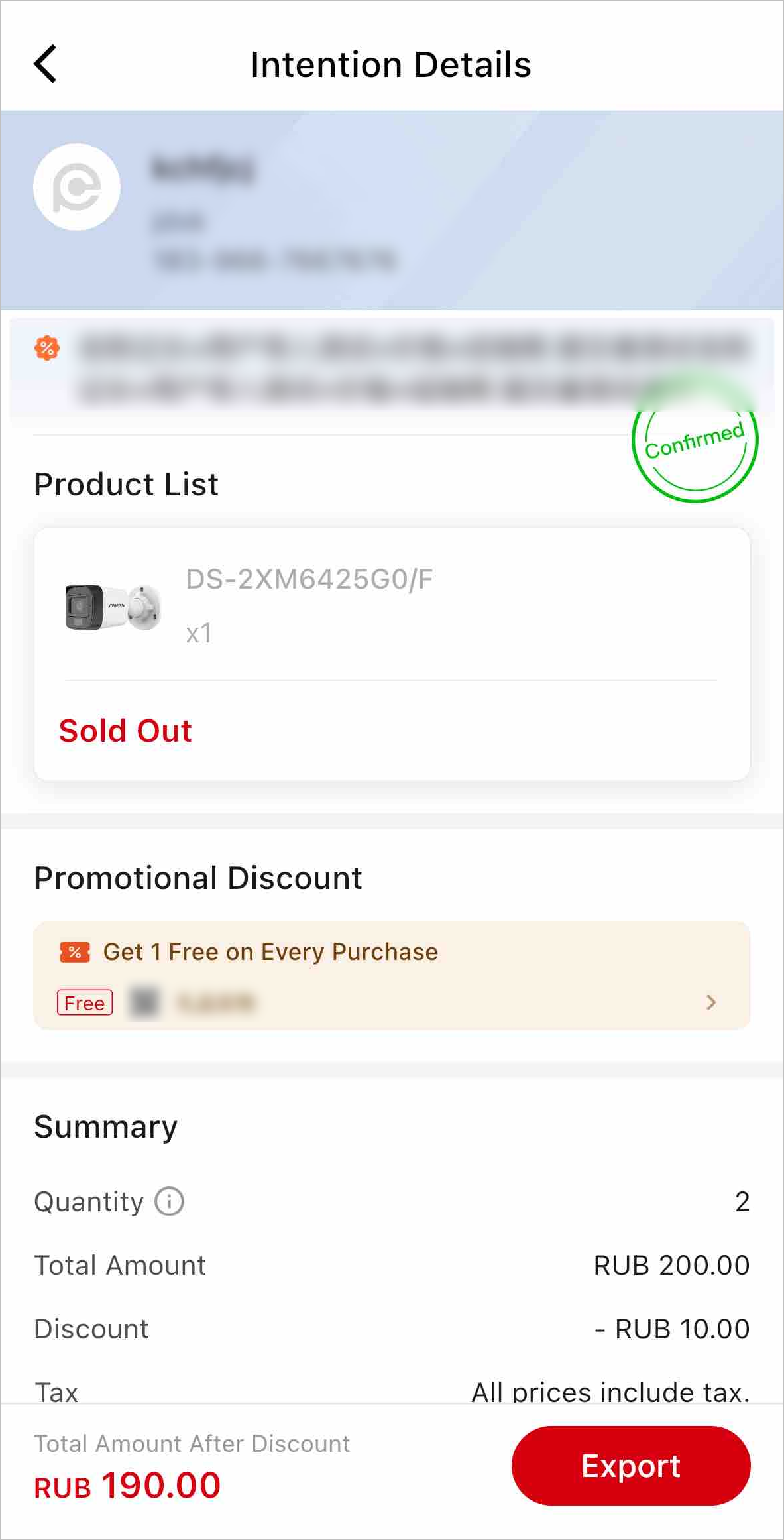
For confirmed intentions, you can tap Export to export them to XLSX files.
Intention Details (To Be Confirmed)Intention Details (Confirmed)