Hik-Connect for Teams Services: Provide VSaaS Solution for Enterprise Customers
Hik-Connect for Teams (HCT) services are offered by the HCT Portal and Mobile Client, which provide a Video Security as a Service (VSaaS) solution for enterprise users.
The availability of HCT services varies depending on the country/region.
What to Offer to Your Customers & Core Benefits for You
|
For What Kind of Customers |
|---|
|
Enterprise users, also for chain stores, offices, communities, etc. |
|
What You Can Offer to Customers |
|
You can help enterprise customers install, set up, and hand over a system using Hik-Partner Pro to provide services like person and permission management, video security, access control, attendance check, and device maintenance. Note
Except for basic features, customers can only pay for the services they need.
|
|
Core Benefits for You (Installers, Service Providers, etc.) |
|---|
|
Overall Instructions for Service Providers to Provide HCT Services
|
Role / Platform |
Description |
Related Topics |
|---|---|---|
|
Service Providers (Installers, etc.) on Hik-Partner Pro |
1. Create a team site and select desired services. |
Step 1: Create an HCT System (Team Site) and Select Desired Services |
|
2. Add devices to the team site. |
||
|
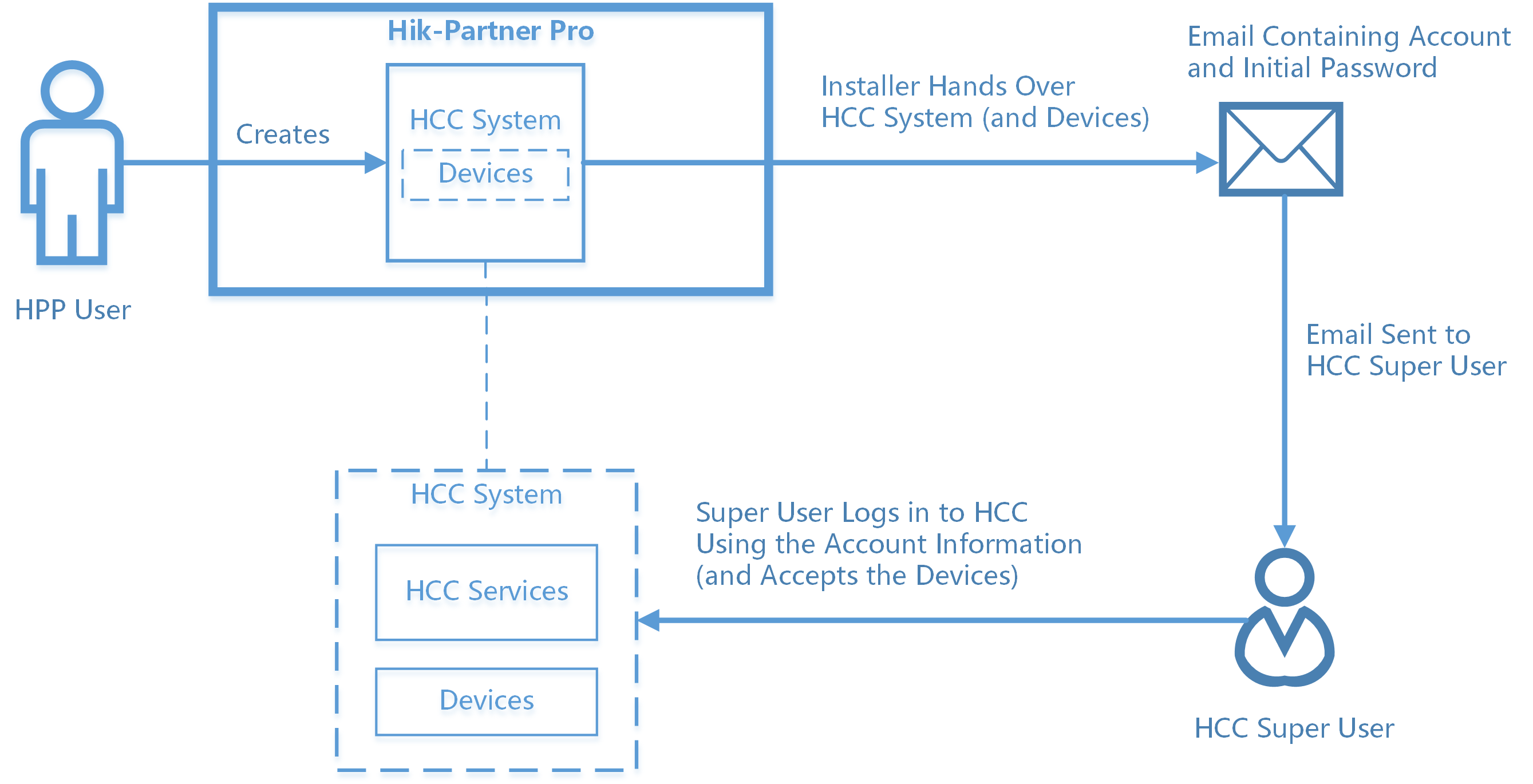
3. Activate the service, configure users, devices & scenarios for the site, and hand over the team site to customers. |
||
|
4. Manage services and access the system to help customers maintain the services. |
||
|
Customers (i.e., Enterprise Users) on Hik-Connect for Teams |
|
Step 1: Create an HCT System (Team Site) and Select Desired Services
Add a Team Site Using the Portal
-
Go to .
-
Switch to Site Mode.
-
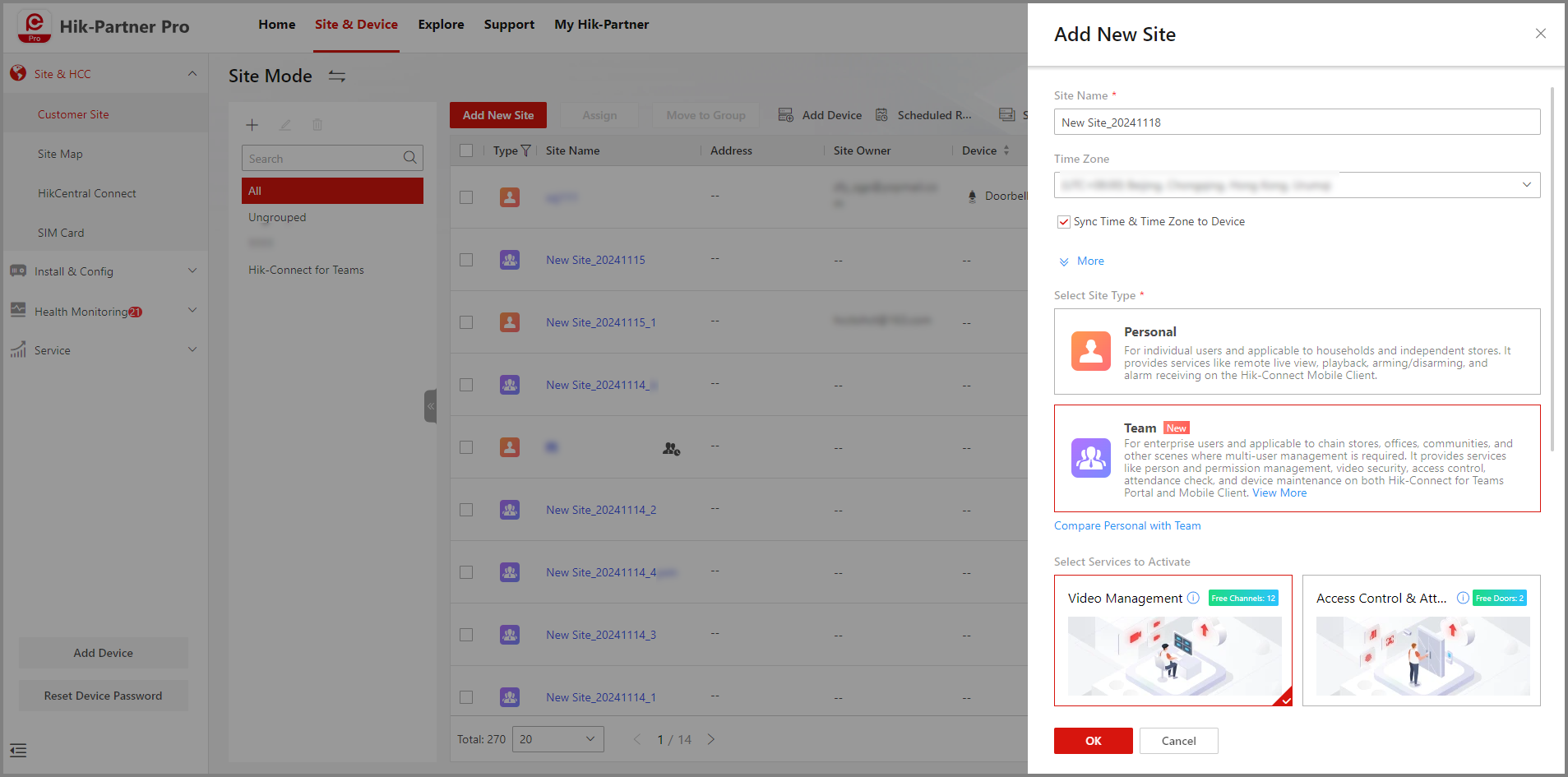
Click Add New Site.
-
Set the site name and time zone.
-
Click More to set more information such as the scene and site address.
-
Select Team as the site type.
-
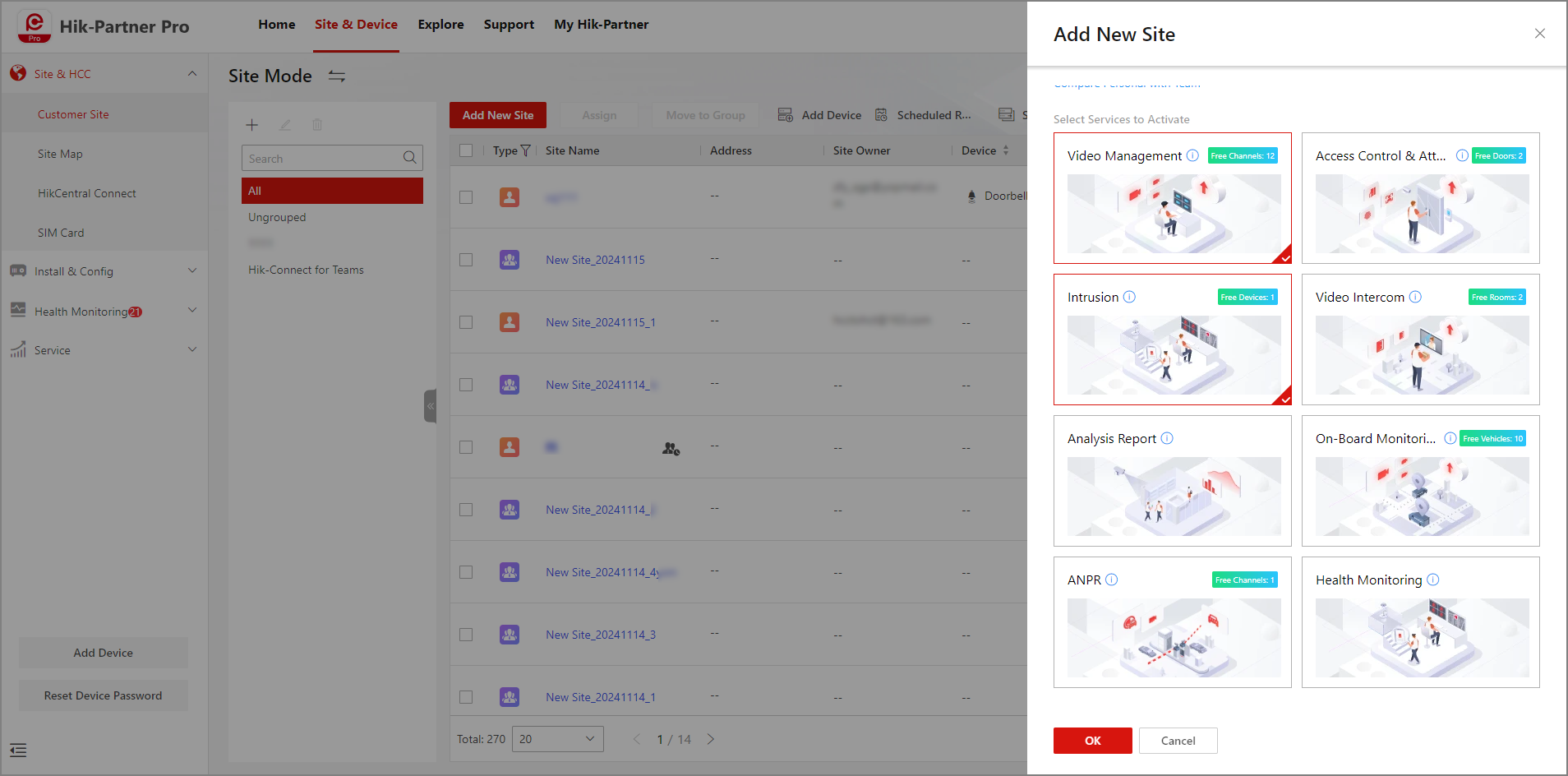
Select desired services to activate for your customer.
NoteFor some services, Hik-Partner Pro offers both the capacity-umlimited trial for some time period and the free lifetime capacity. Details vary depending on the country/region.
-
Click OK.
Create a Team Site Using the Mobile Client
-
Go to Site.
-
Tap Add Site.
-
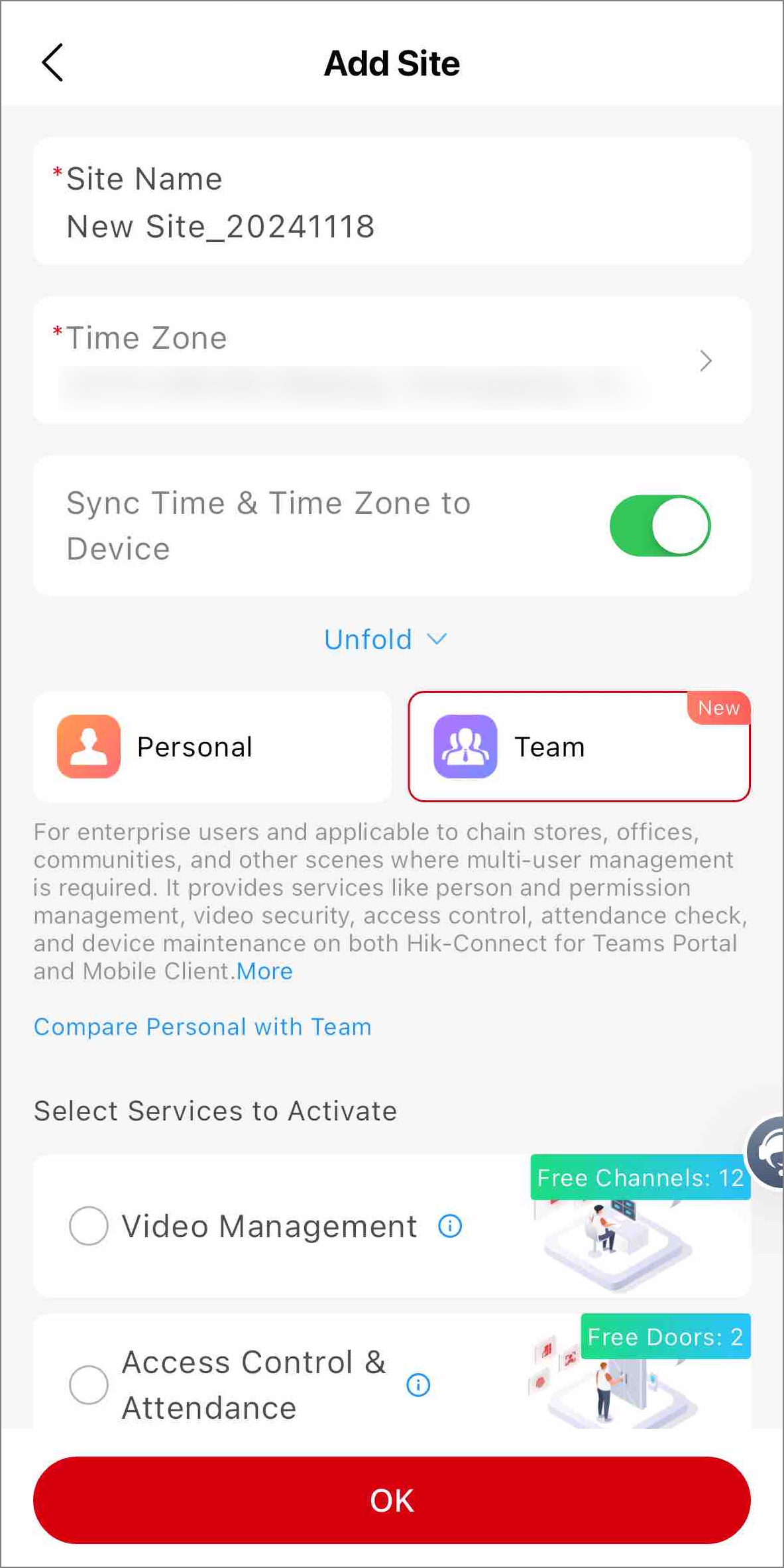
Set the site name and time zone.
-
Tap Unfold to set more information such as the scene and site address.
-
Select Team as the site type.
-
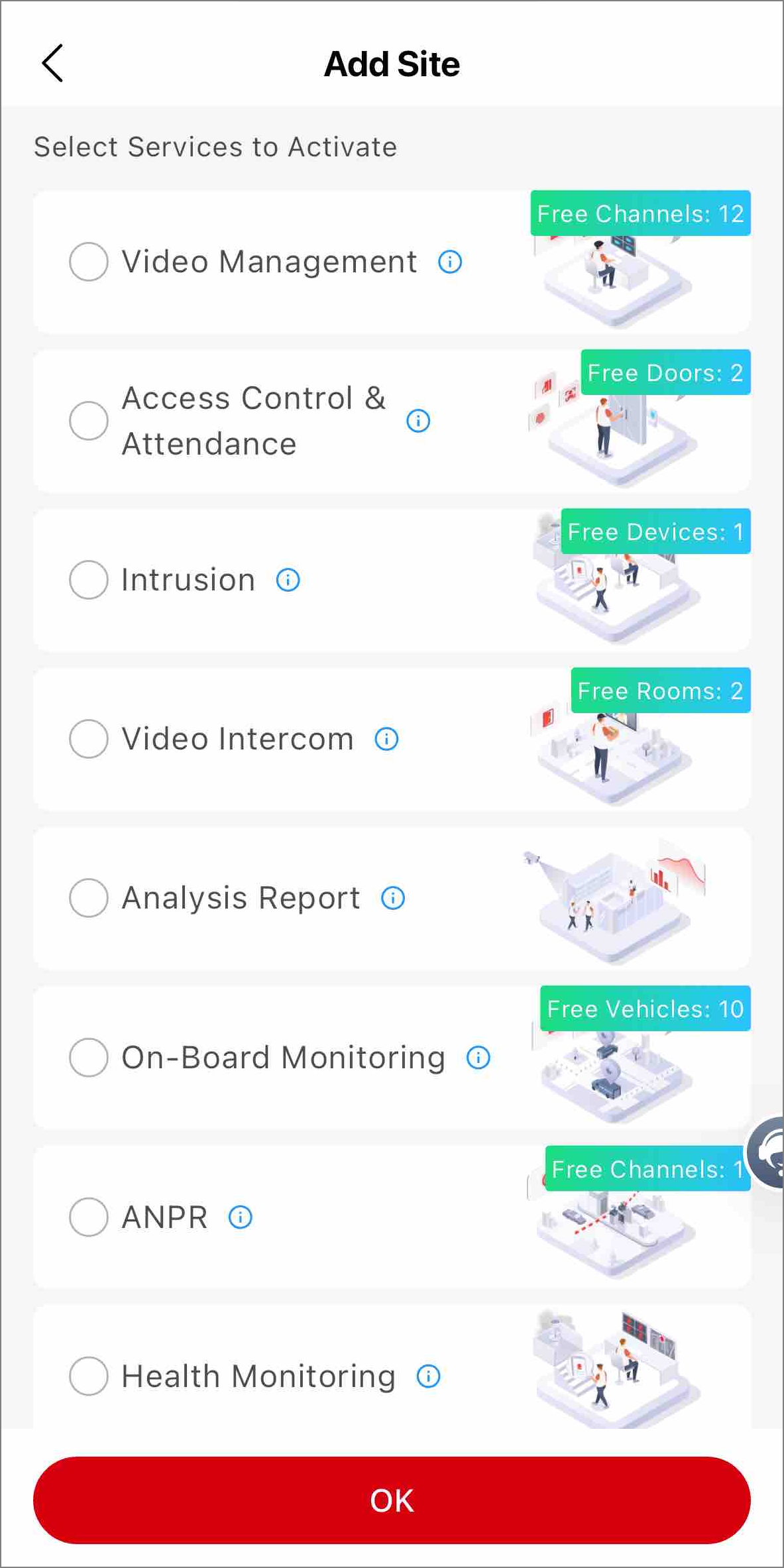
Select desired services to activate for your customer.
NoteFor some services, Hik-Partner Pro offers both the capacity-umlimited trial for some time period and the free lifetime capacity. Details vary depending on the country/region.
-
Tap OK.
Step 2: Add Devices to Team Site
After you create a team site, you will immediately enter the Add Device process. Or you can add devices later. The team sites only supports adding device by scanning QR codes, by entering the serial numbers, and via the LAN (the SADP tool). For detailed instructions, refer to Quick Start Guide: Add Devices to Hik-Partner Pro for Remote Maintenance.
Step 3: Get HCT Packages
You can purchase the health monitoring packages online in the Service Market in Hik-Partner Pro, or purchase a service key from the local distributor first and then activate by the service key to get the purchased service packages.
The supported purchase methods vary depending on your country/region. Contact the local distributor for details.
Purchase Online Using the Portal
-
Go to .
-
In the Hik-Connect for Teams Service area, click Online Purchase to enter the Purchase Hik-Connect for Teams Service Package page.
-
Set the package quantity of the services your customer needs.
- Video Management Service Package
-
One monthly/annual package for one channel. You can select whether to include the cloud storage service.
- On-Board Monitoring Service Package
-
One monthly/annual package for one vehicle.
- Intrusion Service Package
-
One monthly/annual package for one alarm device.
- Access Control & Attendance Service Package
-
One lifetime/annual package for 1/5/10 doors.
- Video Intercom Service
-
One annual package for one room.
- Health Monitoring Service Package
-
One monthly/annual package for one device.
NoteYou can also activate the health monitoring service for devices on team sites using the health monitoring packages for personal sites.
-
Enter the distributor invitation code and the code from Hikvision sales.
NoteBy entering the codes when you purchase services online, you may get some discounts and the distributor/reseller can earn some rebates. For details, refer to How to Earn Commissions as a Distributor/Reseller.
-
Enter your VAT number. The VAT number will be displayed in the payment receipt.
-
Select Credit/Debit Cards as the payment method.
-
Click Checkout to enter the payment page and finish the payment.
Get Packages by Service Key Using the Portal
-
Contact your local distributor and purchase a service key from them.
-
Go to .
-
In the Hik-Connect for Teams Service area, click Activate by Service Key.
-
In the Service Key field, enter the service key.
-
Click OK.
Get Packages by Service Key Using the Mobile Client
-
Contact your local distributor and purchase a service key from them.
-
Go to .
-
In the Hik-Connect for Teams Service area, tap Activate by Service Key.
-
In the Service Key field, enter the service key.
-
Tap OK.
Step 4: Activate/Renew HCT Services
HCT services activation or renewal via the Hik-Partner Pro means to only expand the service capacities for customer's HCT system. Customers need to choose which resources to utilize the capacities on their HCT Portal or Mobile Client.
Activate/Renew HCT Services Using the Portal
-
Go to , and click a team site to enter the site details page.
-
Click the service you are to activate/renew, and click Expand or click Activate first and then Expand.
-
Set the quantity and (if any) service duration.
-
Click Confirm to complete, or Purchase and Activate if remaining packages are insufficient.
Activate/Renew HCT Services Using the Mobile Client
-
Go to Site, and tap a team site to enter the site details page.
-
Tap the service you are to activate/renew, and tap Activate and Expand or tap Activate first and then Activate and Expand.
-
Set the quantity and (if any) service duration.
-
Tap Confirm to complete, or Purchase and Activate if remaining packages are insufficient.
Step 5: Hand Over a Team Site
Hand Over a Team Site Using the Portal
-
Go to , and switch to Site Mode.
-
To complete more configurations (users, devices and scenarios settings) before the handover, click Enter Hik-Connect for Teams to enter the HCT system of your customer.
-
Find the team site, and click in the Operation column, or click the team site to enter its details page and click Hand Over by Transferring.
-
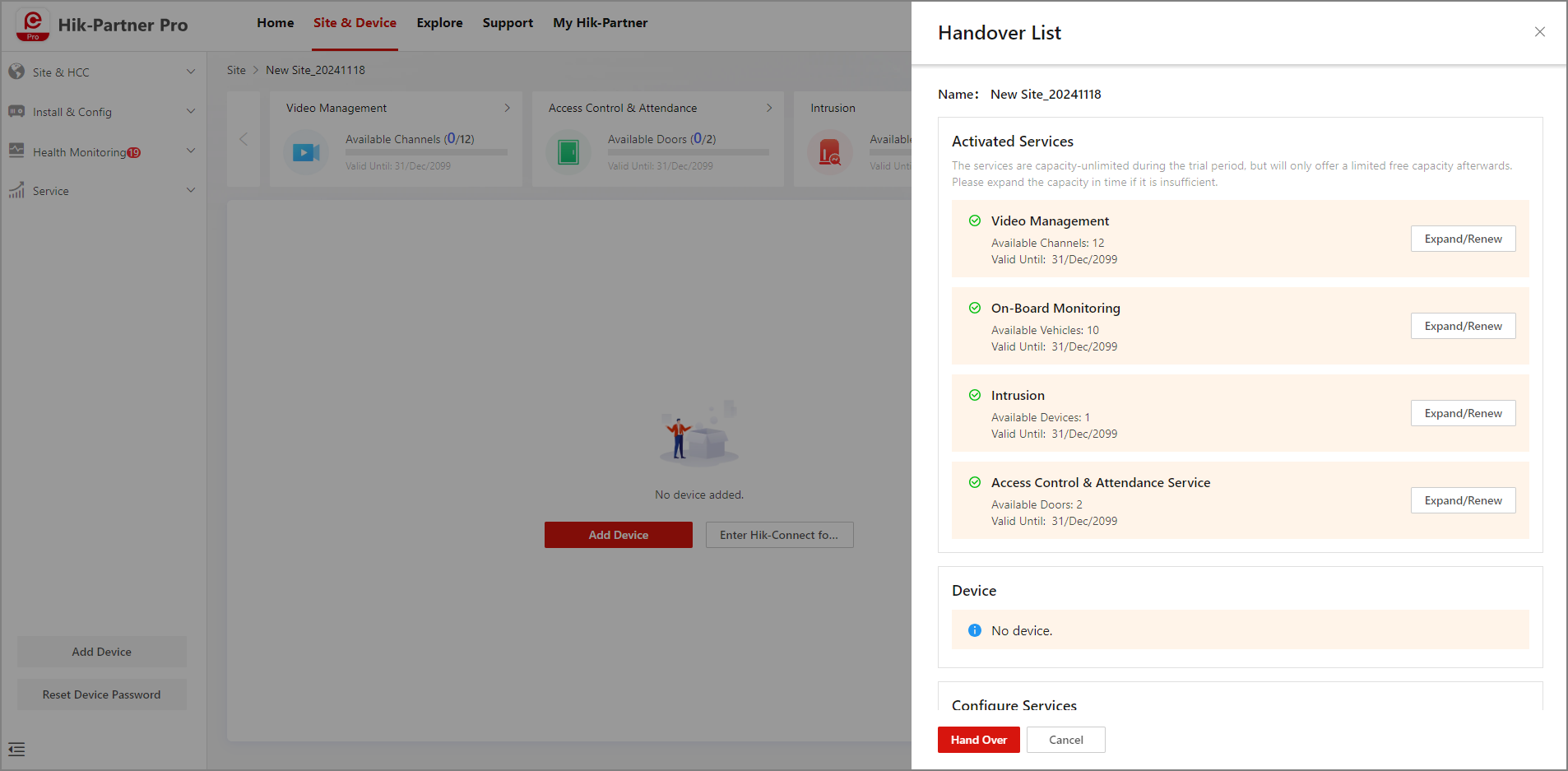
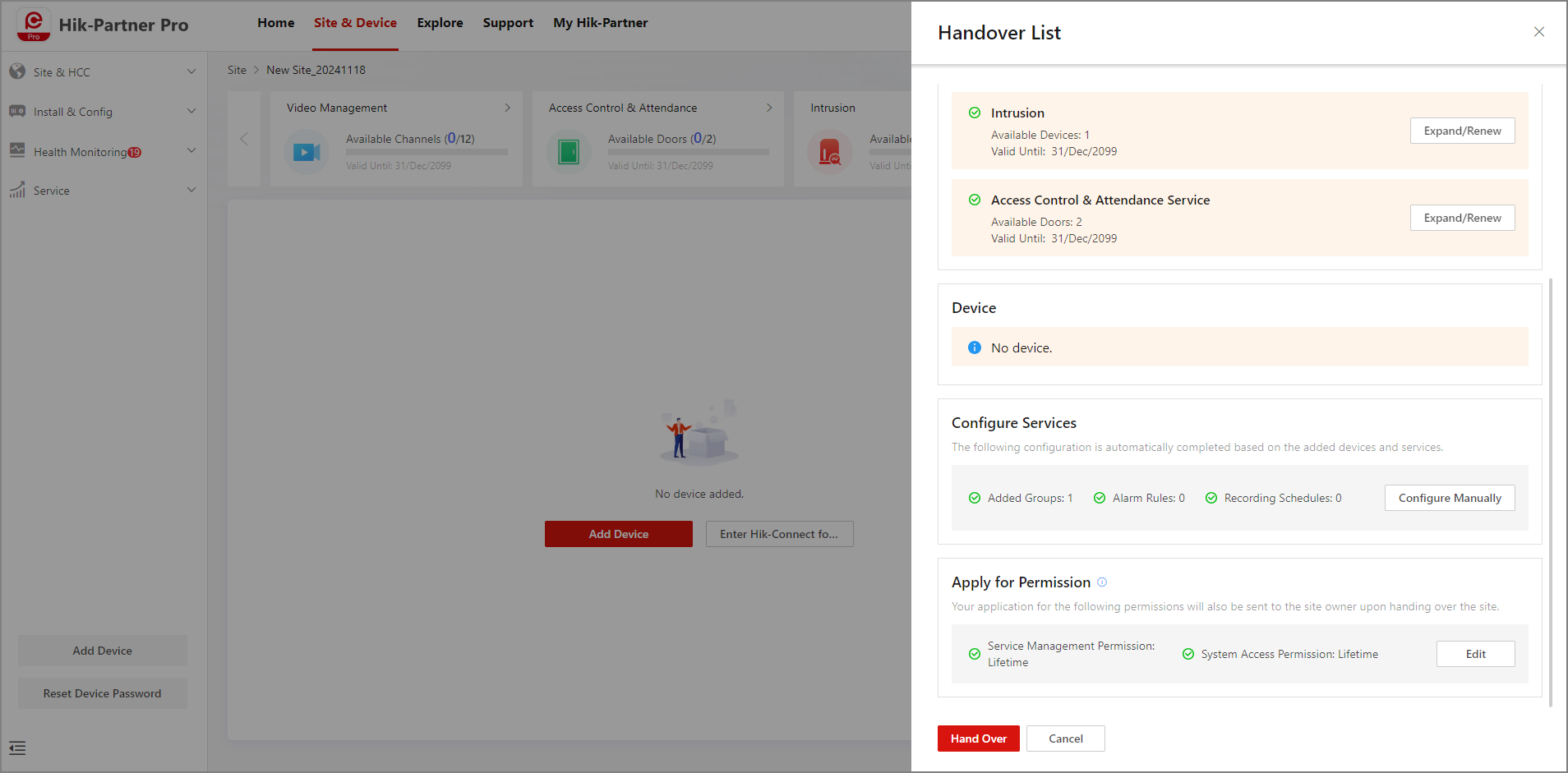
Check and make adjustments to the handover list: the activated services and their capacities, added devices, completed configurations, and the permissions you are to apply for from the customer.
Note-
With the service management permission, you can activate, renew, and manage HCT services for this team site via Hik-Partner Pro.
-
With the system access permission, you can access the HCT system remotely to help add, maintain, and configure devices.
-
-
Click Hand Over.
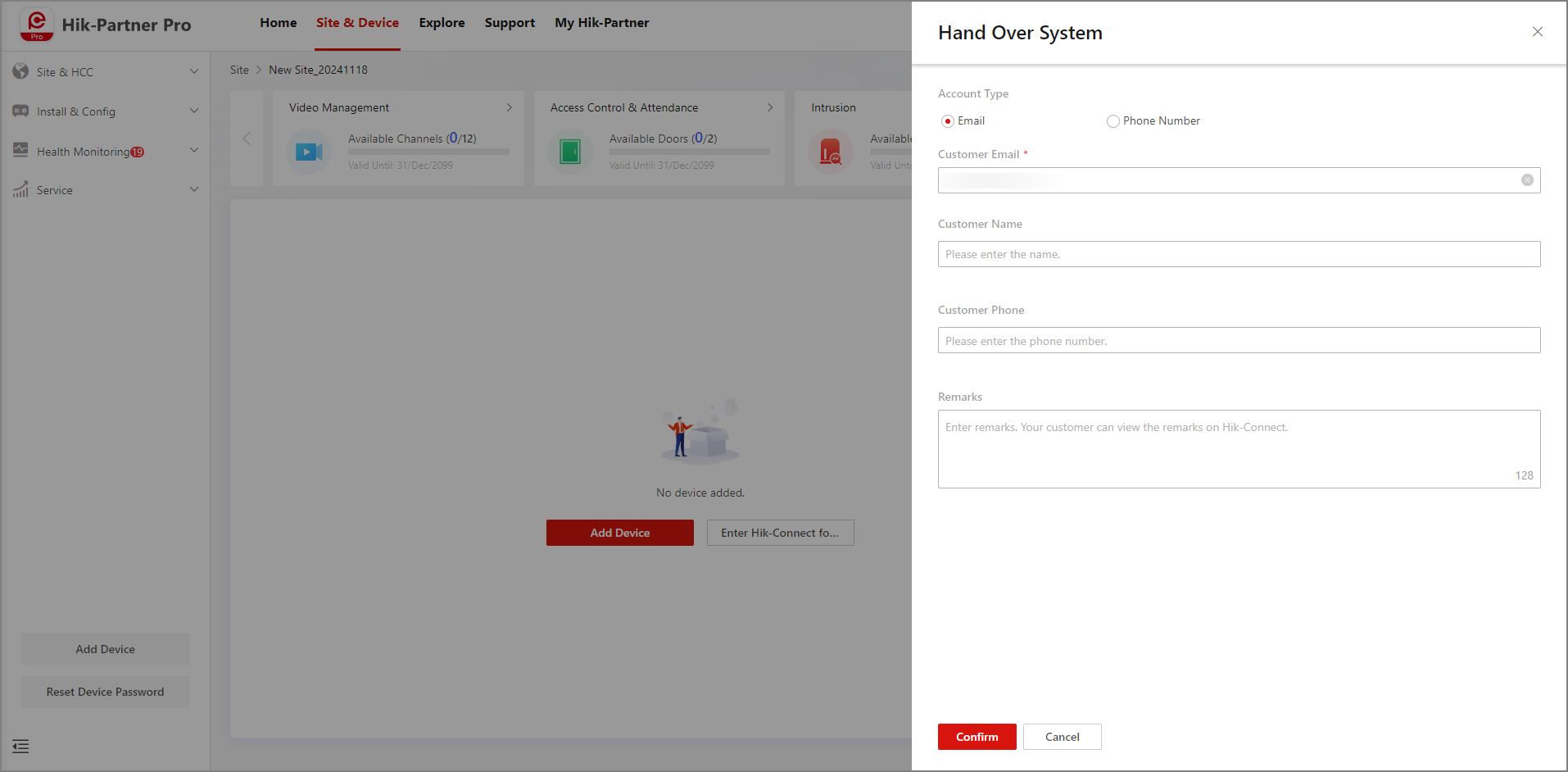
-
Select Email or Phone Number, and set customer information for handover.
-
Click Confirm. Your customer will receive the handover request via email or SMS.
 in the Operation column,
or click the team site to enter its details page and click
in the Operation column,
or click the team site to enter its details page and click
Hand Over a Team Site Using the Mobile Client
-
Tap Site.
-
Find and tap the team site to enter its details page, and tap Hand Over Site.
-
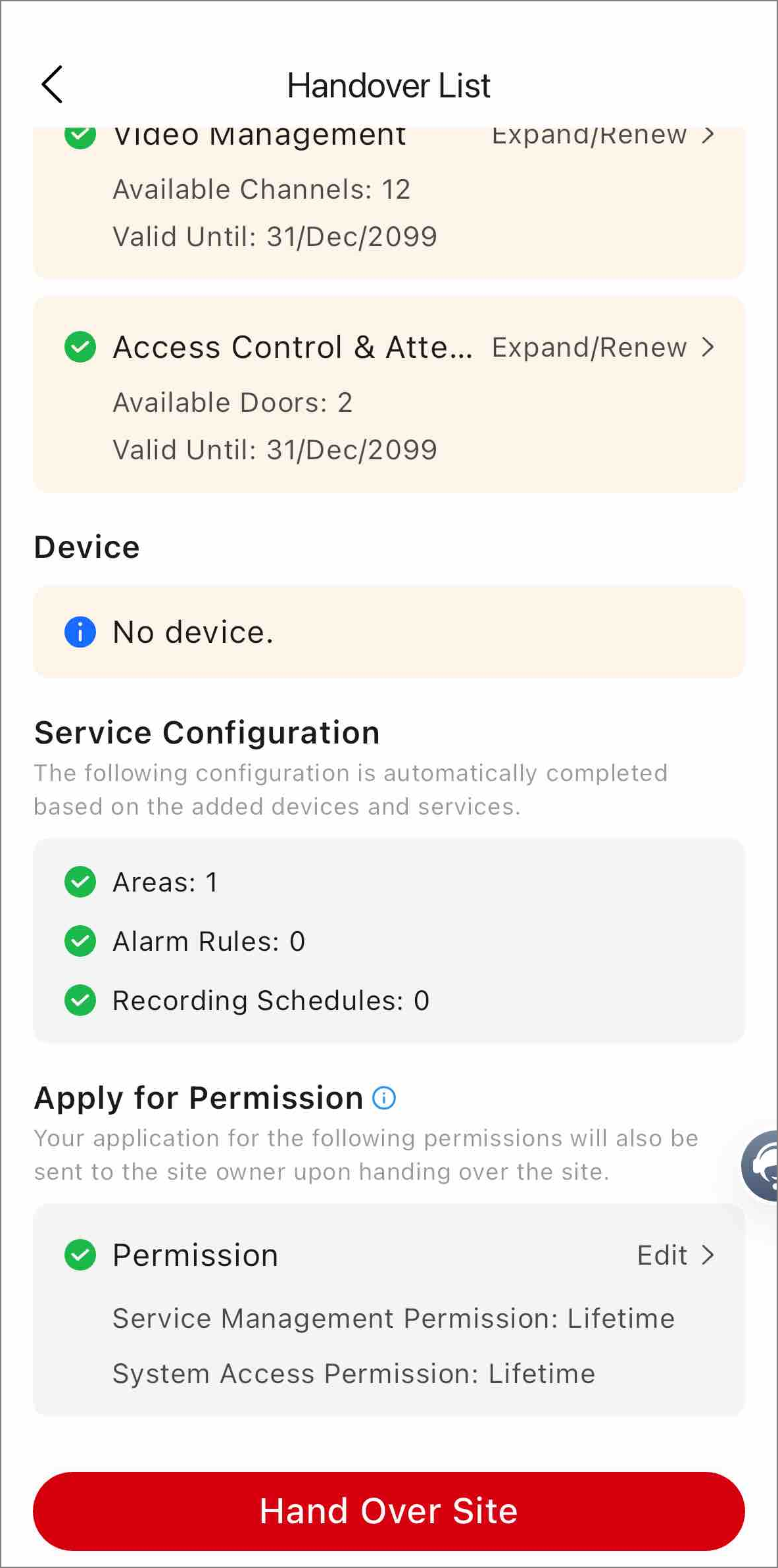
Check and make adjustments to the handover list: the activated services and their capacities, added devices, completed configurations, and the permissions you are to apply for from the customer.
Note-
With the service management permission, you can activate, renew, and manage HCT services for this team site via Hik-Partner Pro.
-
With the system access permission, you can access the HCT system remotely to help add, maintain, and configure devices.
-
-
Tap Hand Over Site.
-
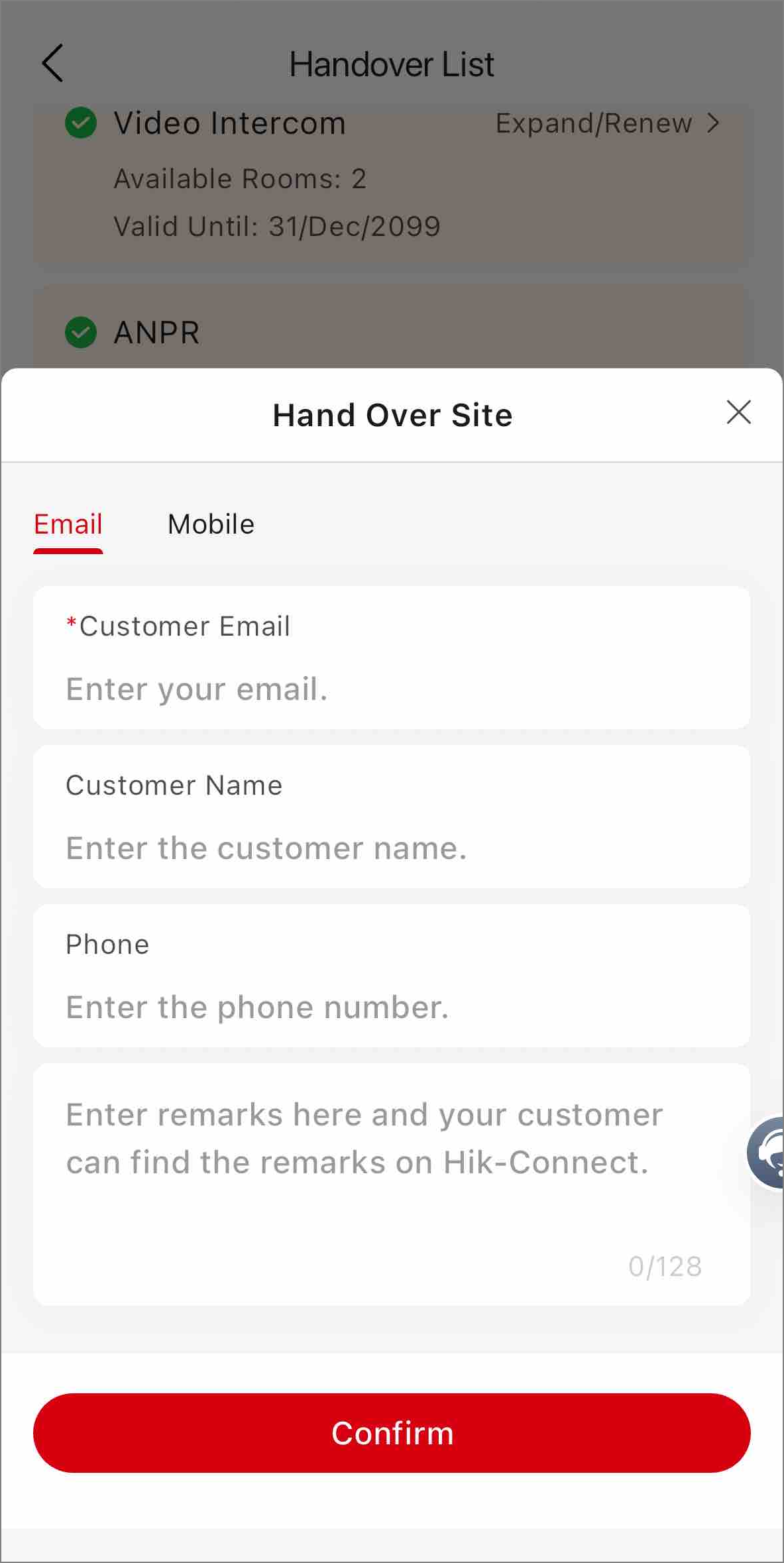
Select Email or Phone Number, and set customer information for handover.
-
Tap Confirm. Your customer will receive the handover request via email or SMS.
Step 6: Manage Devices, Services & Users for a Team Site
Before you hand over the team site, or after you hand it over and if you are granted the service management permission and the system access permission by your customer, you can help manage devices, services and users for their team site.
|
Installer's Permission |
With the Permission, Installers Can |
Instructions |
|---|---|---|
|
Service Management Permission |
View service package information of the system, including activated service types, activated service quantities, expiry times, and used service quantities. |
Enter a team site's details page to view its service details:
|
|
Activate services, renew the activated services, and expand the service capacity for the system. |
||
|
System Access Permission |
|
Enter a team site's details page to add and configure devices:
|
|
Access the system remotely as an administrator. All device configuration and operation permissions, and all system configuration and management permissions. |
Portal:
|
Step 7: Manage HCT Services for All Team Sites
Manage HCT Services for All Team Sites Using the Portal
Go to .
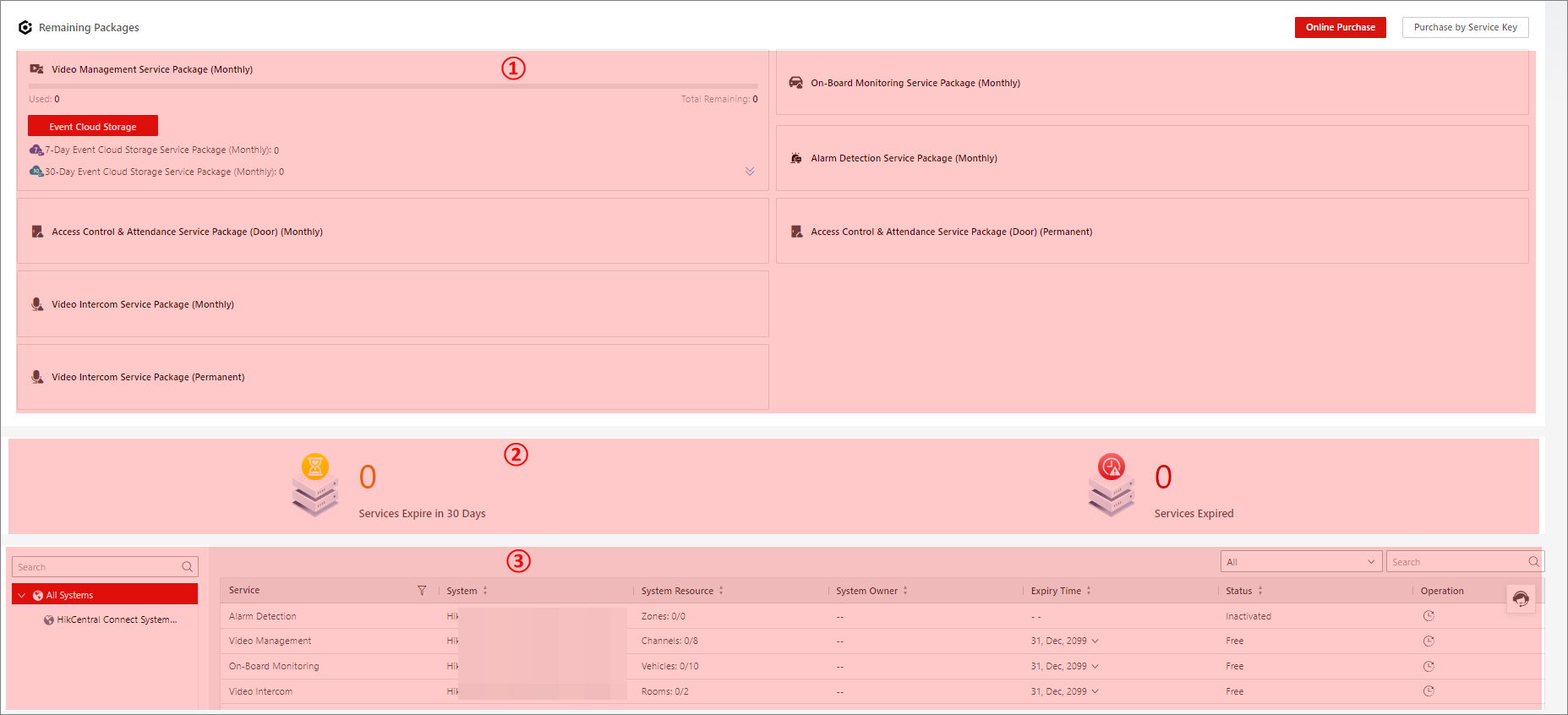
|
Area |
Operation |
Description |
|---|---|---|
|
1 |
Check Remaining Packages & Purchase More |
You can check the number of used and remaining packages for each service. If needed, click Online Purchase or Activate by Service Key to get more packages. |
|
2 |
View Overall Package Expiration Status |
You can view the overall number of services that are going to expire within 30 days and those that have already expired. Click to view details of these services in the list below. |
|
3 |
Activate Service |
Click in the Operation column to activate the service for the corresponding HCT team site. |
 in the
Operation column to activate the service for the
corresponding HCT team site.
in the
Operation column to activate the service for the
corresponding HCT team site.Manage HCT Services for All Team Sites Using the Mobile Client
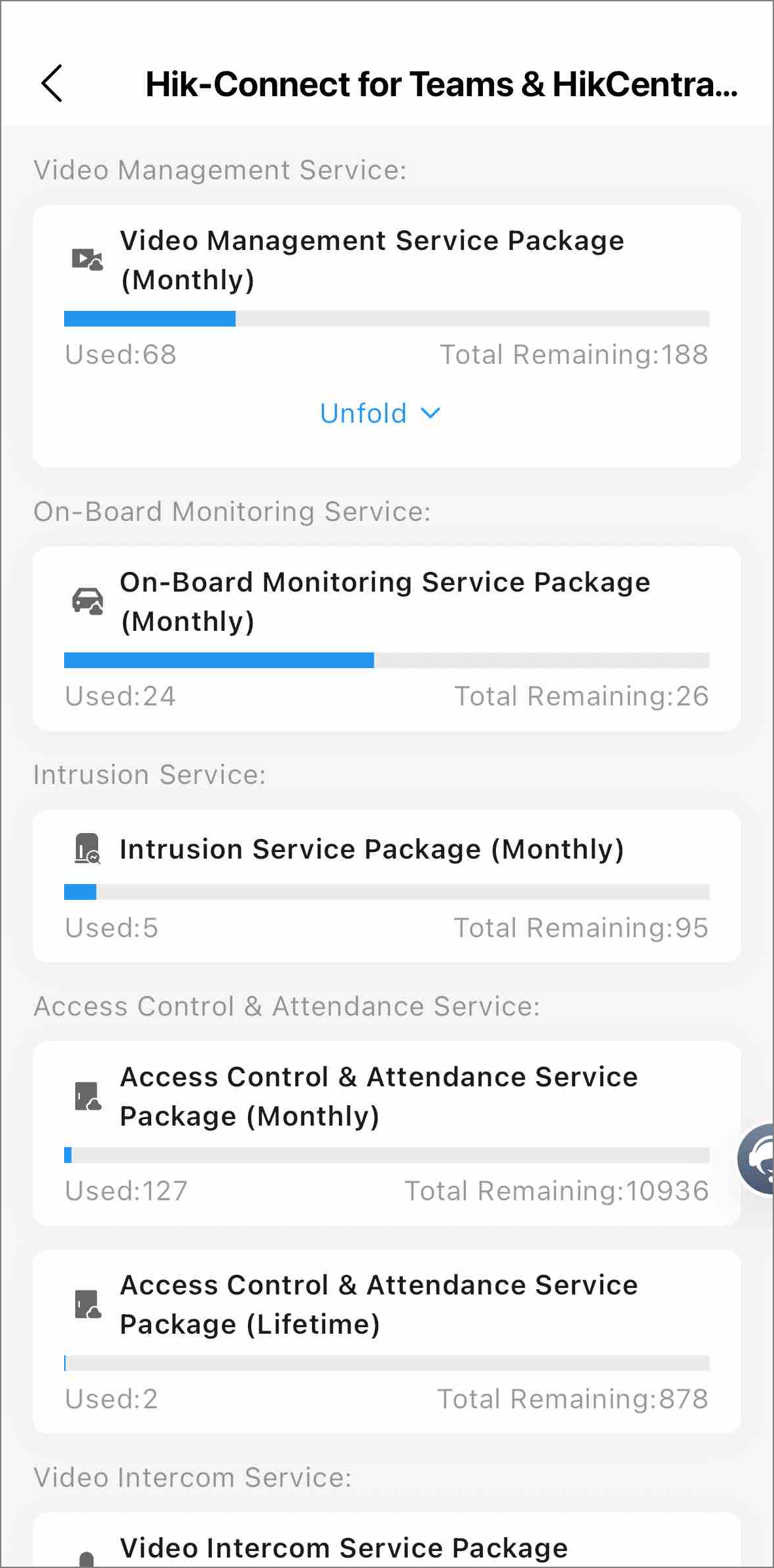
Tap Me at the bottom right, tap My Service, and tap Detail in the Hik-Connect for Teams Service section.
You can check the number of used and remaining packages for each service.